Add a calendar to a Confluence page
Insert the Event Planner macro to put a calendar on a Confluence page or blog post. Once the page is published, people plan on the page itself, without editing it.
Before you begin
- Event Planner for Confluence is installed on your site. See Get started.
- You need permission to edit the page.
Insert the macro
-
Open the page and select Edit.
-
Type
/event plannerand select Event Planner. You can also select Insert (+) and search for Event Planner.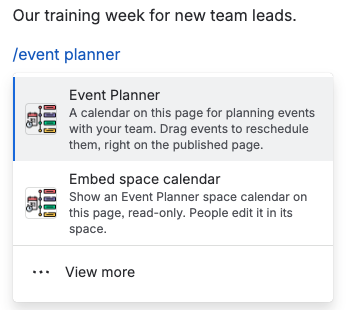
-
Publish the page.
Result: The calendar appears on the published page. An empty calendar opens with Welcome to Event Planner!, where you can start from scratch, use a template or create the events with AI.
On a page that has never been published, the macro shows Your Event Planner is almost ready instead of a calendar. Publish the page first. After that, the calendar works both on the published page and while you edit the page.
Plan on the published page
You don't need edit mode to work with the calendar. Everyone who can edit the page can:
- add events with New event, or by selecting a time or day,
- drag events to move or resize them,
- change, delete and undo events,
- change the calendar settings and lock the calendar.
Changes are saved at once for everyone. They don't create a new page version.
People who can only view the page see the calendar with a View only label. They can open events, switch views and export the events.
Several calendars on one page
Each macro is its own calendar with its own events and settings. To show two plans side by side, insert the macro twice. To show the same calendar on several pages, use a space calendar and embed it.
Copy, move and export the page
- Copy the page with its attachments, and the copy gets its own calendar with the same events. Changes to one don't affect the other.
- Move the page to another place or space, and the calendar moves with it.
- Export the page to PDF or Word, and the calendar appears as a list of events by day, with day headers, locations, links and people.
Remove the calendar
- Edit the page and select the macro.
- Select Remove (the trash icon) in the macro toolbar, then publish the page.
The events are stored in a file attached to the page, so they stay in the page's attachments until you delete that file. See Data security and privacy.
Related
- Add an event: the event form and its fields.
- Plan an offsite agenda on a page: a full example from template to finished agenda.
- Permissions: who can see and change a page calendar.