Embed a space calendar on a page
Use the Embed space calendar macro to show a space calendar, read-only, on any Confluence page. For example, put the team's launch calendar on its home page.
Before you begin
- You need permission to edit the page.
- The space calendar exists, and you can see it. See Space calendars.
Embed the calendar
-
Open the page and select Edit.
-
Type
/embed space calendarand select Embed space calendar. -
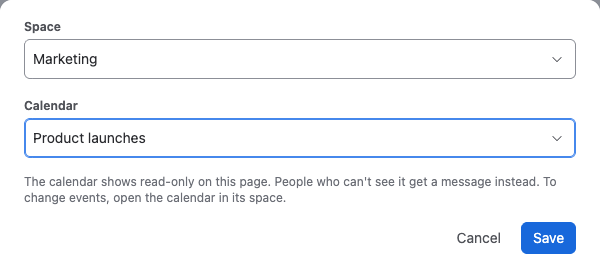
In the dialog that opens, pick the Space. It starts with the page's own space.
-
Pick the Calendar. Each calendar shows its owner and last update, so you can tell calendars with the same name apart.
-
Select Save, then publish the page.
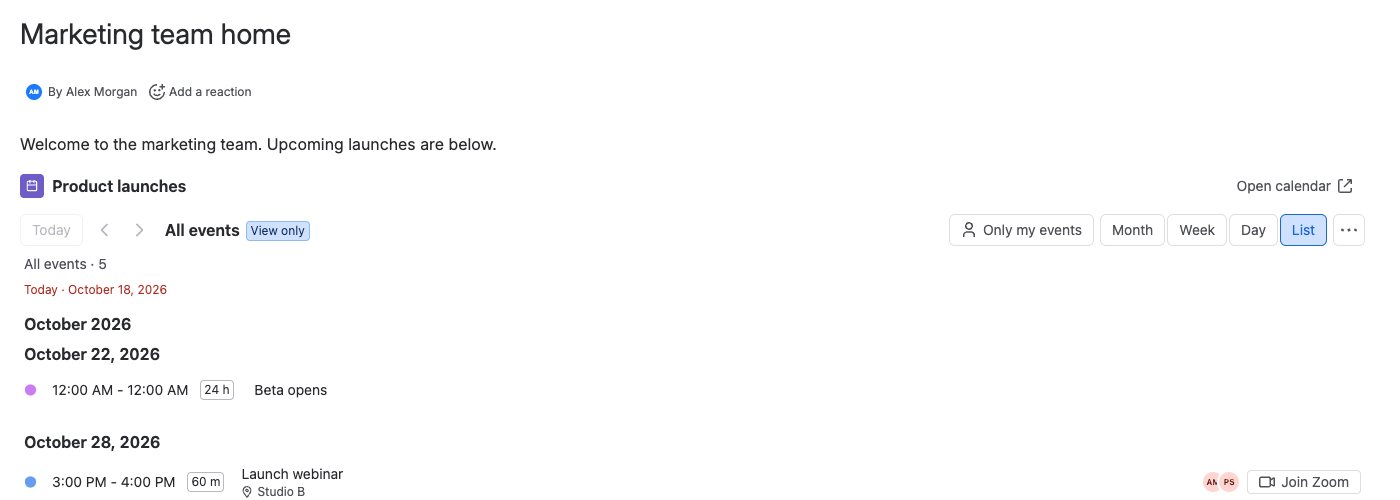
Result: The page shows the calendar with its name and an Open calendar button.
How the embed behaves
- It's read-only. To add or change events, select Open calendar and work in the calendar's own page.
- It's always current. Changes in the space calendar show in every embed.
- It keeps restrictions. People who can't see the calendar get You can't see this calendar instead. The message doesn't show the calendar's name or owner.
- It exports. A PDF or Word export of the page lists the calendar's events, for the person exporting.
To show a different calendar, edit the page, select the macro and choose Edit (the pencil icon).
Related
- Choose who can see and change a space calendar: restrictions apply to embeds too.
- Share a team calendar across a space: a full example with an embed on the team's home page.
- Views: switch an embed between month, week, day and list.