Plan an offsite agenda on a page
Build a two-day offsite agenda on the Confluence page that already holds the travel details, and keep it current until the last session.
Problem: The agenda lives in a slide deck, the rooms in an email and the call links in a chat. Every change means sending a new version, and people turn up with an old one.
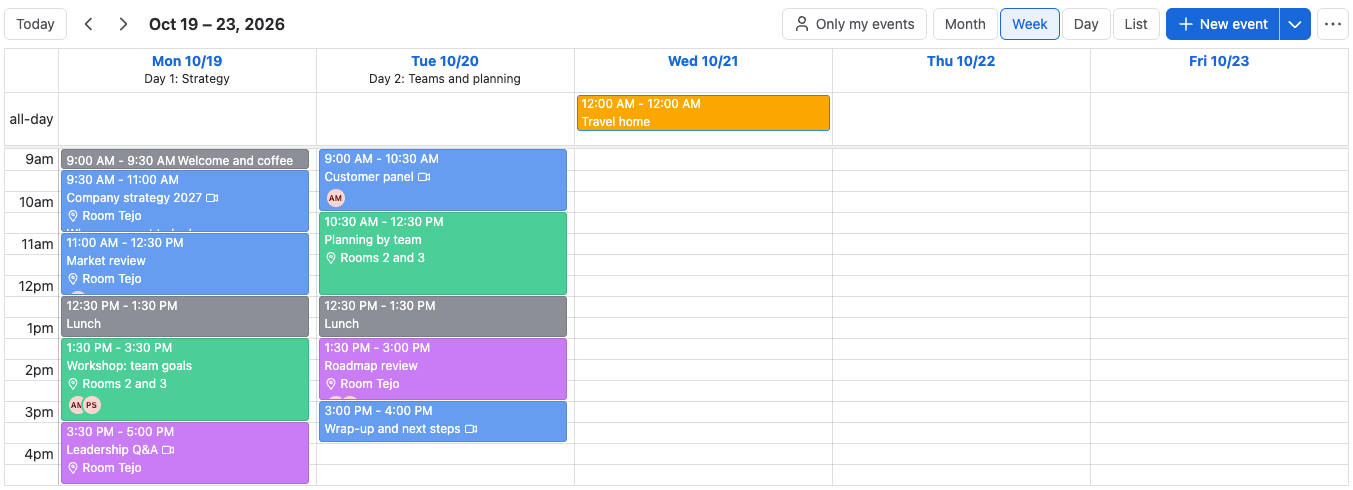
Solution: Put an Event Planner calendar on the offsite page. Fill it from a template or with AI, add rooms and call links to the sessions, and let the organizers change it on the published page.
What you'll need
- Event Planner for Confluence, installed on your site. See Get started.
- Permission to edit the offsite page.
Set it up
- Edit the page, type
/event planner, select Event Planner, and publish the page. - On the welcome screen, select Create with AI. Copy the prompt, and ask your AI assistant for the agenda, for example
A 2-day leadership offsite for 25 people: strategy on day 1, team workshops on day 2, dinner on the first evening. - Pick the first day of the offsite, paste the assistant's JSON, and select Import. No AI assistant at hand? Select Use a template and pick Leadership training instead.
- Open the main sessions and add the room with Add location, and the call link for remote people with Add link or video call.
- Add the session owners with Add people.
- In ••• > Calendar settings, set Hours to the offsite's day, select Hide hours outside this range, and set Calendar height to Auto (full size).
What your team will experience
- Everyone who opens the page sees the agenda, day by day, with a header for each day.
- Remote attendees select a session and Join Zoom meeting (or Teams or Meet).
- Session owners select Only my events to see only their sessions.
- When a session moves, an organizer drags it on the published page. Everyone sees the change at once, with no new version of the page to send.
tip
Once the agenda is final, select ••• > Lock calendar, so nobody moves a session by accident. Attendees can still select ••• > Export… to add the sessions to their own calendars.
Check that it works
- Ask someone who can only view the page to open it. They see the agenda with a View only label, and can open sessions and export them.
- Export the page to PDF. The agenda appears as a list of sessions by day, ready to print.
Related
- Create with AI: the import steps in detail.
- Event details: locations, video calls and people.
- Lock a calendar: freeze the agenda.