Version history, details and trash
Every change to a space calendar is saved as a new Confluence version. See who changed what, restore an earlier version, rename the calendar, or move it to the trash.
Before you begin
- To see the history, you need permission to view the calendar.
- To restore a version or change details, you need permission to edit it.
- To move a calendar to the trash, you need permission to delete content in the space.
Restore an earlier version
-
Open the calendar and select ••• > History.
-
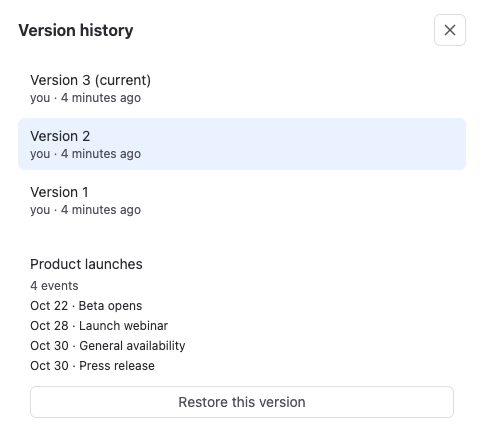
Select a version in Version history. Each version shows who saved it and when. A preview of that version's events opens below the list.
-
Select Restore this version.
Result: The calendar shows the events of that version, and a message confirms Version N restored. Restoring adds a new version, so you can undo it the same way.
Change the name, description or color
- Select ••• > Edit details.
- Change the Name, Description or Color.
- Select Save.
Move a calendar to the trash
- Select ••• > Move to trash. On the list, use the ••• menu on the calendar's row.
- Read the confirmation and select Move to trash.
warning
The calendar and all its events disappear for everyone, including in embeds. You can't undo this from Event Planner. Export the events first if you might need them. See Export events.
Related
- Space calendars: create and find space calendars.
- Delete and undo: bring back a single deleted event.
- Data security and privacy: where space calendars are stored.