Calendar settings
Choose how a calendar opens and looks for everyone: the first view, the week, working hours and the calendar's height on the page.
Before you begin
You need permission to edit the calendar. You can change settings while the calendar is locked.
Change the settings
-
In the calendar's header, select More actions (•••) > Calendar settings. In a space calendar, use the ••• menu at the top of the page.
-
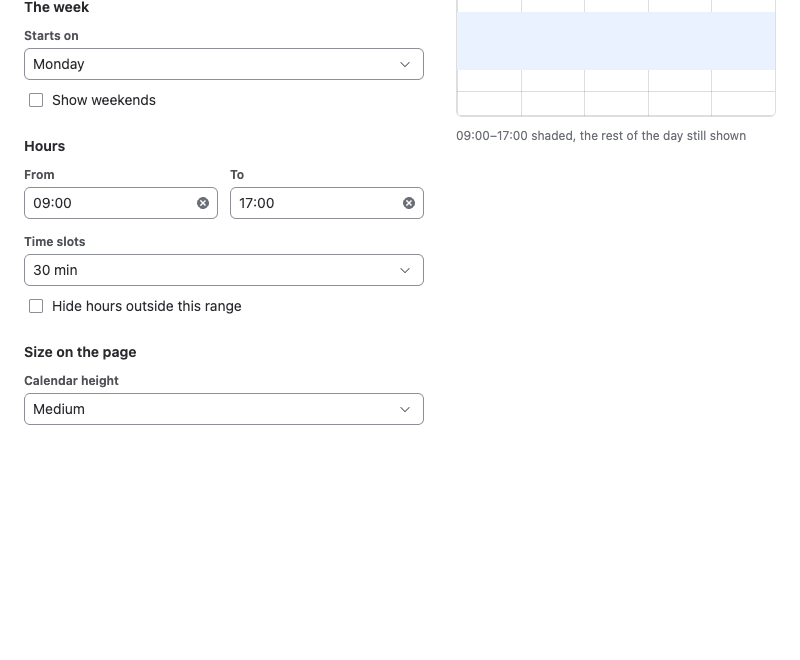
Change the settings. The Preview on the right shows the result.
-
Select Save.
Result: Everyone who opens the calendar gets the new settings. If you close the dialog without saving, Event Planner asks Discard your changes? first.
Settings
| Group | Setting | Options | Default |
|---|---|---|---|
| When it opens | Go to | Day of first event, Current day, Day of last event | Day of first event |
| When it opens | Show | Monthly view, Weekly view, Daily view | Weekly view |
| The week | Starts on | Monday, Sunday | Monday |
| The week | Show weekends | On or off | On |
| Hours | From and To | Any time, in 30-minute steps | 09:00 to 18:00 |
| Hours | Time slots | 15 min, 30 min | 30 min |
| Hours | Hide hours outside this range | On or off | Off |
| Size on the page | Calendar height | Small, Medium, Auto (full size) | Medium |
How the settings work:
- Go to applies once the calendar has events. An empty calendar opens on today.
- Hours are the working hours. The time grid highlights them, scrolls to their start, and the event form offers times within them.
- Hide hours outside this range cuts the time grid to the working hours, which suits a one-day agenda.
- Auto (full size) makes the calendar as tall as its content, with no scroll bar inside it.
Only the settings you change are saved. If someone else changed another setting in the meantime, their change stays.
Related
- Views: switch views for yourself without changing the default.
- Lock a calendar: the setting that stops changes.
- Start from a template: fill a calendar with a ready-made agenda.