Add a calendar to a Jira dashboard
Add the Event Planner gadget to a dashboard to keep a team calendar next to your filters and charts.
Before you begin
- Event Planner for Jira is installed on your site.
- You own the dashboard, or it's shared with you as an editor.
Add the gadget
-
Open the dashboard and select Edit.
-
Select Add gadget, search for Event Planner, and select Add.
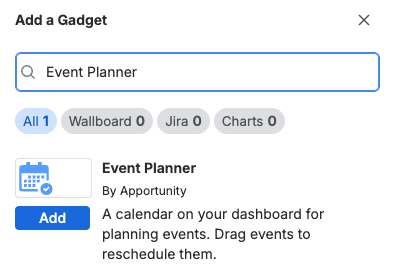
-
Select Done to leave edit mode.
Result: The gadget shows an empty calendar. You can start from scratch, use a template or create the events with AI.
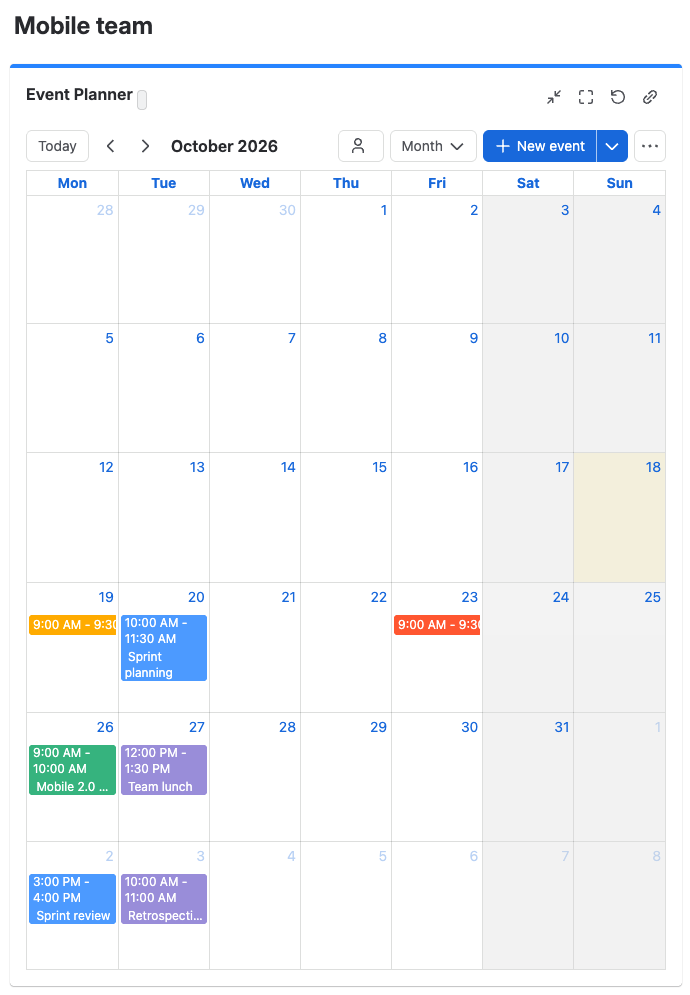
Who sees the calendar
- Everyone the dashboard is shared with sees the calendar.
- The dashboard's owner and the people it's shared with as editors can change events, settings and the lock. Everyone else gets the calendar read-only.
- People who aren't signed in, for example on a public dashboard, can't open the calendar.
Each gadget has its own calendar. Two Event Planner gadgets on one dashboard show two different calendars. The gadget calendar isn't linked to any work item.
The gadget reloads every 15 minutes, so a dashboard left open on a team screen picks up other people's changes.
When you remove the gadget
Removing the gadget or deleting the dashboard doesn't delete the gadget's events from the app's storage. Delete the events first if you want them gone. See What isn't deleted automatically.
Related
- Keep team dates on a Jira dashboard: a full example.
- Views: the list view suits a narrow dashboard column.
- Permissions: who can see and change each calendar.