Create with AI
Describe your event to an AI assistant such as ChatGPT, Claude or Gemini, and import the schedule it writes. Event Planner gives you the prompt, and you paste back the answer.
Before you begin
- You need permission to edit the calendar, and the calendar isn't locked.
- You need access to an AI assistant. Event Planner doesn't call any AI service itself, so nothing about your calendar is sent to one.
Create events with AI
-
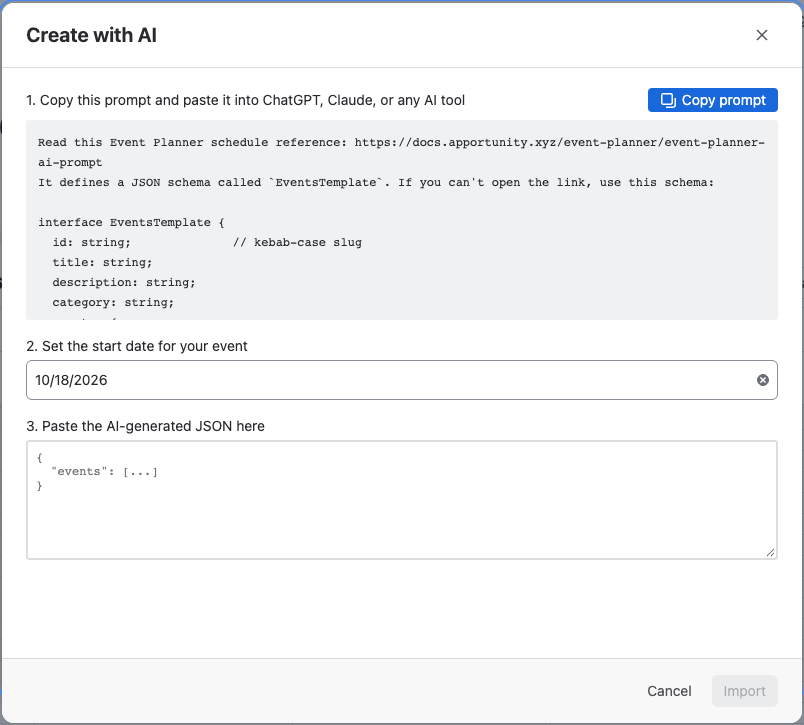
Open Create with AI:
- On an empty calendar, select Create with AI on the welcome screen.
- On any calendar, select the arrow next to New event, then Create with AI….
-
Select Copy prompt.
-
In your AI assistant, paste the prompt and replace
[describe what you want here]with your event, for exampleA 2-day sales kickoff in Lisbon for 40 people, with workshops and a team dinner. Answer the assistant's questions. -
Copy the JSON the assistant returns.
-
Back in Event Planner, set the start date under 2. Set the start date for your event.
-
Paste the JSON under 3. Paste the AI-generated JSON here.
-
Select Import.
Result: The events are added from the start date on, with a day header for each day if the assistant wrote them. The calendar jumps to the first event. Events already in the calendar stay.
Importing doesn't change the calendar settings.
If the import shows errors
Event Planner checks every event before it adds anything. If something is wrong, it lists the problems by event, for example Event 4 ("Lunch"): it ends before it starts., and adds nothing. Ask the assistant to fix the events it names, or fix the JSON yourself, and select Import again.
Small slips are fixed for you: extra spaces are trimmed, overlong text is cut to length, and an unknown color gets the default blue.
If the assistant answers with text instead of JSON, see Prompting tips.
Related
- AI schedule format: the JSON format, its rules and examples.
- Start from a template: ready-made agendas without an AI assistant.
- Data security and privacy: what goes to an AI assistant, and what doesn't.