Start from a template
Add a ready-made agenda to a calendar in one step, then adjust it. Templates suit workshops, trainings and onboarding days.
Before you begin
You need permission to edit the calendar, and the calendar isn't locked.
Templates you can use
| Template | Category | What it adds |
|---|---|---|
| New hire onboarding workshop | onboarding | A half-day welcome session: 7 events from 09:00 to 13:00 |
| Team building retreat | team-building | A full day of team activities: 10 events from 08:30 to 16:30 |
| Skill-building training | training | A one-day workplace communication workshop: 11 events from 09:00 to 17:00 |
| Leadership training | training | A two-day leadership workshop: 21 events with a day header for each day |
Add a template
-
Open the template picker:
- On an empty calendar, select Use a template on the welcome screen.
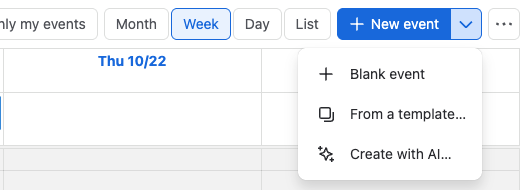
- On any calendar, select the arrow next to New event, then From a template….
-
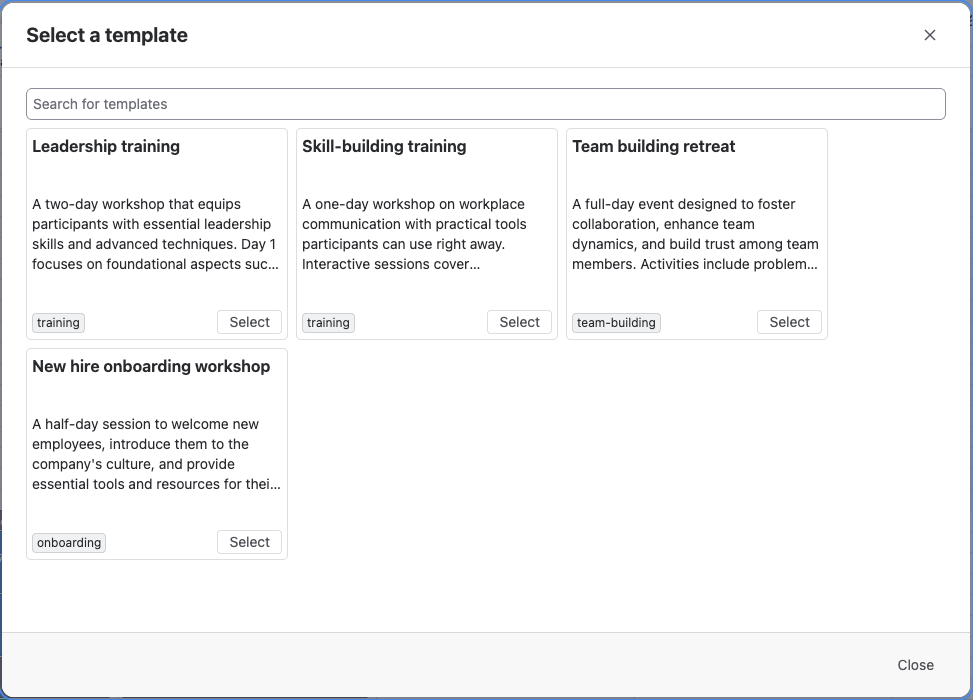
Find a template. Type in Search for templates to filter by title or description.
-
Select Select on the template's card.
-
In Start date, pick the first day of the agenda.
-
Select Add events.
Result: The events are added from the start date on, and the calendar jumps to the first one. A message says how many events were added. Events already in the calendar stay.
Adding a template doesn't change the calendar settings. If Hide hours outside this range is on and the agenda runs outside your working hours, change Hours so all of it shows.
Make the agenda your own
- Drag events to fit your timetable. See Move and resize events.
- Rename events and add a room or video call. See Event details.
- Delete the sessions you don't need. See Change or delete an event.
Related
- Create with AI: a custom agenda when no template fits.
- Plan an offsite agenda on a page: a full example.
- Day headers: label each day of the agenda.