Keep team dates on a Jira dashboard
Put the team's key dates on the dashboard people open every morning, next to their filters and charts.
Problem: On-call weeks, release freezes and team events are in different places. People miss them because they're not where people look.
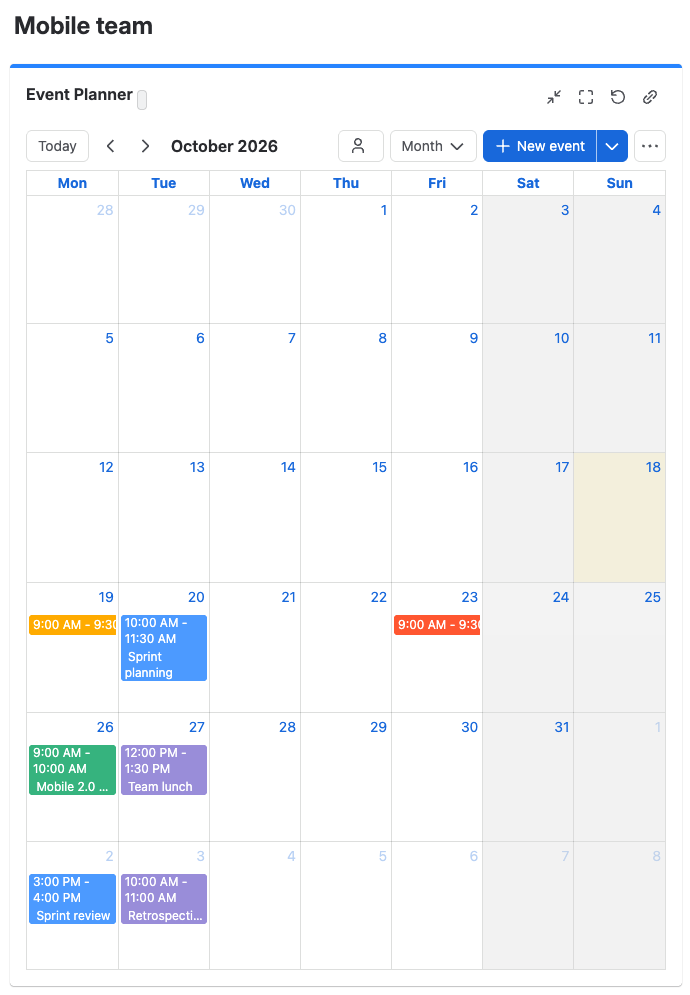
Solution: Add the Event Planner gadget to the team's dashboard and keep the dates there. Share the dashboard with the team, and with the leads as editors.
What you'll need
- Event Planner for Jira, installed on your site.
- A dashboard you own, or one shared with you as an editor.
Set it up
- Open the dashboard and select Edit > Add gadget. Search for Event Planner and select Add.
- Select Done to leave edit mode.
- Add the on-call weeks as all-day events in the Month view, one color per person.
- Add the release freezes and team events, each in its own color.
- In ••• > Calendar settings, set Show to Monthly view and Go to to Current day.
- Share the dashboard with the team, and with the leads as editors.
What your team will experience
- The dashboard opens on the current month, with this week's on-call person in their color.
- The gadget reloads every 15 minutes, so a dashboard on a team screen stays current.
- Leads change dates on the dashboard. Everyone else sees the calendar read-only.
tip
In a narrow dashboard column, select List to see upcoming dates as a list.
Check that it works
- Ask a teammate who isn't an editor to open the dashboard. They see the calendar with a View only label.
- Add a second Event Planner gadget for another team. It starts empty, because each gadget has its own calendar.
Related
- Add a calendar to a Jira dashboard: who sees the gadget.
- Calendar settings: the view and date a calendar opens on.
- Data security and privacy: what happens to a removed gadget's data.