Share a team calendar across a space
Keep a team's launches, time off or on-call weeks in one space calendar, decide who can change it, and show it on the team's home page.
Problem: Launch dates sit on several planning pages, and each page has its own copy. Nobody knows which one is right, and anyone can change the dates.
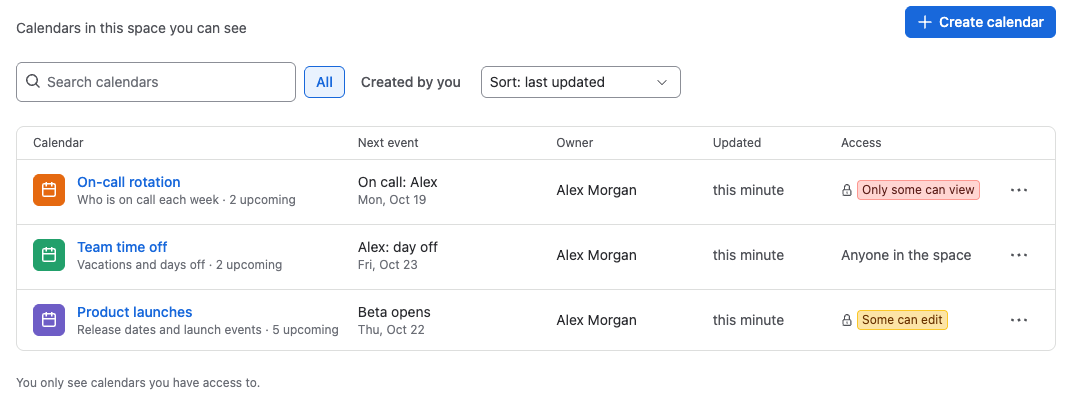
Solution: Create one space calendar for launches. Everyone in the space can see it, only the release managers can change it, and the team's home page shows it with the Embed space calendar macro.
What you'll need
- Event Planner for Confluence, installed on your site.
- Permission to add content in the space, and the space's Restrictions permission to limit who can edit. Space admins have both.
Set it up
- In the space's sidebar, under Space apps, select Event Planner, then Create calendar.
- Name it, for example
Product launches, add a description and pick a color. - Under Who can view and edit, choose Anyone in the space can view, only some can edit.
- Under Add people or groups, add the release managers' group with Can edit, and select Create calendar.
- Add the launch dates as all-day events in the Month view.
- Edit the team's home page, type
/embed space calendar, choose the space and the Product launches calendar, select Save, and publish the page.
What your team will experience
- Everyone in the space finds the calendar under Event Planner, and sees it on the home page.
- Release managers change dates in the calendar. The home page shows the change at once.
- Everyone else sees the calendar read-only, with You can view this calendar. To change events, ask its owner for edit access.
- If a date is changed by mistake, a release manager opens ••• > History and restores the previous version.
tip
For a calendar only some people should see, such as a hiring plan, choose Only specific people can view or edit. The embed then shows You can't see this calendar to everyone else, without the calendar's name.
Check that it works
- Ask someone outside the release managers' group to open the calendar. They see it with no New event button.
- Open the home page and select Open calendar in the embed. The space calendar opens.
Related
- Space calendars: create and find space calendars.
- Choose who can see and change a space calendar: the three access options.
- Embed a space calendar on a page: how the embed behaves.