Event details: location, link and people
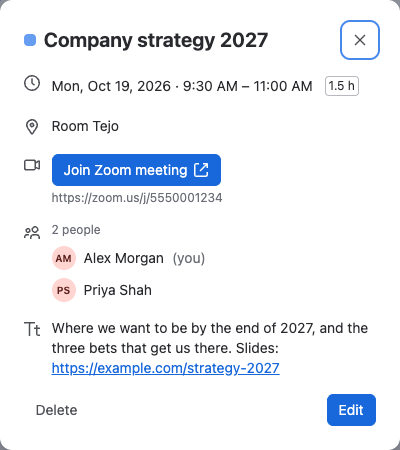
Give an event a place, a link and the people involved. Everyone who opens the event sees them. For a video call, viewers also get a Join button.
Before you begin
You need permission to edit the calendar, and the calendar isn't locked.
Add details to an event
- Open the event's form: add a new event, or select an event and then Edit.
- Below the dates, select Add location and type a room or place of up to 200 characters, for example
Room 3, or Berlin office. - Select Add link or video call and paste a web address. If you leave out
https://, Event Planner adds it. - Select Add people, type at least 2 letters of a name, and select the person. An event can have up to 50 people.
- Select Save.
You can add any of the three details on its own.
Result: The details appear when anyone selects the event, and when they hover over it. In the Week and Day views, the event's box also shows a video or link icon, the location from 1 hour long, and the people's avatars from 90 minutes long.
Video calls
When the link points to Zoom, Microsoft Teams, Google Meet, Webex, Whereby or Jitsi, the form shows the service's name, and the event details show a Join button, for example Join Zoom meeting. Other links, including company domains for these services, show as an ordinary link.
People
- People are shown on the event for anyone who can see the calendar. They aren't notified, and the event isn't added to their own calendars.
- Names and avatars come from Atlassian each time the calendar opens, so they stay current. People whose account is deactivated show as Deactivated.
- Select Only my events in the calendar's header to see only the events you're added to. See Views.
To remove a detail, clear the field or remove the person, and select Save.
Related
- Add an event: the other fields of the event form.
- Export events: take events to Outlook, Google Calendar or Apple Calendar.
- Data security and privacy: what Event Planner stores about people on events.