Add diagrams to a Jira work item
Add the Mermaid Diagrams panel to a work item to keep one or more diagrams on it. Jira doesn't show the panel until someone adds it.
Before you begin
- Mermaid Diagrams for Jira is installed on your site.
- You have the Edit work items permission in the space.
- Your Mermaid Diagrams license is active. Viewing diagrams doesn't need one.
Add the panel
-
Open the work item.
-
Under the summary, select View app actions (the apps icon) > Mermaid Diagrams.
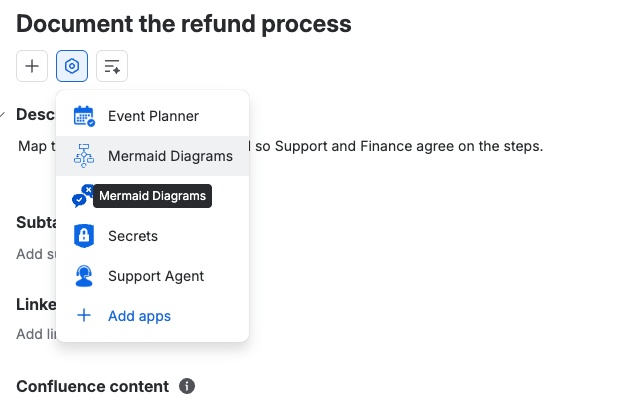
The Mermaid Diagrams panel is added under the description, and the diagram editor opens.
-
Start the diagram from a snippet, an import, Draft with AI, or your own code. See Edit a diagram.
-
Select Save and close.
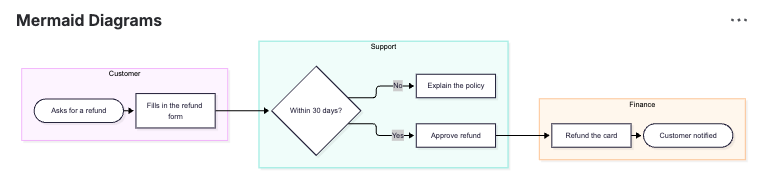
Result: The diagram shows in the panel for everyone who can see the work item.
Show, collapse or remove the panel
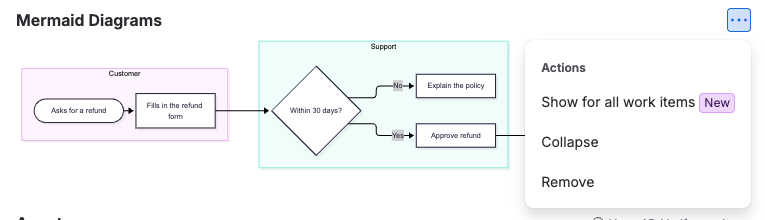
Open the panel's ••• menu:
- Show for all work items shows the panel on every work item, so nobody has to add it.
- Collapse folds the panel away on this work item.
- Remove takes the panel off this work item. The diagrams aren't deleted: add the panel again to see them.
Change a diagram later
- Hover over the diagram in the panel and select Edit diagram (the pencil icon).
- Make your changes and select Save and close.
Diagrams in the panel are kept in the app's storage. They don't appear in the work item's attachments or history.
When the description or comments hold Mermaid code blocks, the panel also lists them under Found in this work item. See Edit Mermaid code blocks in Jira.
Related
- Edit a diagram: the editor, errors, display sizes and saving.
- Map a process on a Jira work item: a swimlane example from start to finish.
- Permissions: who can view and edit diagrams.