Keep several diagrams in one macro or panel
Keep related diagrams together in one macro or panel, for example an overview and a detailed view. Readers page through them. You edit them side by side, each in its own tab of the editor, and save them all at once.
Before you begin
- The diagram editor is open. See Edit a diagram.
Add a diagram
-
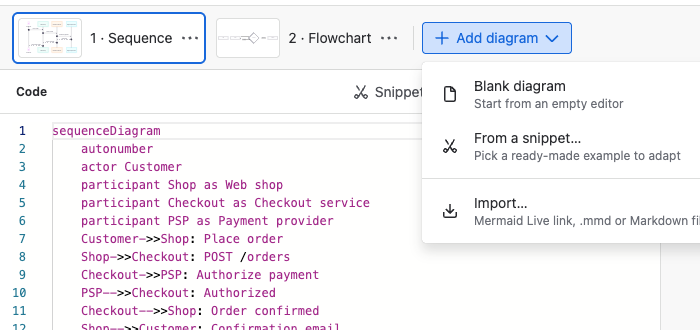
Select Add diagram, next to the diagram tabs.
-
Select Blank diagram for an empty editor, From a snippet… for a ready-made example, or Import… to bring in diagrams from a Mermaid Live link or a file.
-
Select Save when you're done.
Result: Each diagram has its own tab, numbered and named after its type, for example 2 · Flowchart. Readers see one diagram at a time and move between them with the arrows next to 1 of 2.
Reorder diagrams
- Drag a tab and drop it where you want it.
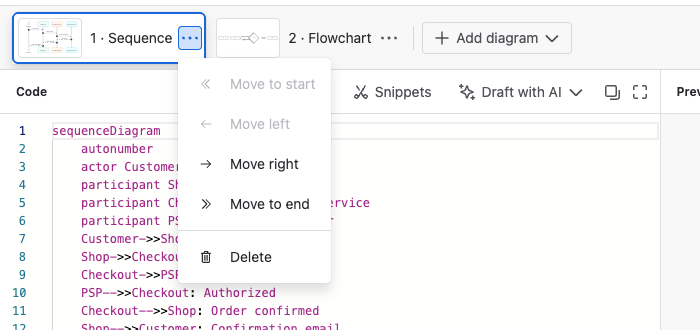
- Or open the tab's ••• menu and select Move to start, Move left, Move right or Move to end.
The first diagram is the one readers see first, and the one shown in Confluence PDF and Word exports.
Delete a diagram
-
Open the diagram's tab ••• menu and select Delete.
-
In Delete diagram?, select Delete.
-
Select Save.
After you save, the deleted diagram is gone from the macro or panel. Until you save, close the editor and select Discard and close to get it back.
Related
- Edit a diagram: the editor, errors and display sizes.
- View and export diagrams: what readers see when a macro or panel holds several diagrams.
- Document a system architecture in Confluence: an overview and a detailed diagram in one macro.