Edit a diagram
Use the diagram editor to write Mermaid code, check the live preview, fix errors and save. The editor is the same in Confluence and Jira.
Before you begin
- Confluence: permission to edit the page.
- Jira: the Edit work items permission in the space.
- An active Mermaid Diagrams license. Without one, the editor shows License Required and can't save.
Open the editor
- Confluence
- Jira
- Open the page. It doesn't need to be in edit mode.
- Hover over the diagram and select Edit diagram (the pencil icon). For an empty macro, select Create diagram.
- Open the work item.
- In the Mermaid Diagrams panel, hover over the diagram and select Edit diagram (the pencil icon). For an empty panel, select Create diagram.
The editor opens with the code on the left and the preview on the right.
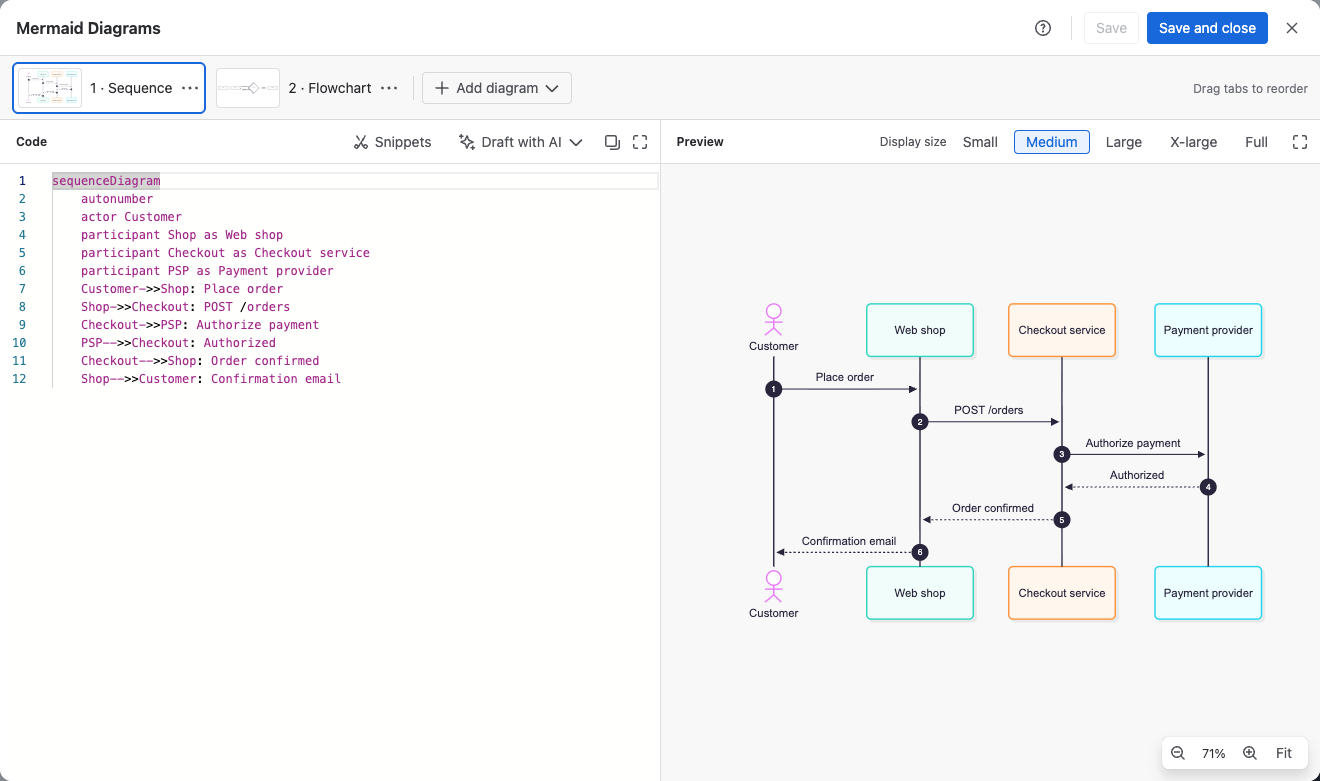
| Area | What it does |
|---|---|
| Diagram tabs | One tab per diagram in the macro or panel. See Keep several diagrams in one macro or panel |
| Code | The Mermaid code, with syntax highlighting. Snippets, Draft with AI and Copy code sit above it |
| Preview | The diagram, redrawn as you type. Zoom with the buttons or the mouse wheel, drag to pan, and select Fit to see it whole |
| Display size | How much room the diagram takes on the page or in the panel |
| Full-screen icons | Show the code or the preview across the whole editor. Press Esc to go back |
Start a diagram
An empty diagram shows Start your diagram with three ways in:
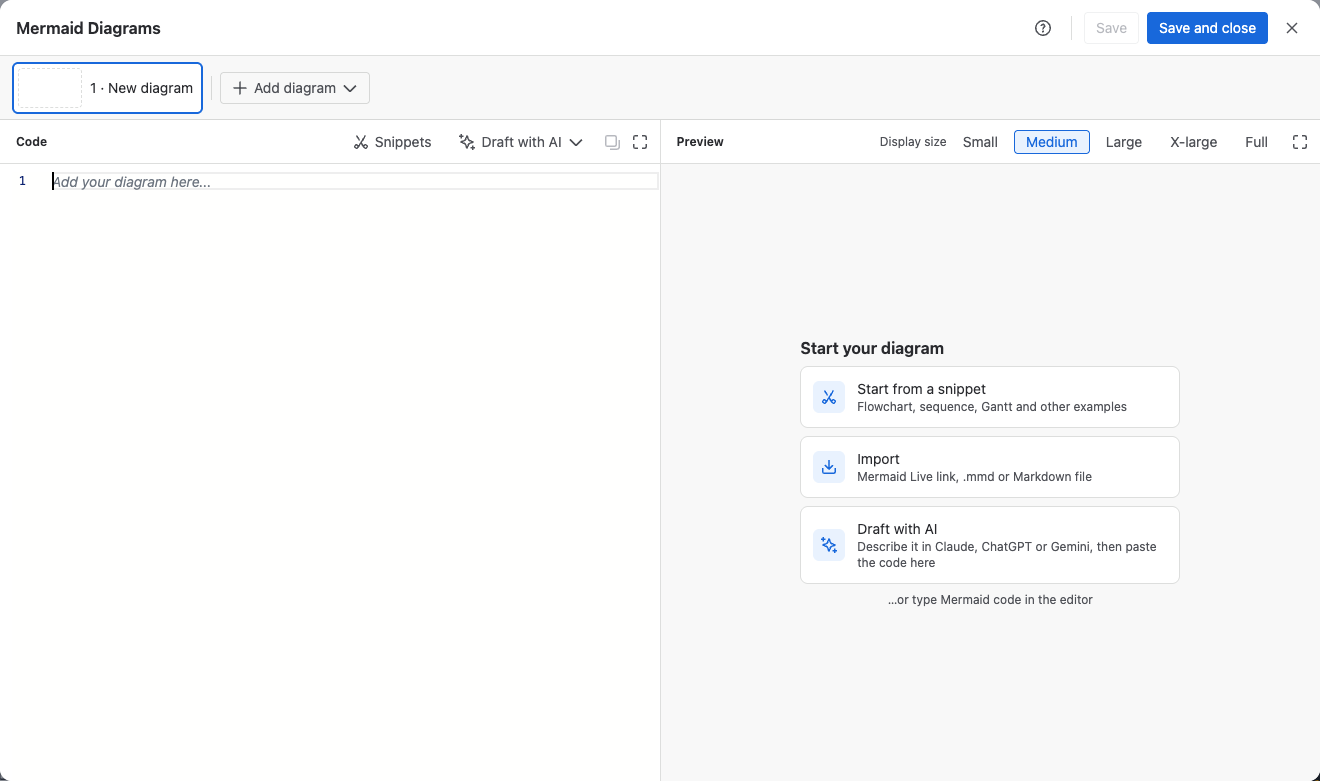
Pick a ready-made example with Start from a snippet, or bring in a Mermaid Live link, an .mmd file or a Markdown file with Import. Draft with AI lets you describe the diagram to Claude, ChatGPT or Gemini and paste back the code. You can also type Mermaid code straight into the editor.
For details, see Start from a snippet, Import diagrams and Draft a diagram with AI.
Fix an error
When the code can't be drawn, the preview shows The diagram has an error on line and the line number, with Mermaid's message below it. The line is underlined in the code, and the diagram's tab shows a warning icon.
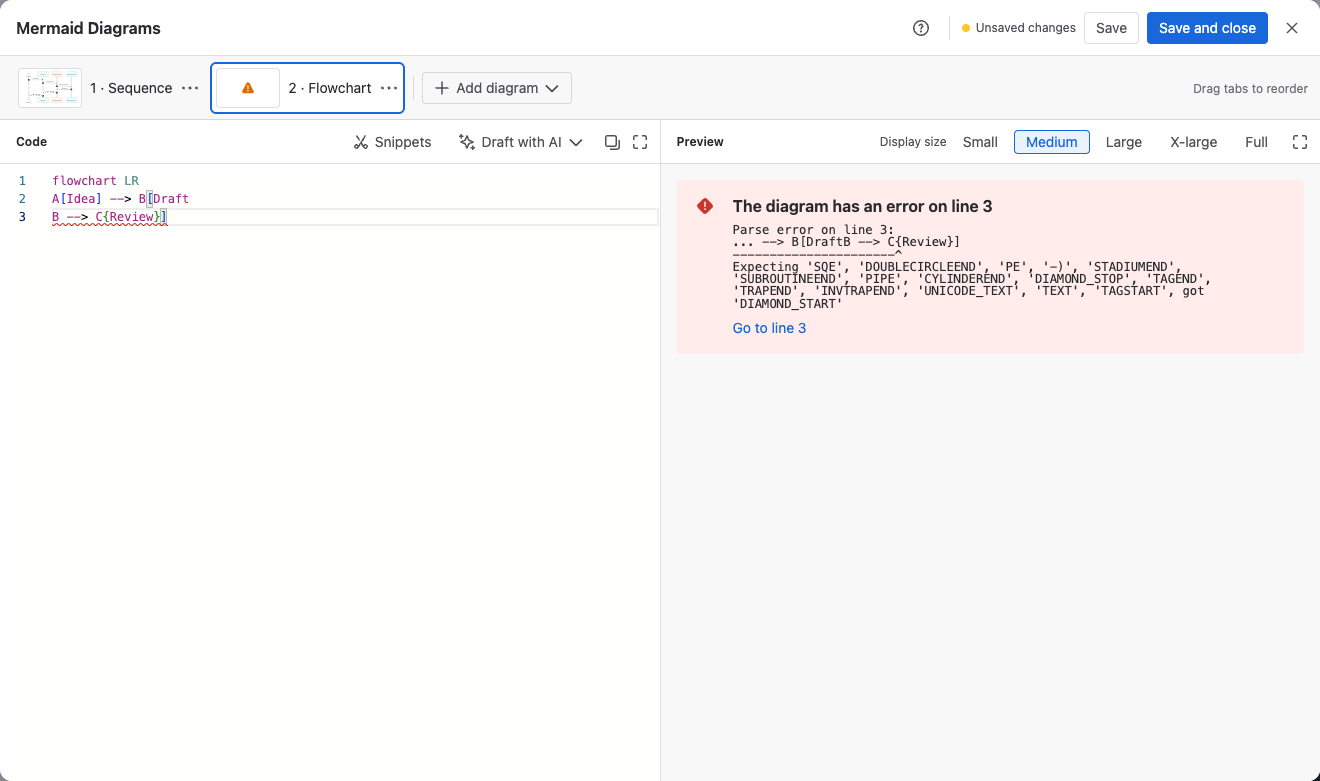
- Select Go to line to jump to the line.
- Correct the code. The error goes away as soon as the diagram can be drawn.
Common causes are a missing closing bracket, a misspelled diagram type on the first line, and wrong indentation in mindmaps and timelines.
Set the display size
Under Display size, select how much room the diagram takes on the page or in the panel. The size applies to every diagram in the macro or panel.
| Size | Maximum height |
|---|---|
| Small | 240 px |
| Medium (default) | 480 px |
| Large | 640 px |
| X-large | 920 px |
| Full | No limit: the diagram fills the width |
A diagram is never drawn larger than its natural size, except with Full. It shrinks to fit the width when it's too wide.
Save your changes
Select Save to save and keep working, or press Ctrl+S (Cmd+S on a Mac). Select Save and close to save and close the editor.
The top bar shows Unsaved changes until you save, then Saved.
If a diagram has an error when you save, the editor asks Save with an error? Select Keep editing to fix it first, or Save anyway. Until it's fixed, readers see a placeholder instead of the diagram.
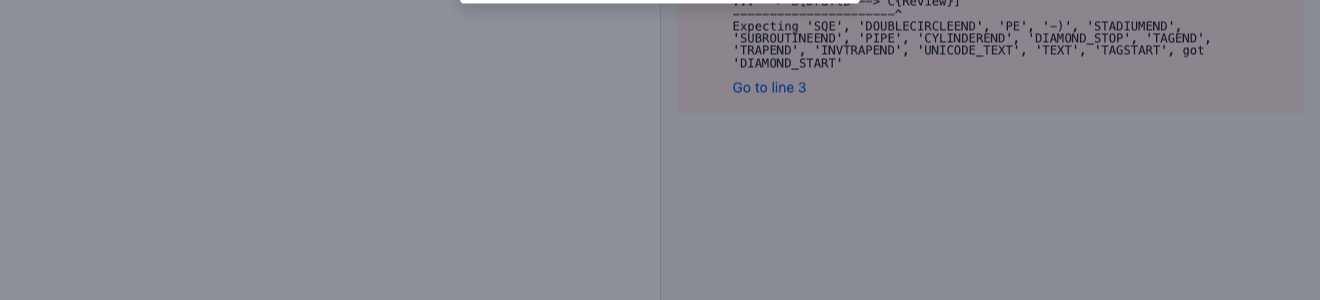
If you close the editor with unsaved changes, it asks what to do: Cancel, Save and close, or Discard and close.
If someone else saved the same diagram while you were editing, nothing is overwritten. See When someone else saved first.
Related
- Themes, looks and layouts: set colors, drawing style and layout in a
configblock. - Supported diagram types: every diagram type you can write.
- View and export diagrams: what readers see, and how to export.