Start from a snippet
Pick one of 35 ready-made diagrams in the editor and adapt it, instead of writing Mermaid code from scratch.
Before you begin
- The diagram editor is open. See Edit a diagram.
Insert a snippet
-
In an empty diagram, select Start from a snippet. To add a snippet as a new diagram next to the ones you have, select Add diagram > From a snippet… instead.
-
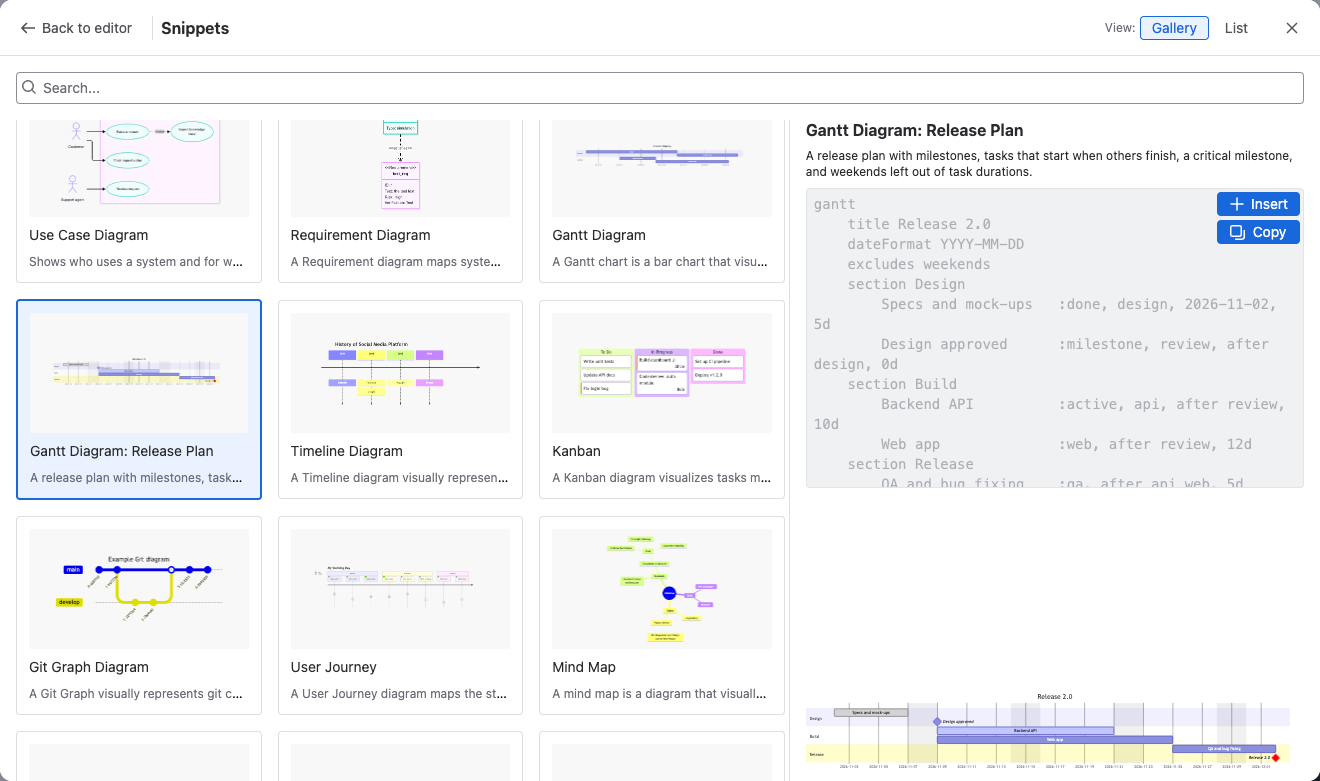
Browse the gallery, or type in Search... to filter by name or description, for example
ganttorprocess. Select List to see names only. -
Select a snippet to see its description, code and preview.
-
Select Insert.
Result: The snippet's code is in the editor, and the diagram's tab is named after its type. Change the labels and steps to your own.
Insert appears only for an empty diagram, so a snippet never replaces your work. When the diagram already has code, select Copy and paste the parts you need.
What's in the gallery
| Kind | Snippets |
|---|---|
| Processes | Flowchart, Flowchart: Subgraphs and Styles, Swimlane Process, State Diagram, User Journey, Agent Flow |
| Software | Sequence Diagram, Sequence Diagram: API Flow, Class Diagram, Entity Relationship Diagram, Entity Relationship Diagram: Data Model, Use Case Diagram, Requirement Diagram, Git Graph Diagram, Packet Diagram, Folder Tree |
| Architecture | Architecture with Icons, C4 Context Diagram, Block Diagram |
| Planning | Gantt Diagram, Gantt Diagram: Release Plan, Timeline Diagram, Kanban |
| Ideas and analysis | Mind Map, Fishbone (Ishikawa) Diagram, Quadrant Chart, Venn Diagram |
| Charts | Pie Chart, XY Chart, Radar Chart, Treemap, Sankey Diagram |
| Appearance | Themes, Looks and Layouts, Flowchart: Custom Theme, Sequence Diagram: Custom Theme |
Related
- Supported diagram types: what each diagram type is for, with links to the full syntax.
- Themes, looks and layouts: what the appearance snippets show.
- Import diagrams: start from a diagram you already have instead.