Add a diagram to a Confluence page
Insert the Mermaid Diagram macro to draw a diagram on a Confluence page, blog post or live doc.
Before you begin
- Mermaid Diagrams Macro for Confluence is installed on your site.
- You have permission to edit the page.
- Your Mermaid Diagrams license is active. Viewing diagrams doesn't need one.
Insert the macro
-
Open the page and select Edit.
-
Where the diagram should go, type
/mermaidand select Mermaid Diagram. You can also select Insert (+) and search for Mermaid Diagram.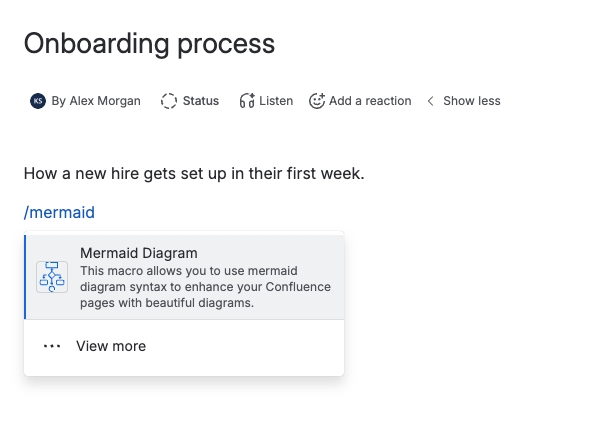
-
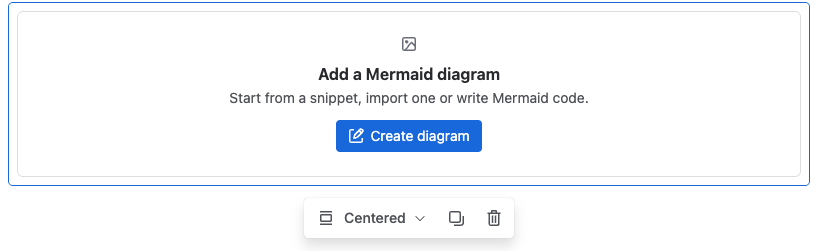
In the macro, select Create diagram. The diagram editor opens.
-
Start the diagram from a snippet, an import, Draft with AI, or your own code. See Edit a diagram.
-
Select Save and close, then publish the page.
Result: The diagram shows on the page for everyone who can view it.
Change a diagram later
You don't need to put the page in edit mode to change a diagram.
- Hover over the diagram and select Edit diagram (the pencil icon).
- Make your changes and select Save and close.
The diagram updates for readers straight away. Diagram changes are stored with the page's attachments, so they don't create a new page version.
What happens when you copy, move or delete a page
| When you | What happens to the diagrams |
|---|---|
| Copy the page | The copy gets its own copy of each diagram. Changing one doesn't change the other |
| Move the page | They move with it |
| Export to PDF or Word | Each macro shows its first diagram as an image, in light colors |
| Delete the page | They go to the trash with it, and come back if you restore it |
| Restore an older page version | They keep their latest content. Earlier versions stay in the page's attachment history |
The macro doesn't work in space or page templates, because diagrams are stored with a page. In a template it shows "This diagram can't be loaded here". Add the macro after you create the page from the template.
Related
- Edit a diagram: the editor, errors, display sizes and saving.
- Turn Mermaid code blocks into diagrams: convert code blocks already on the page.
- Permissions: who can view, edit and export diagrams.