Import diagrams
Bring Mermaid diagrams into a macro or panel from a Mermaid Live link, an .mmd or .mermaid file, or a Markdown file such as a GitHub README.
Before you begin
- The diagram editor is open. See Edit a diagram.
What you can import
| Source | Example | What is found |
|---|---|---|
| Mermaid Live edit or view link, on mermaid.live or mermaid.ai/live | https://mermaid.live/edit#pako:… | The diagram's code |
| mermaid.ink image or SVG link | https://mermaid.ink/img/… | The diagram's code |
.mmd or .mermaid file | checkout-flow.mmd | The diagram in the file |
Markdown file (.md, .markdown) | README.md | Every ```mermaid code block, with the heading it's under |
Only the diagram code is imported. A Mermaid Live link's own settings, such as its theme, are left out. To keep a look, set it in the code. See Themes, looks and layouts.
Import a link or file
-
In an empty diagram, select Import. To add the imported diagrams next to the ones you have, select Add diagram > Import… instead.
-
Under Paste a link, paste a Mermaid Live or mermaid.ink link. Or drop a file on Drop a file here, or select Choose a file.
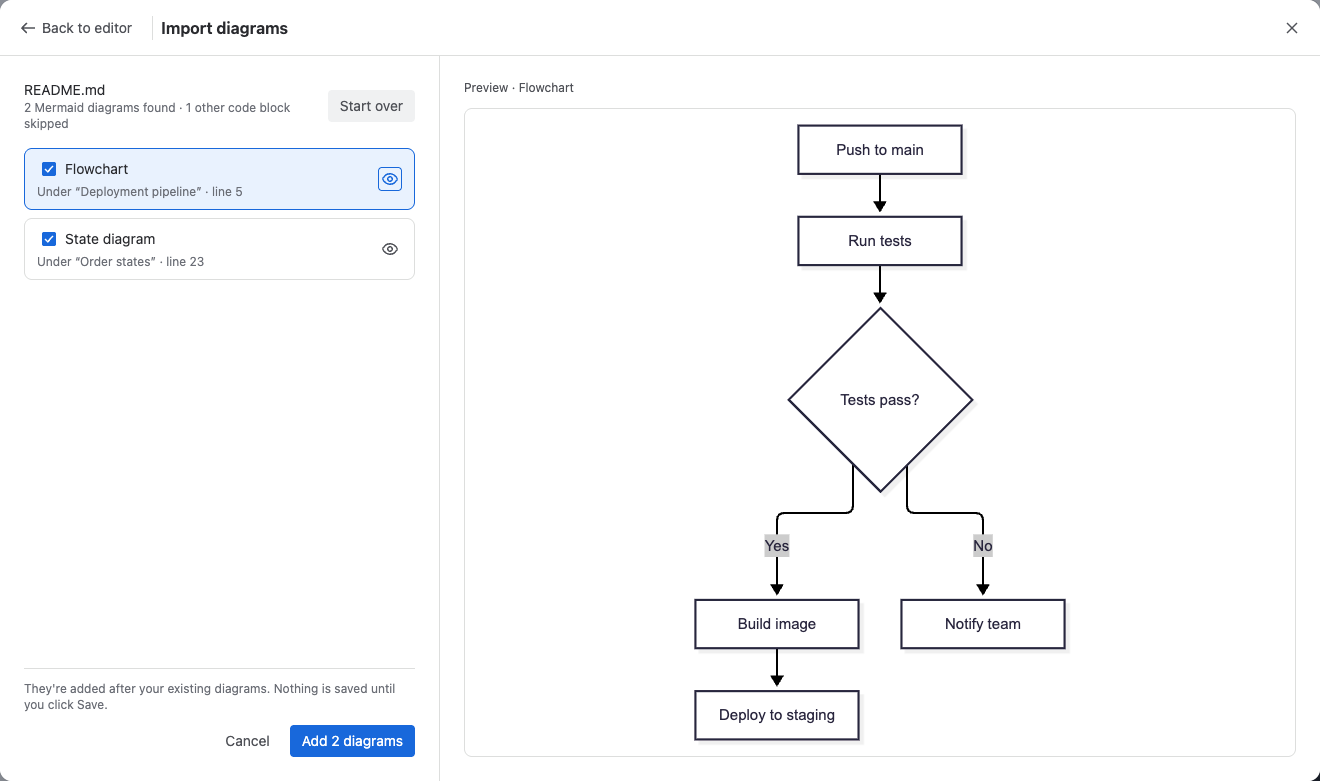
The dialog lists the diagrams it found. Select the eye icon next to a diagram to preview it.
-
Clear the diagrams you don't want.
-
Select Add diagram, or for example Add 2 diagrams.
Result: Each imported diagram gets its own tab. In an empty diagram, the first one takes its place and the rest are added after it. Nothing is stored until you select Save.
Limits
- A file can be up to 5 MB.
- One link or file adds up to 20 diagrams.
- Each diagram can be up to 100,000 characters long. Longer diagrams are left out.
If nothing is found, the dialog says why, for example This doesn't look like a Mermaid diagram. In a Markdown file, diagrams must be in ```mermaid code blocks.
Related
- Bring your existing Mermaid diagrams: which way in fits which source.
- Keep several diagrams in one macro or panel: reorder or delete what you imported.
- Mermaid code in your content: for code blocks already on a page or work item.