Themes, looks and layouts
Set a diagram's colors, drawing style and layout in its own code, the same way as in the official Mermaid Live Editor. There are no separate appearance settings in the app, so a diagram keeps its look wherever you copy it.
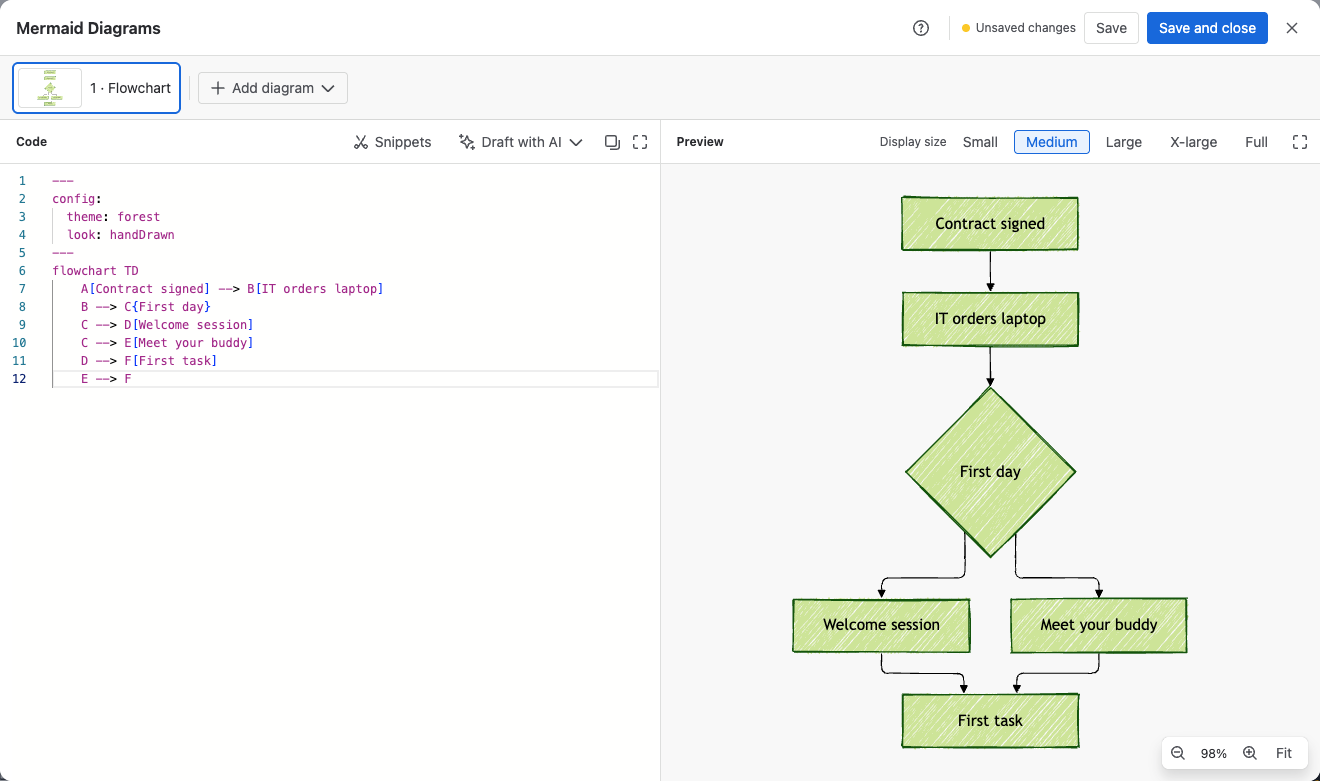
Add a config block at the very top of the diagram code, between two --- lines:
---
config:
  theme: forest
  look: handDrawn
  layout: elk
---
flowchart TD
    A[Start] --> B[Process]
    B --> C[End]
Each setting is optional. Leave out what you don't want to change.
| Setting | Controls | Values |
|---|---|---|
theme | Colors | See Themes |
look | Drawing style | classic, handDrawn, neo |
layout | How nodes are arranged | dagre, elk |
The block must be the first thing in the code, and a diagram can only have one. If your diagram already starts with a --- block (for example with a title), add config: to that block.
Themes
| Theme | Description |
|---|---|
redux-color | Mermaid 12 default for flowchart, sequence, class, state, ER and requirement diagrams. White nodes with dark outlines; each group or container gets its own color |
redux | Like redux-color, in black and gray only |
neo | White nodes with blue-to-pink gradient outlines |
default | The classic Mermaid colors; default for all other diagram types |
neutral | Subtle grayscale palette, good for print |
forest | Green-accented theme |
base | Minimal theme, the starting point for your own colors |
dark, redux-dark, redux-dark-color, neo-dark | Dark versions for dark backgrounds |
Dark mode
Without a theme in its code, a diagram follows each reader's Confluence or Jira theme. Readers in light mode see Mermaid's default colors, and readers in dark mode see the matching dark version.
With a theme in the code, that theme is always used, in light and dark mode. Pick a theme only when you want one fixed look for everyone.
Looks
| Look | Description |
|---|---|
neo | Mermaid 12 default for flowchart, sequence, class, state, ER and requirement diagrams. Clean, modern shapes |
classic | The traditional Mermaid style; default for all other diagram types |
handDrawn | A sketchy, whiteboard-like style |
Layouts
layout applies to flowchart, state, class, ER and requirement diagrams. Mindmaps keep their own layout unless you set one, so don't add layout to a mindmap.
| Layout | Description |
|---|---|
elk | Mermaid 12 default. Often tidier, with fewer crossing lines, especially in larger diagrams |
dagre | The layout used before Mermaid 12 |
ELK also offers other algorithms for special cases, such as elk.mrtree for trees and elk.force for networks.
Keep the previous look
Mermaid 12 changed the default look and layout, so diagrams created before October 2026 may look different now. Their code is unchanged. To bring back the previous layout and shapes, add these lines to the top of the diagram:
---
config:
  layout: dagre
  look: classic
---
This keeps node positions and shapes close to what they were, and the diagram still follows each reader's light or dark mode.
For the previous colors too, add theme: default:
---
config:
  layout: dagre
  look: classic
  theme: default
---
With a theme in the code, the diagram always uses light colors, even for readers in dark mode.
Mermaid 12 also adjusted some spacing, so the result is close to the old picture but not always identical.
Which diagrams need this:
| Diagram types | What to add |
|---|---|
| Flowchart, state, class, ER and requirement | Both lines |
| Sequence | Only look: classic |
| Mindmap | Nothing. Mindmaps are unchanged, and layout: dagre would rearrange them |
| Gantt, pie, timeline, git graph, user journey, quadrant, XY, Sankey, Kanban and packet | Nothing. They look as before |
| C4 and block | Nothing helps. They changed slightly in Mermaid 12 itself, and these settings don't change them back |
Custom colors with themeVariables
Start from the base theme and override individual colors:
---
config:
  theme: base
  themeVariables:
    primaryColor: "#007FFF"
    primaryTextColor: "#ffffff"
    lineColor: "#172b4d"
---
graph TD
    A[Task] --> B[Review]
    B --> C[Done]
Common themeVariables
| Variable | Controls |
|---|---|
primaryColor | Node fill color |
primaryTextColor | Text inside nodes |
primaryBorderColor | Node border color |
lineColor | Arrow and edge color |
secondaryColor | Secondary node fill |
tertiaryColor | Background fill for subgraphs |
background | Diagram background color |
Settings for one diagram type
Settings for a specific diagram type go under its own key:
---
config:
  theme: forest
  sequence:
    mirrorActors: false
---
sequenceDiagram
    User->>App: Request
    App-->>User: Response
The older %%{init}%% directive
Diagrams written for earlier Mermaid versions often start with an init directive. It still works, and does the same as the config block:
%%{init: {'theme': 'dark', 'look': 'classic'}}%%
graph TD
    A[Start] --> B[End]
Mermaid now recommends the config block, which is easier to read and edit.
Tips
- Settings are case-sensitive: write
handDrawnandthemeVariablesexactly like this. themeVariablesthat don't apply to a diagram type are ignored.- The editor suggests the values for
theme,lookandlayoutwhile you type them insideconfig:, and the Themes, Looks and Layouts snippet shows a ready-made example. - For the full reference, see the official Mermaid docs on configuration, theming and layouts.
Related
- Edit a diagram: where to type the
configblock. - Start from a snippet: the Themes, Looks and Layouts and Custom Theme snippets.
- My diagram looks different after the update: why older diagrams changed with Mermaid 12.