View and export diagrams
Page through the diagrams in a macro or panel, open one full screen to zoom and pan, and export it as an image for a chat, slide or document. This works the same in Confluence and Jira.
Before you begin
- Permission to view the Confluence page or the Jira work item. You don't need edit permission or a license to view or export a diagram.
Use the toolbar
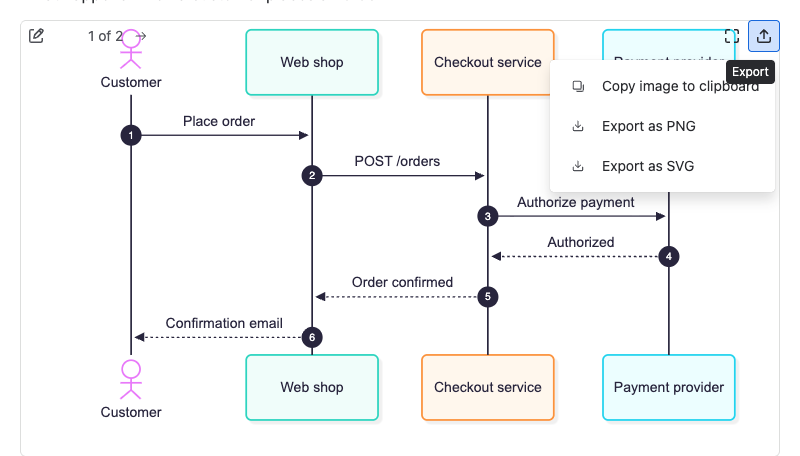
Hover over a diagram to show its toolbar. On the left, people who can edit see Edit diagram (the pencil icon). When the macro or panel holds several diagrams, Previous diagram, Next diagram and a counter such as 1 of 2 appear next to it. On the right are Open full screen and Export.
Open a diagram full screen
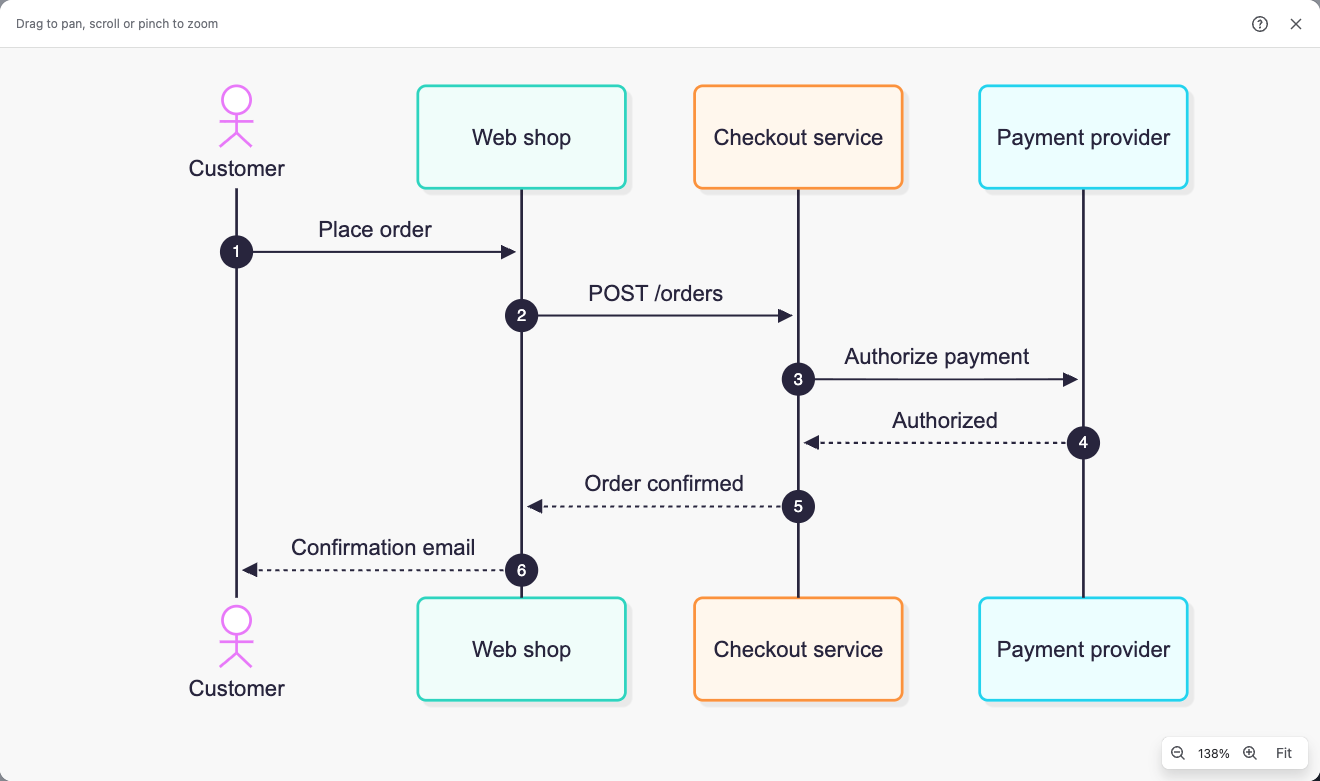
- Hover over the diagram and select Open full screen. The diagram opens fitted to the window.
- Zoom with Zoom in and Zoom out, the mouse wheel or a pinch. Drag to pan.
- Select Fit to see the whole diagram again.
- Select Close full screen or press
Escto go back.
Export a diagram
- Hover over the diagram and select Export.
- Select Copy image to clipboard to paste a PNG into a chat, slide or email. Or select Export as PNG or Export as SVG to download a file. SVG stays sharp at any size.
Result: The app shows Copied to clipboard, or the file is in your downloads.
Exports are named after the page title or work item key and the diagram type, for example Release 4.2 plan - Gantt.png or PROJ-12 - 2 Sequence.svg. PNG images get a solid background that matches your light or dark theme, so they stay readable anywhere.
To put a diagram into a Confluence PDF or Word export, use Confluence's own export. Each macro appears with its first diagram.
Related
- Keep several diagrams in one macro or panel: order the diagrams readers page through.
- Themes, looks and layouts: how diagrams follow light and dark mode.
- Known limitations: browser and export constraints.