What viewers see
This page describes the shared pages that open from a link: a work item, a board or a filter. Viewers need only a browser, never a Jira account, and the page always shows current data from Jira.
On every shared page
- The top bar names what is shared and shows View only, or Can comment when viewers may comment.
- Light or dark follows the viewer's system setting.
- Phones get the same page, laid out for the small screen.
- The footer reads "Shared from Jira with External Share & Public Links".
- Nothing is cached. Changes in Jira, and changes you save to the link, show the next time the page loads.
Viewers can't change anything in Jira, apart from adding comments when you allow it. They never see sections or fields you leave off, internal comments, or comments and work log entries restricted to a role or group.
A shared work item
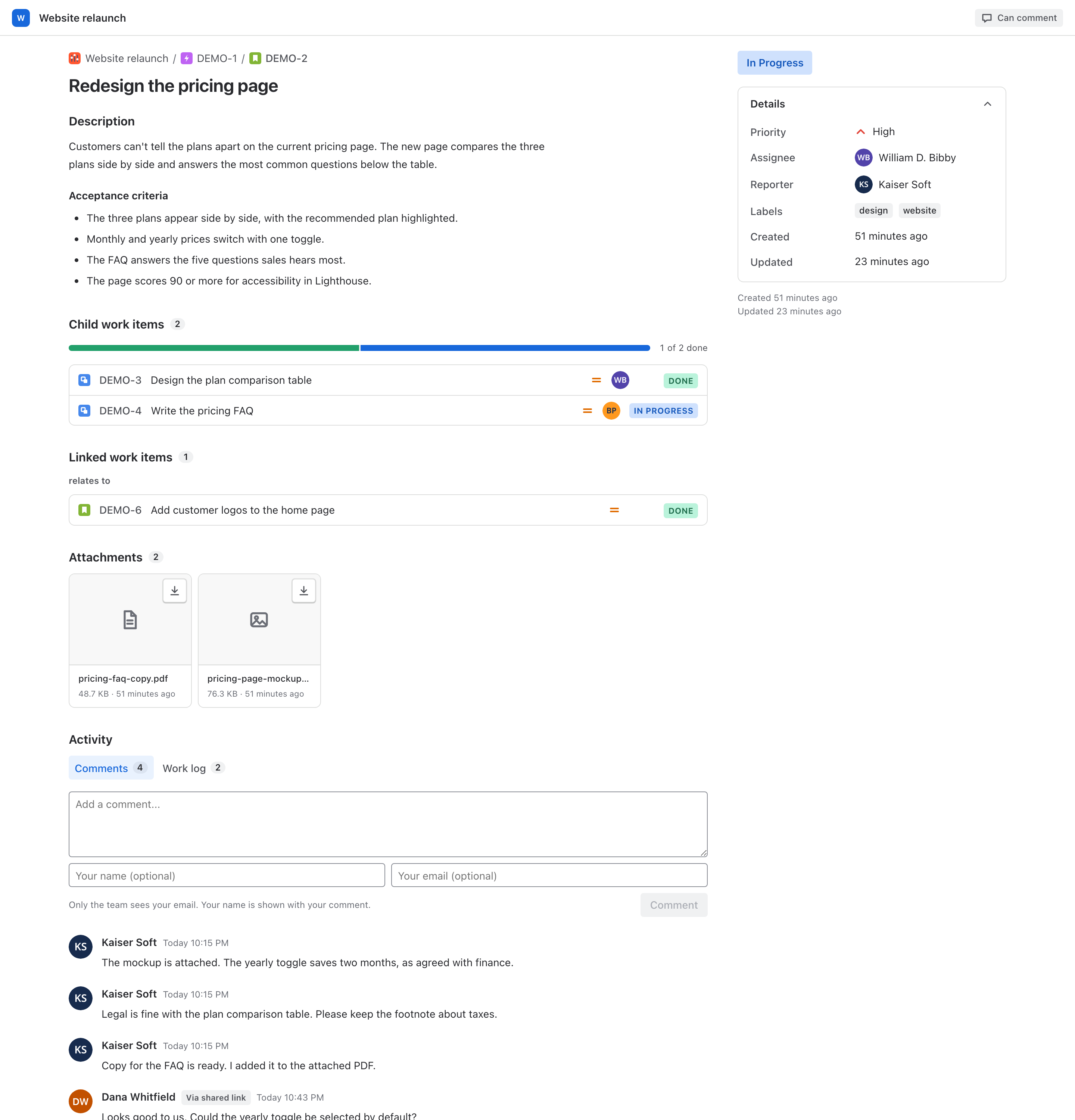
The page reads like the work item view in Jira:
- A breadcrumb with the space, the parent and the work item, then the summary and the description.
- The status, and a Details list with the fields you picked.
- The sections you turned on: Child work items with a progress bar, Linked work items grouped by link type, Attachments as tiles, and Comments and Work log under Activity.
Images open full screen, with previous and next for the other images. Other files download. A file over 3.5 MB shows Too large to download from a shared link.
Printing a work item gives a light page without buttons.
A shared board
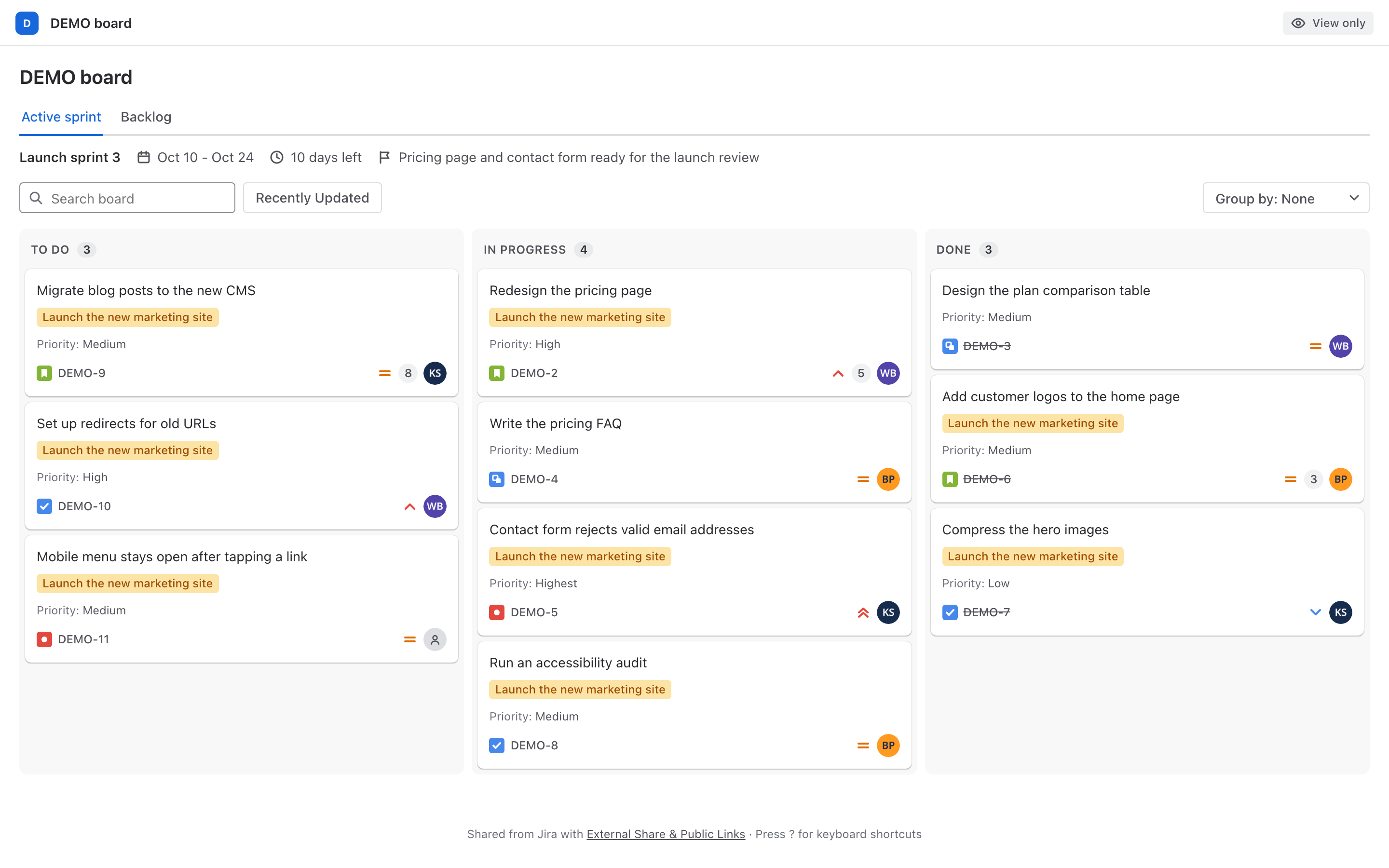
- Columns as in Jira, each with its card count and WIP limit. A column over its limit turns red.
- Cards with the summary, epic, the extra fields you added, and the work type, key, priority, estimate and assignee.
- The sprint line on a Scrum board: the sprint's dates, the days left and its goal.
- A toolbar with Search board, the board's Quick filters and Group by.
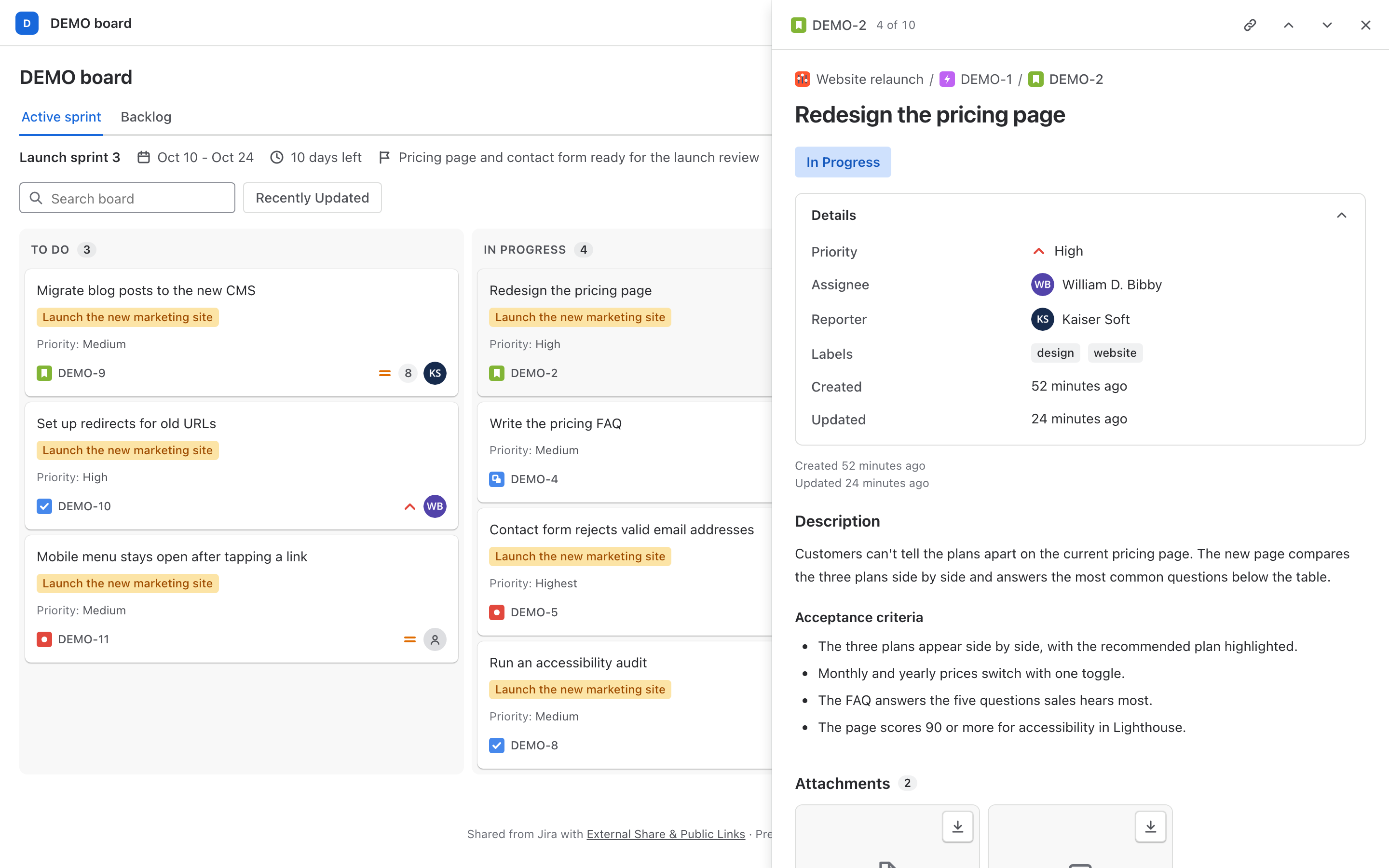
- The backlog, when you shared it: each future sprint with its dates and goal, then work not planned into any sprint.
Each column shows its first cards, then Show N more. Search runs over the whole board, not only the cards on screen.
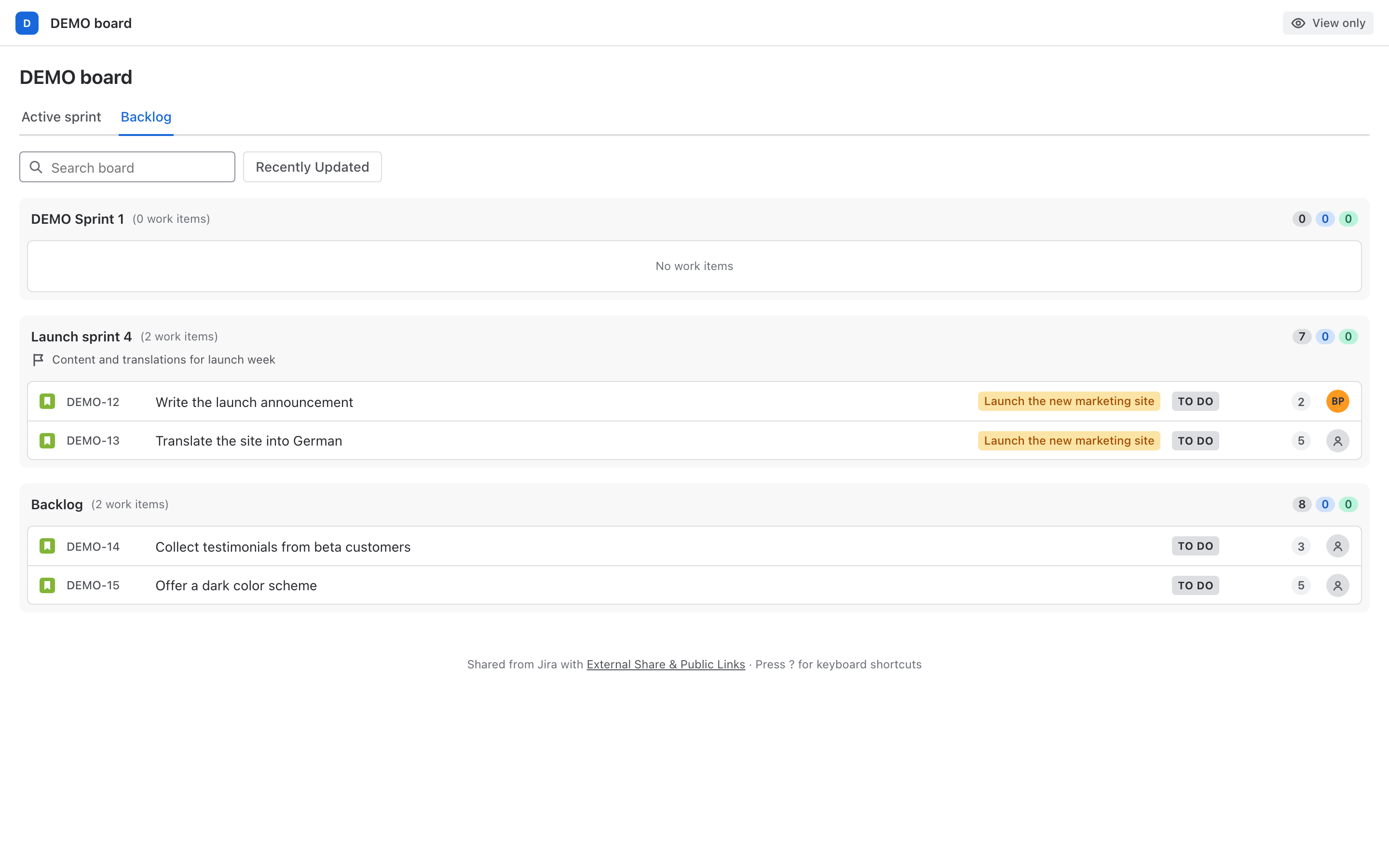
Selecting a card opens it in a side panel, so the board stays in view:
A shared filter
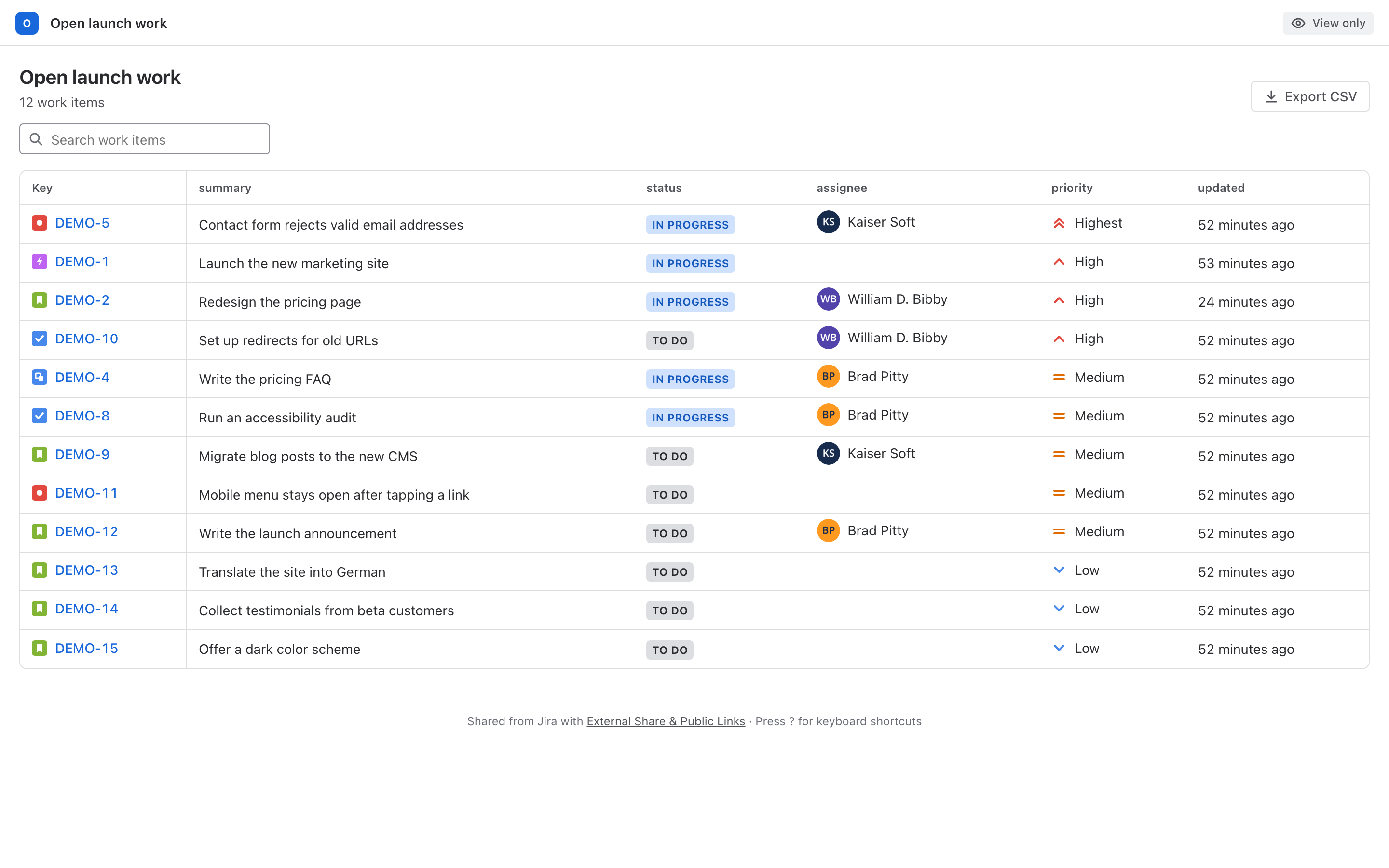
- A table with the columns you chose. The key stays on the left with the work type's icon.
- Search work items, when you made columns searchable. Viewers can always search by work item key.
- Sortable column headers, when you allowed sorting.
- Export CSV, when you allowed it. It downloads every result, not only the rows on screen.
- Load more at the bottom, 50 results at a time. When the link reaches its limit, the page says Showing a limited set.
Selecting a row opens the work item in a side panel with the sections you turned on.
Side panel and keyboard shortcuts
The side panel steps to the previous and next item, and copies a link that opens straight to it. While the panel is open, the page address ends in ?item= and the key, so reloading or sharing the address opens the same item.
| Key | Action |
|---|---|
| j | Next work item in the panel |
| k | Previous work item in the panel |
| / | Search |
| Esc | Close the panel or preview |
| ? | Show the list of shortcuts |
When the page can't show the content
| Message | Why |
|---|---|
| Password required | The link has a password. See Protect a link with a password |
| This link isn't active | The link was turned off or replaced, or the address is incomplete. See Error: "This link isn't active" |
| This link has expired | The link's expiry date has passed. See Set when a link expires |
| This work item can't be shown | The content was deleted or moved, or the app can't read it. See Error: "This work item can't be shown" |
Related
- Choose a theme and accent color: Report, Portal, Wallboard and Embed looks.
- Let viewers comment: a comment box on the shared page.
- Share a work item: choose the sections and fields viewers see.