Set when a link expires
Give a link an expiry date, so it stops working on its own once the client review, vendor project or incident it was made for is over. It's the one control that doesn't depend on anyone remembering to turn the link off.
Before you begin
- App permission: you can change the link. That's the person who created it, a Jira admin, or anyone the Who can manage other people's links setting includes.
- Your Jira admin may have set a default expiry for new links, and a maximum lifetime that nobody can exceed. See Link expiry policy.
Set an expiry
-
Open the link's settings in the share window, or start a new link.
-
Select the Access tab.
-
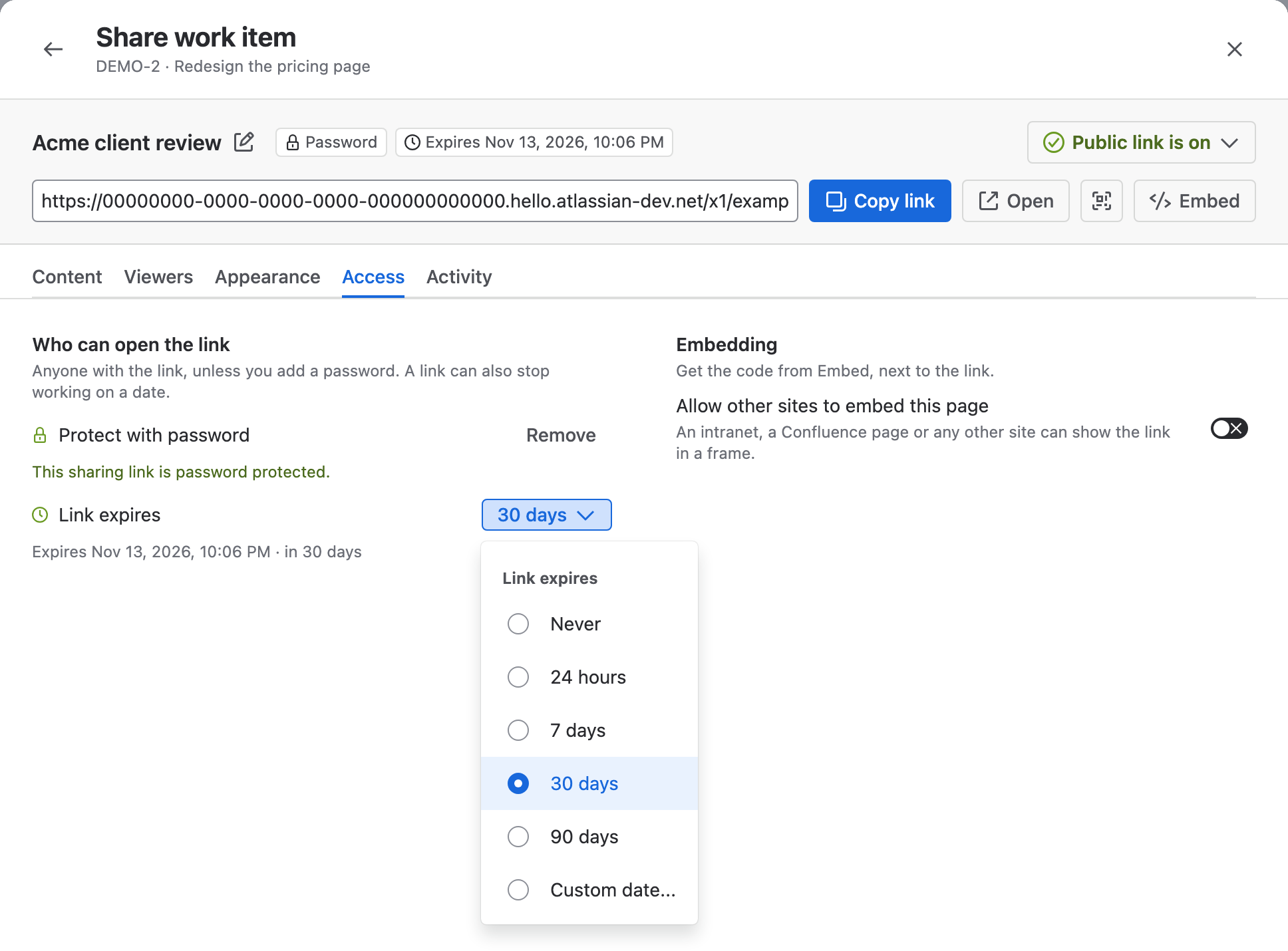
Select the Link expires list, then select how long the link works.
-
For Custom date..., pick the last day the link should work.
-
Select Save changes, or Create link for a new link.
Result: The link bar shows an Expires chip with the date, and the list shows when the link expires.
| Option | When the link stops working |
|---|---|
| Never | Only when someone turns it off. Not offered when your admin sets a maximum lifetime |
| 24 hours | 24 hours after you save |
| 7 days, 30 days, 90 days | That many days after you save, to the minute |
| Custom date... | At the end of the day you pick (23:59:59 in your time zone). Picking today gives a link that stops working tonight |
To change or remove an expiry later, pick another option and save. The URL stays the same.
What happens when a link expires
The expiry is checked every time someone uses the link, so it takes effect at once.
| Where | What people see |
|---|---|
| Opening the link | This link has expired, with the date in UTC and a note to ask the sharer for a new link |
| A page that was already open | The next action, such as opening a card, shows This link has expired |
| The share window | Expired on and the date, in amber. Copy link, Open and the QR code are hidden |
| The admin page | An Expired label in the Expires column |
An expired link isn't deleted. Its settings stay, so you can bring it back or clean it up. The Activity tab counts how often someone tried to open it after it expired.
Bring back an expired link
- Open the link's settings. The link bar shows Expired on and the date.
- Select Set a new expiry. The Access tab opens.
- Pick a new expiry, then select Save changes.
Result: The same URL works again for everyone who has it.
Extending an expired link gives access back to everyone who ever received the URL, including anyone it was forwarded to. If that's a concern, replace the URL instead: see Turn off or replace a link.
FAQ
Can viewers see when a link expires?
No. The shared page doesn't show the expiry date. Tell viewers yourself if the deadline matters to them.
Does lowering the maximum lifetime shorten existing links?
No. The maximum applies when a link is created or saved, not when it's opened. To bring existing links in line, find long-lived links on the admin page and change or turn them off. See Review and turn off links across the site.
Does turning off sharing for a group turn off its links?
No. Disable for everyone and group restrictions stop new links from being created. Existing links keep working until they expire or someone turns them off.
Related
- Protect a link with a password: ask viewers for a password before any content loads.
- Link activity: see whether a link is still opened before it expires.
- Sharing policy settings: the default expiry and the maximum lifetime.