Plan a launch on an epic
Keep the launch activities of an epic, such as the beta, the announcement and the webinar, on the epic itself.
Problem: The epic tracks the work. The launch dates, though, live in a spreadsheet, so people open the epic and still ask when the webinar is.
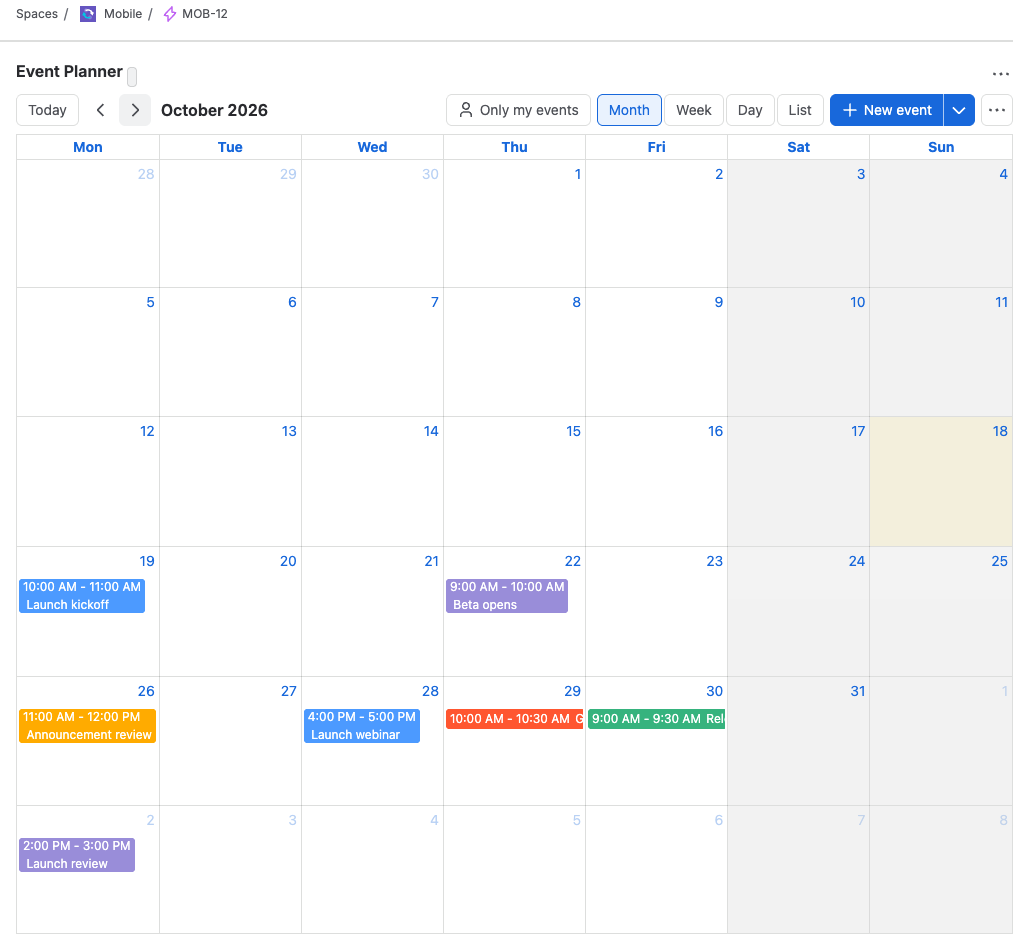
Solution: Add the Event Planner panel to the epic. Now the plan sits next to the work, visible to everyone who can see the epic.
What you'll need
- Event Planner for Jira, installed on your site.
- The Edit work items permission in the space.
Set it up
- Open the epic. Under the summary, select View app actions (the apps icon) > Event Planner.
- On the welcome screen, select Start from scratch.
- Add the launch activities with New event: the beta start, the announcement, the webinar and the review.
- For the webinar, select Add link or video call and paste the meeting link.
- Add the owner of each activity with Add people.
- In ••• > Calendar settings, set Show to Monthly view, so the epic opens on the whole launch month.
What your team will experience
- Everyone who opens the epic sees the launch month, with each activity in its color.
- Each owner selects Only my events to see what they're on.
- Stakeholders who can't edit the epic see the plan read-only, and select List to read it as a list.
- When the announcement moves, the product manager drags it to the new day.
tip
After the launch, select ••• > Lock calendar to keep the plan as a record. People who can edit the epic can still unlock it.
Check that it works
- Reload the epic and confirm the panel shows the plan.
- Select ••• > Export… > *.ics file and import it into your calendar app.
Related
- Add a calendar to a Jira work item: who sees the panel.
- Event details: links, video calls and people.
- Views: month, list and Only my events.