Draft a diagram with AI
Describe a diagram in plain words to an AI assistant and paste the Mermaid code it writes into the editor. It's the fastest way to a first draft when you know what you want but not the syntax.
Before you begin
- The diagram editor is open. See Edit a diagram.
- An account with the AI assistant you want to use, or any assistant you already work with.
Draft the diagram
-
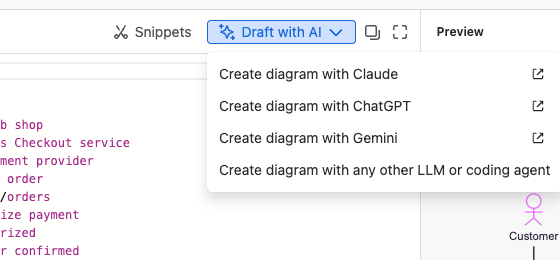
In the editor, select Draft with AI. In an empty diagram you can also select the Draft with AI card under Start your diagram.
-
Select Create diagram with Claude, Create diagram with ChatGPT or Create diagram with Gemini. Confirm that you want to open the external site. The assistant opens in a new browser tab with a short prompt that points it to Diagram syntax for AI.
For another assistant, select Create diagram with any other LLM or coding agent, then Copy prompt, and paste the prompt into your assistant.
-
When the assistant asks, describe the diagram. For example: "A flowchart of our expense approval: an employee submits, the manager approves anything under 500 euros, Finance approves the rest."
-
Copy the Mermaid code the assistant writes and paste it into the editor.
-
Check the preview, fix any labels, and select Save and close.
Result: The diagram shows on the page or work item like any other.
Tips for better drafts
- Name the diagram type if you know it: flowchart, sequence diagram, Gantt chart, mind map.
- Give the real names: the systems, teams and steps you want to see as labels.
- Ask for changes in the same chat: "Add a rejection path" or "Make it left to right." Then paste the new code over the old one.
- Share only what you'd share anyway. The assistant only sees what you type or paste into it. The app sends it nothing.
Related
- Create pages with AI: let an assistant write the whole Confluence page, diagrams included.
- Diagram syntax for AI: the reference the prompt points to.
- Edit a diagram: fix errors in the code the assistant wrote.