Turn Mermaid code blocks into diagrams in Confluence
See the Mermaid code blocks on a Confluence page or blog post drawn as diagrams, and turn the ones you choose into Mermaid Diagram macros.
Before you begin
- To see the diagrams: permission to view the page.
- To turn code blocks into macros: permission to edit the page, and an active Mermaid Diagrams license.
- Publish or discard any unpublished changes to the page first. The app won't change a page with unpublished changes.
Turn code blocks into macros
-
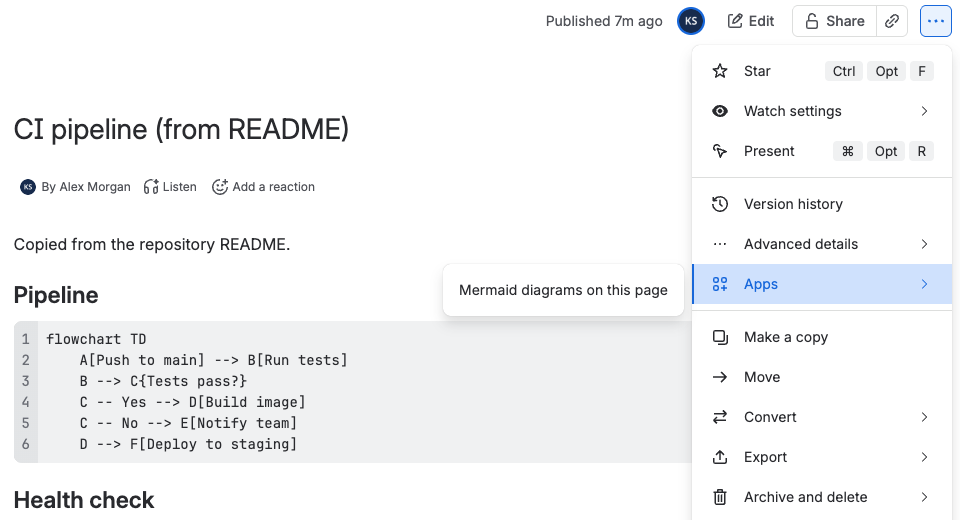
Open the page and select ••• (More actions) > Apps > Mermaid diagrams on this page.
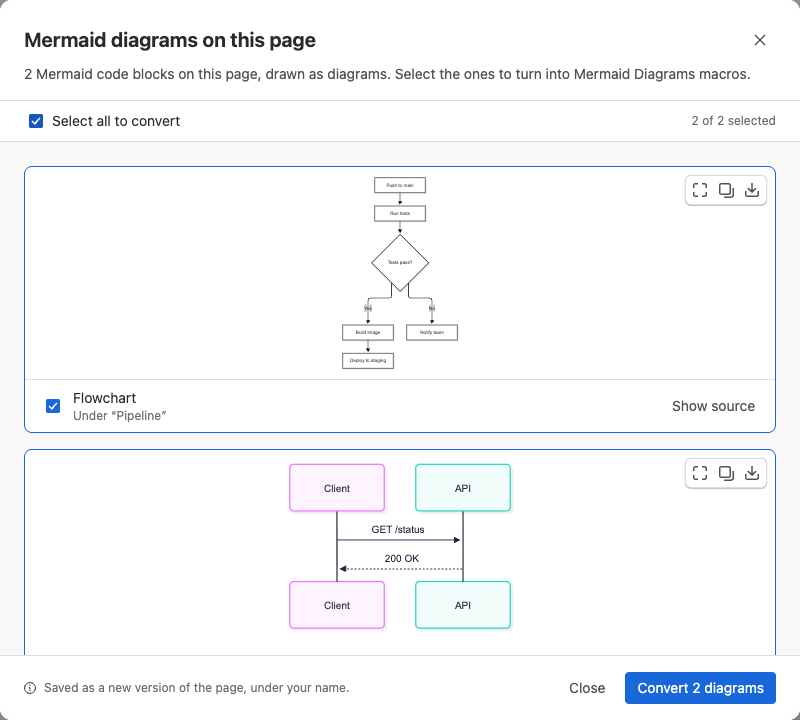
A dialog shows each Mermaid code block on the page, drawn as a diagram, with the heading it's under.
-
Check the diagrams. On each one you can select Show source, Copy source, Download as PNG or SVG, or View fullscreen.
-
Select the code blocks to turn into macros, or select Select all to convert.
-
Select Convert, for example Convert 2 diagrams.
Result: The page is saved once, as a new version under your name. Each selected code block is now a Mermaid Diagram macro.
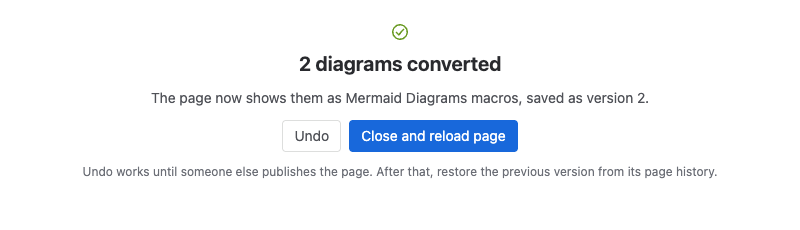
Select Close and reload page to see the diagrams. To put the code blocks back, select Undo. Undo works until someone else publishes the page. After that, restore the previous version from the page history.
Good to know
- A code block with an error converts too, so you can fix it in the diagram editor.
- A
```mermaidfence typed as plain text, not in a code block, is drawn but stays as it is. - If you can only view the page, the dialog shows the diagrams without the convert options.
- On a page without Mermaid code blocks, people who can edit it can select Insert an example diagram to add a macro at the end of the page.
If the page wasn't changed
The dialog says why, and nothing on the page changes:
| Message | What to do |
|---|---|
| This page has unpublished changes | Publish or discard the changes in the page editor, then try again |
| The page changed while you were reviewing | Someone published a new version. Select Review again |
| This space needs approval before publishing | Convert the code blocks in the page editor instead, by adding macros by hand |
| You can't edit this page | Ask the page owner for edit permission |
| The page wasn't changed | Usually a short network problem. Select Try again. Your selection is kept |
Related
- Add a diagram to a Confluence page: add a new macro by hand.
- Mermaid code in your content: which code blocks are found.
- Bring your existing Mermaid diagrams: import from READMEs and Mermaid Live too.