The admin page
The admin page has the Confluence settings for space calendars, and a Get started overview in both products.
Before you begin
- To open the page and save its settings, you need to be a Confluence admin or Jira admin, or a site admin.
Open the admin page
- Go to admin.atlassian.com and select your organization.
- Select Apps > Sites > your site > Connected apps.
- Search for Event Planner.
- Open the app's ••• menu and select Configure for the settings, or Get Started for the overview.
Space calendar settings in Confluence
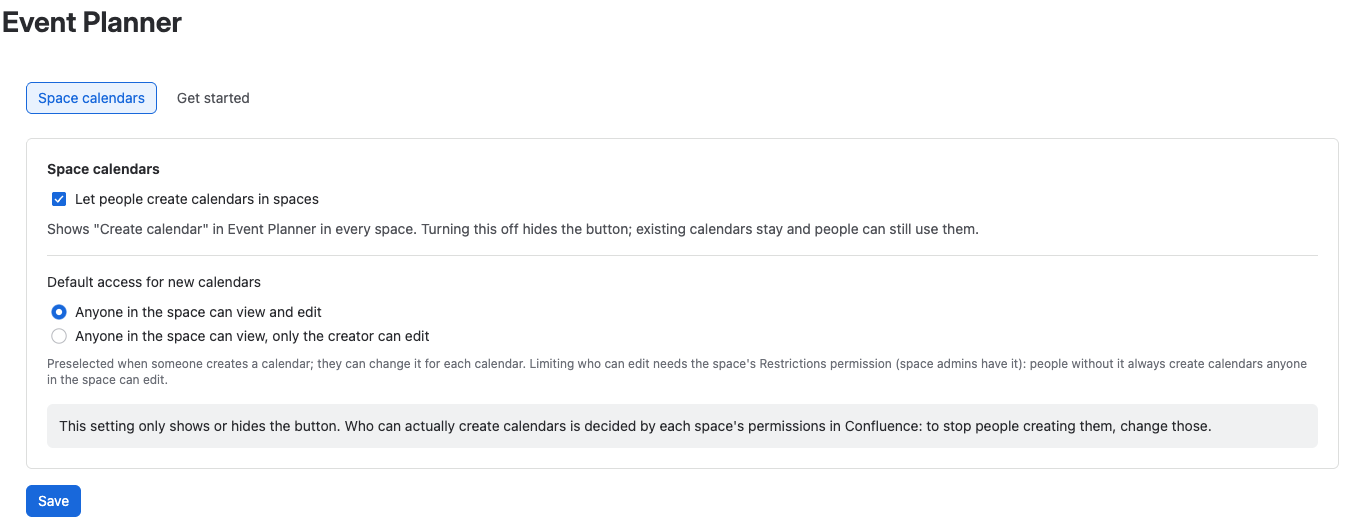
- On the Space calendars tab, set:
- Let people create calendars in spaces: shows Create calendar in Event Planner in every space. On by default.
- Default access for new calendars: the option the Create calendar dialog starts with. Choose Anyone in the space can view and edit (the default) or Anyone in the space can view, only the creator can edit.
- Select Save.
How these settings work:
- Turning off Let people create calendars in spaces only hides the button. Existing calendars stay, and people keep using them. Each space's permissions in Confluence decide who can create calendars.
- The default access is only a starting point. People choose the access for each calendar they create.
- Limiting who can edit needs the space's Restrictions permission. People without it always create calendars that anyone in the space can edit, whatever the default.
Get started
The Get started tab, or page in Jira, sums up what the app does and the first steps, with links to this documentation and to support. It has no settings.
Related
- Choose who can see and change a space calendar: the access options people choose from.
- Permissions: every permission Event Planner checks.
- There's no Create calendar button: what to check.