Modified By
Overview
 | This read-only calculated custom field identifies the user who made the first or most recent update to the work item or a specific field within the work item. To create and configure this field, refer to the native Jira Custom Fields page. |
|---|
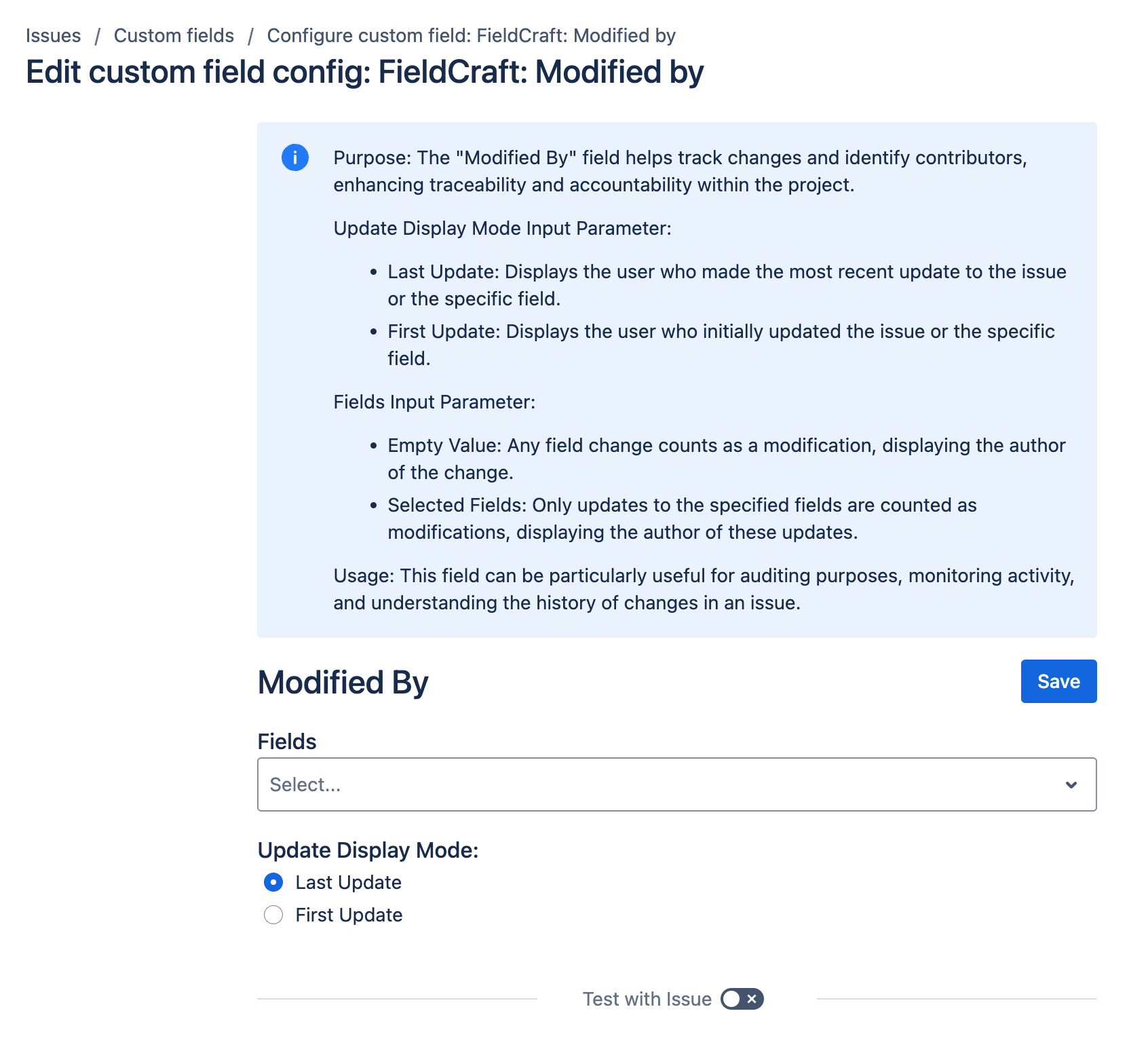
The "Modified By" field helps track changes and identify contributors, enhancing traceability and accountability within the project.
Update Display Mode input parameter
The "Update Display Mode" toggle button allows you to choose how the modifications are displayed:
- First Update: Displays the user who initially updated the work item or the specific field.
- Last Update: Displays the user who made the most recent update to the work item or the specific field.
Fields input parameter
The "fields" input parameter determines which field changes count as modifications.
- Empty Value: If this parameter is left empty, any field change will be counted as a modification, and the "Modified By" field will display the author of the change.
- Selected Fields: If specific fields are selected, only updates to these fields will be counted as modifications, and the "Modified By" field will display the author of these updates.
Usage
This field can be particularly useful for:
- Auditing Purposes: Ensuring a clear record of who made changes and when.
- Monitoring Activity: Keeping track of active contributors and the frequency of changes.
- Understanding Change History: Gaining insights into the progression and updates made to a work item over time.
Inputs and defaults
- Update Display Mode: Choose
First UpdateorLast Update. - Fields: Optional list of fields that count as modifications.
- Default field scope: if
fieldsis empty, any field update is counted.
Example configuration
Track the last updater for priority changes:
- Update Display Mode:
Last Update - Fields:
Priority
This setup shows the user who most recently changed priority.
Expected result
- The field displays a Jira user for matching changes.
- In first-update mode, the first matching updater is shown.
- In last-update mode, the most recent matching updater is shown.
Edge cases
- If there are no matching changes, the field can remain empty.
- Historical work items may require Reindex after configuration updates.
Create and configure the custom field
Create and configure your custom field by following the instructions in our Getting Started guide on FieldCraft Custom Field Configuration.