Share a board
Create a public link to a Jira board, so people without a Jira account can follow its columns and cards. Viewers see the board's own columns, the active sprint on a Scrum board and, if you choose, the backlog.
Before you begin
- Jira permission: you can see the board and the work items on it.
- App permission: your Jira admin lets you share boards under Board Share Permissions. It's on by default. See Sharing policy settings.
Choose what viewers see
-
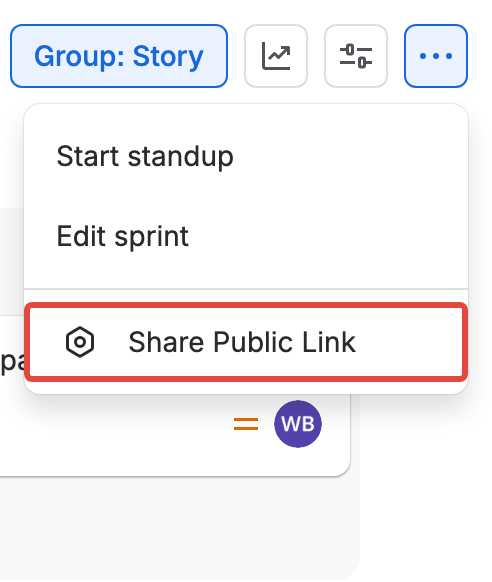
Open the board, select More actions (⋯) in its header, then select Share Public Link. The Share board window opens.
If the board already has links, the window opens on its list of links. Select New link.
-
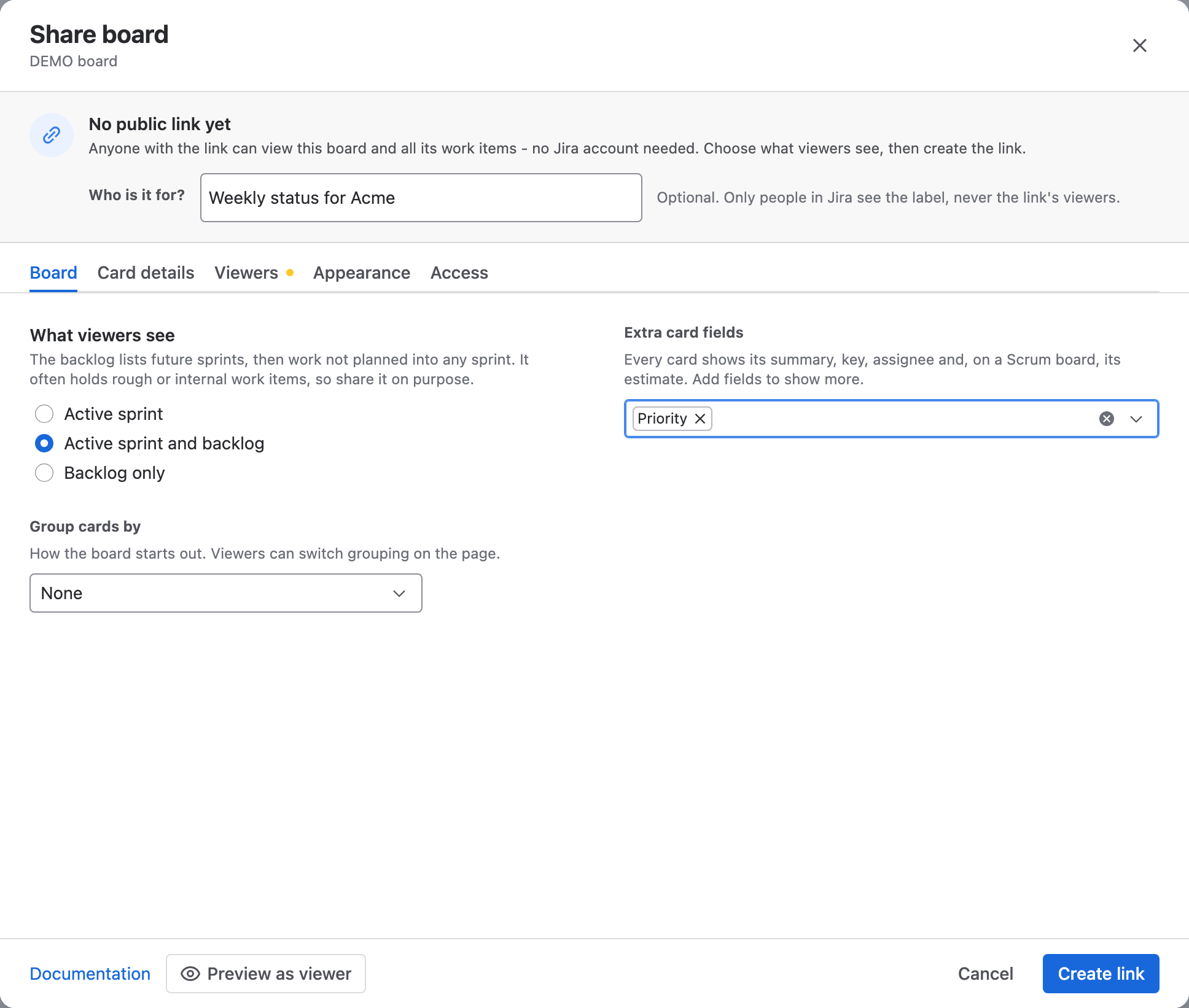
Optional: in Who is it for?, enter a label such as
Weekly status for Acme. Only people in Jira see it. -
On the Board tab, under What viewers see, choose the view:
- Active sprint (Board on a Kanban board): the board's columns and cards.
- Active sprint and backlog (Board and backlog): the board and the backlog, as two tabs.
- Backlog only: future sprints, then work not planned into any sprint.
-
Optional: in Group cards by, choose Assignee or Epic. Viewers can switch the grouping on the page.
-
Optional: in Extra card fields, add fields to show on each card. Every card already shows its summary, key, assignee and, on a Scrum board, its estimate.
-
On the Card details tab, turn on the sections viewers see when they open a card: Attachments, Comments, Linked work items, Child work items and Work log. Child work items show only when they're on the same board.
The backlog often holds rough or internal work items. Share it only when everything in it is fine for viewers to read.
Create and send the link
-
Optional: set up the other tabs.
- Viewers: Use the board's quick filters is on by default. Quick filters that depend on who is looking, such as "Only my issues", are never offered.
- Appearance: pick a theme. Wallboard suits a TV in the office. See Choose a theme and accent color.
- Access: add a password or an expiry date. See Protect a link with a password.
-
Select Preview as viewer to check the board, and open a card or two. Close the preview to return.
-
Select Create link, then select Copy link and send the link.
warningAnyone who has the link can see every card on the board, and the backlog if you shared it.
Result: Viewers see a read-only board that is always current. The first load shows about 50 cards across the columns, and each column loads more when viewers ask for it.
What the window warns about
A warning appears on the tab it concerns when viewers would get less than you see:
| Warning | What it means |
|---|---|
| About N cards are in projects not approved for sharing | Your Jira admin allows only some spaces to be shared. Those cards don't appear on the link |
| The board's columns can't be read | Viewers see the cards grouped by status instead of your columns |
| There is no active sprint | The board shows no cards until a sprint starts |
| N quick filters won't be offered | Those quick filters depend on who is looking, so they make no sense on a public link |
Related
- What viewers see: the shared board, its side panel and its keyboard shortcuts.
- Choose a theme and accent color: Report, Portal and Wallboard boards.
- Give each audience its own link: up to 10 links per board.
- Share a filter: share work items from several spaces as one table instead.