Give each audience its own link
Add several links to one work item or board, each with its own sections, look, password and expiry. A client can get a summary that expires on Friday while a vendor sees everything, and turning one link off leaves the others working.
Before you begin
- Jira permission: you can see the work item or board.
- App permission: you can share work items or boards. See Sharing policy settings.
- A work item or board can have up to 10 links. A saved filter can be shared as often as you like: see Share a filter.
Add a link for another audience
-
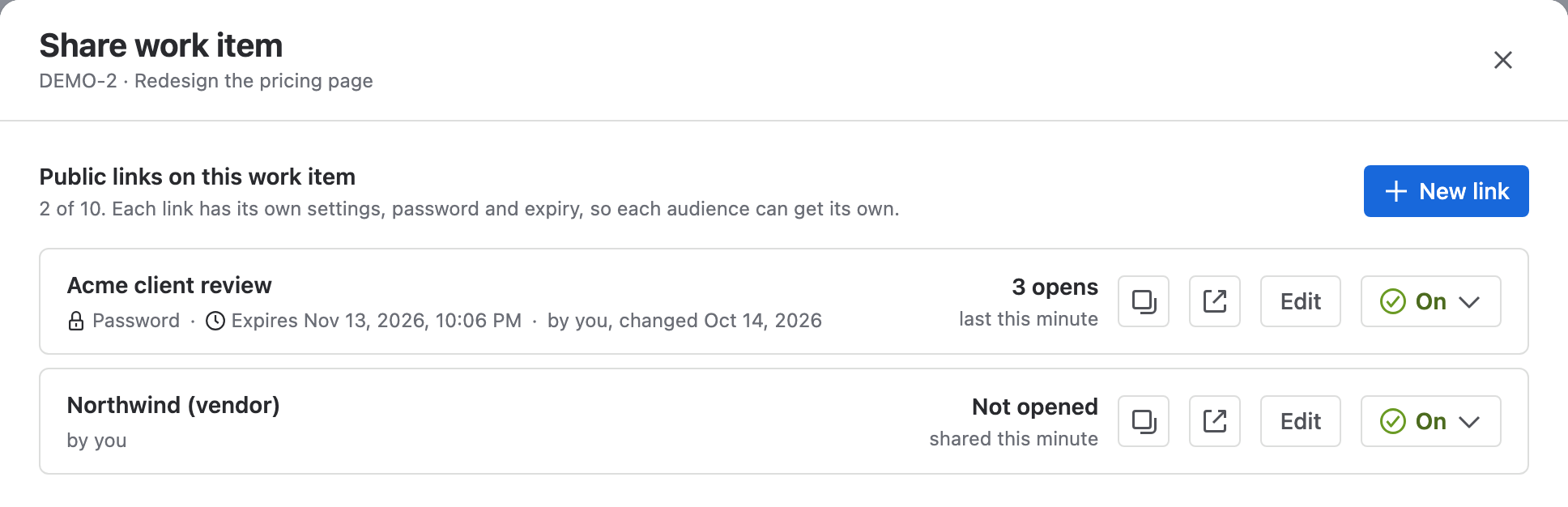
Open the share window: in the work item's Actions (⋯) menu or the board's More actions (⋯) menu, select Share Public Link. The window opens on Public links on this work item (or board).
-
Select New link. A new link's settings open, starting from your site's defaults.
-
In Who is it for?, enter a label for the audience, such as
Northwind (vendor). -
Choose the link's settings on each tab.
-
Select Create link.
Result: The new link has its own URL. Select the back arrow to return to the list, where every link shows its label, its chips and who created it.
Start from an existing link's settings
-
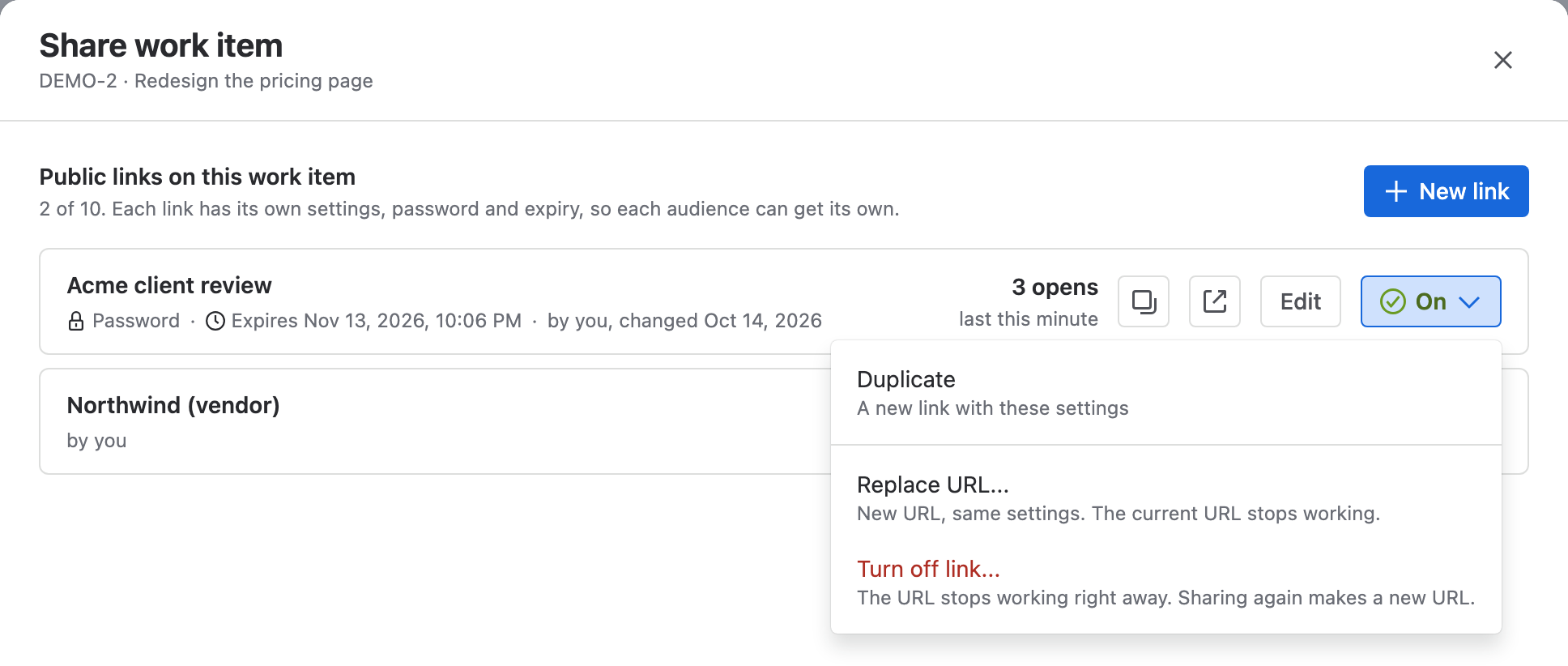
In the list of links, select the status button (On) of the link to copy.
-
Select Duplicate. A new link opens with the same settings, labeled Copy of and the original's label.
-
Set a password and an expiry if the new link needs them. Duplicate doesn't copy either.
-
Select Create link.
Rename a link
- In the list of links, select Edit next to the link.
- In the link bar, select Rename (the pencil), or Add label on a link without one.
- Enter the label, press Enter, then select Save changes.
Labels can be up to 80 characters. They appear in the share window, in My share links, on the admin page and in the audit log, never on the shared page.
Who can change a link
By default, only the person who created a link can change its settings. Your Jira admin can widen this under Who can manage other people's links. See Sharing policy settings.
- Jira admins can change any link.
- Anyone who can see the work item or board can copy any of its links and turn any of them off, whatever the setting.
- A link you can't change opens read-only, under Only name can change this link. Every tab is visible, but the settings are disabled. You can still copy it, turn it off, or duplicate it to make your own.
When a work item or board has 10 links, the window says so. Turn one off to add another.
Related
- Turn off or replace a link: stop one link without touching the others.
- Link activity: see which audience opened its link.
- Manage your links in My share links: every link you created, in one list.