Share a filter
Share a saved Jira filter as a public link: a live table of the filter's results for people without a Jira account. Use it to share work items from several spaces at once, for example every open bug for one client.
Before you begin
- Jira permission: you can see the saved filter, and the filter is shared with someone in Jira. The app can't read a private filter.
- App permission: your Jira admin lets you share filters under Filter Share Permissions, and has chosen which spaces can be shared under Projects that can be shared. Until an admin makes that choice, nobody can share a filter. See Sharing policy settings.
Choose the filter and columns
-
In the Jira top navigation, select Apps > Share Public Link. The My share links page opens.
-
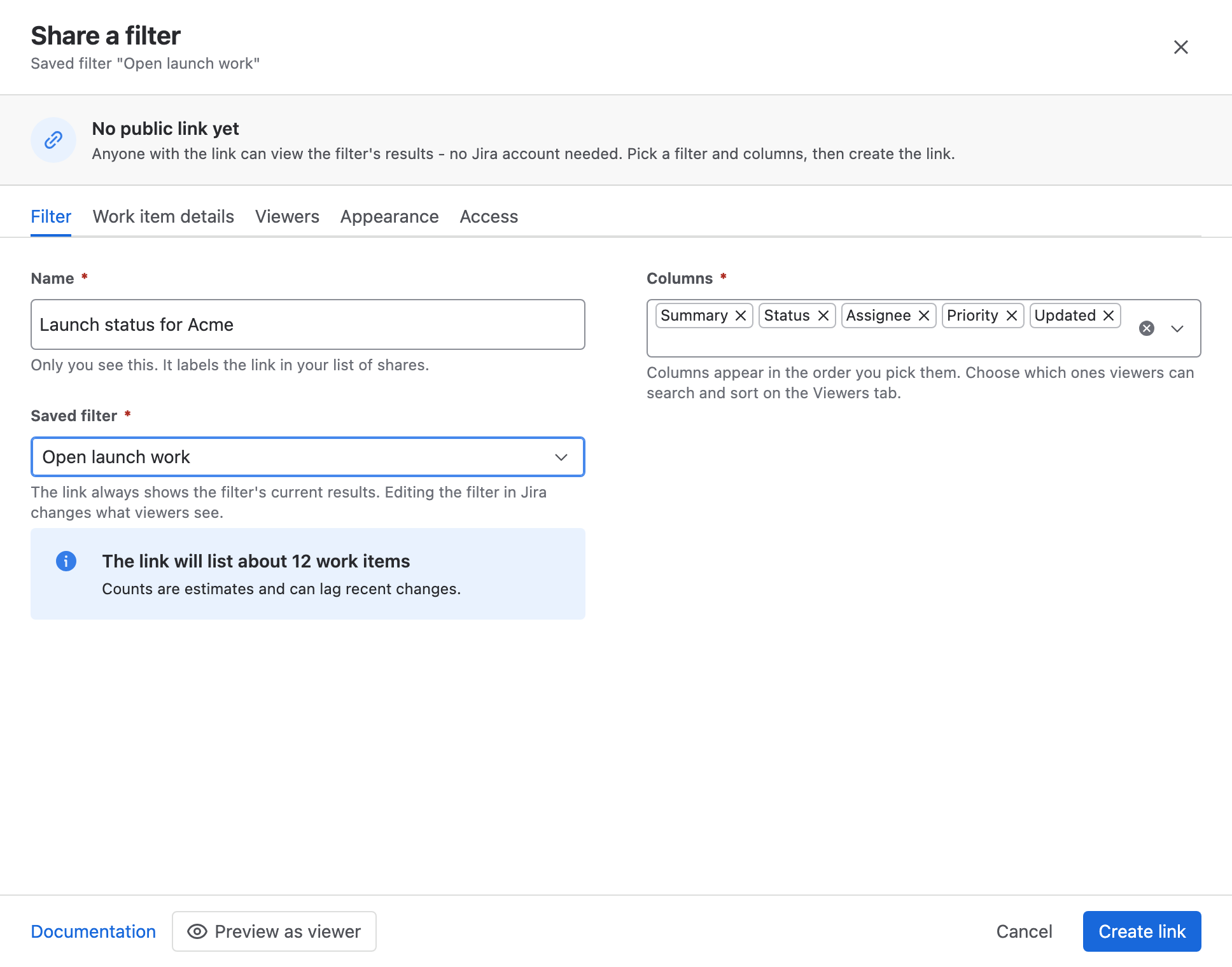
Select Share a filter. The Share a filter window opens on the Filter tab.
-
In Name, enter a name such as
Open bugs for Acme. Only you see it, in your list of links. -
In Saved filter, select the filter to share.
-
In Columns, keep the default columns (Summary, Status, Assignee, Priority and Updated) or change them. Columns appear in the order you pick them, after the work item key, which is always first.
-
Optional: on the Work item details tab, turn on the sections viewers see when they open a row: Attachments, Comments, Linked work items, Child work items and Work log. All are off by default.
After you pick a filter, the Filter tab says about how many work items the link will list, and how many of the filter's results are in spaces that can't be shared.
Choose what viewers can do
-
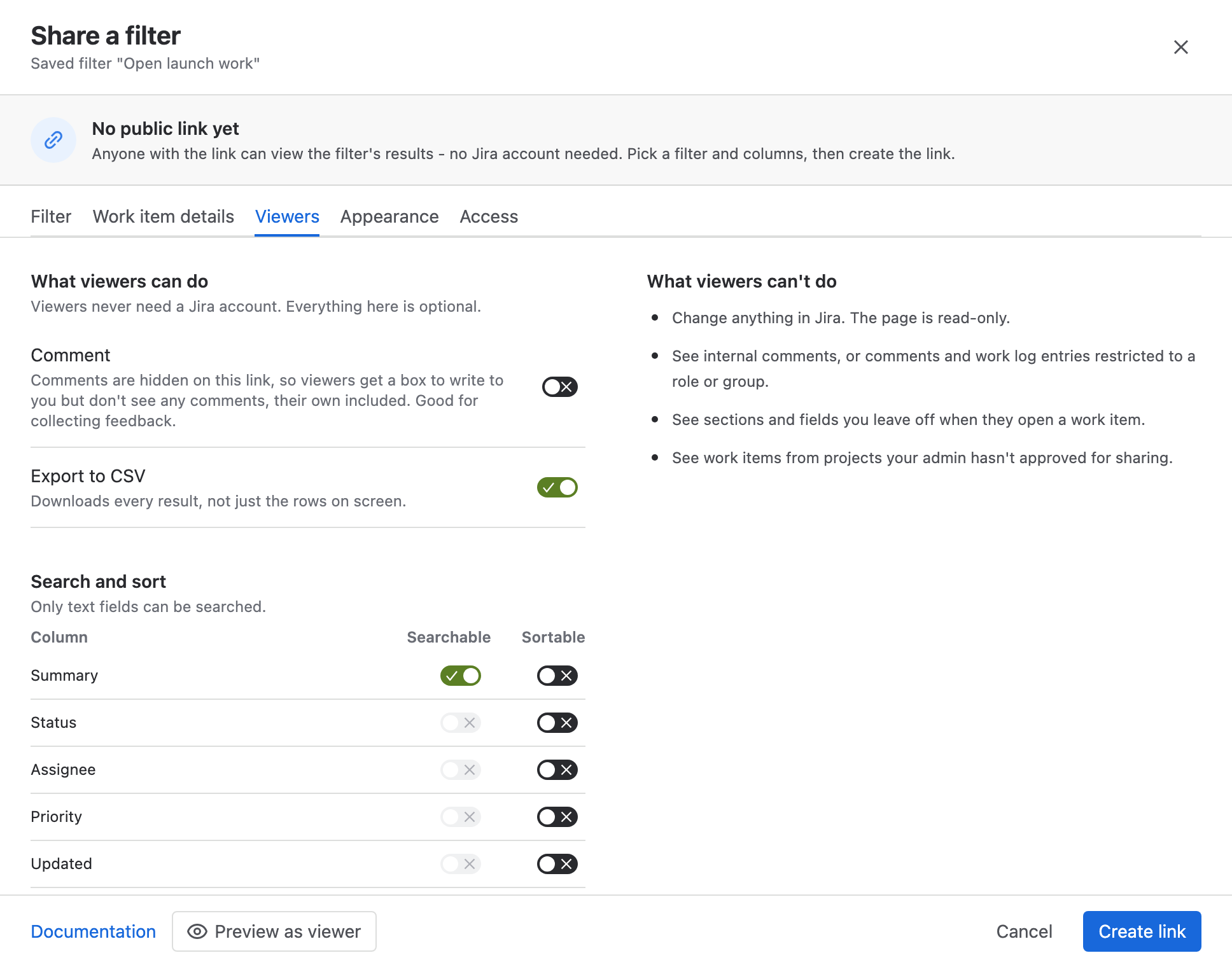
Select the Viewers tab.
-
Optional: turn on Comment to let viewers comment on the work items they open. See Let viewers comment.
-
Optional: turn on Export to CSV to let viewers download every result as a spreadsheet, not only the rows on screen.
-
Optional: under Search and sort, turn on Searchable and Sortable for each column viewers should search or sort by. Only text fields can be searched. Viewers can always find a work item by its key.
Create and send the link
-
Optional: on the Appearance and Access tabs, pick a theme, and add a password or an expiry date.
-
Select Preview as viewer to see the table as viewers will. Search, sorting and the row details work in the preview.
-
Select Create link. The link appears in your list on My share links.
-
In the link's row, select Copy link, then send the link.
warningAnyone who has the link can read every work item the filter returns. If you later change the filter's JQL in Jira, the link shows the new results straight away.
Result: Viewers see a read-only table of the filter's current results. Results load 50 at a time, up to the maximum your Jira admin set (1,000 by default).
Which work items a filter link shows
A filter link shows only work items from the spaces your Jira admin allows to be shared, whatever the filter's JQL says. Work items from other spaces are left out without an error.
For example, your admin allows the SUPPORT and DOCS spaces, and you share a filter with this JQL:
project IN (SUPPORT, FINANCE) AND status != Done
Viewers see only the SUPPORT work items. This stays true if someone edits the filter later.
The app reads the filter's results with its own access to Jira, not yours. So a filter link can show work items inside the allowed spaces that you can't open yourself. Keep this in mind before you share a broad filter.
FAQ
Can I share the same filter more than once?
Yes. Each share of a filter is its own link, with its own name, columns, password and expiry. Give each audience its own link and turn each off separately.
Can a colleague change my filter link?
No. Only the person who created a filter link can change it. Jira admins can turn off any filter link on the site's admin page.
What happens when the saved filter is deleted?
The link stops showing results, and viewers see that the filter no longer exists. Turn off the link in My share links.
Related
- Manage your links in My share links: copy, edit and turn off every link you created.
- What viewers see: the shared table, its search and its row details.
- Sharing policy settings: who can share filters, which spaces they reach, and the results limit.