Manage your links in My share links
My share links lists every public link you created, for work items, boards and filters, on one page. Use it to find a link, copy it, change it or turn it off without opening each work item or board.
Before you begin
- Jira permission: any Jira user can open the page. It lists only the links you created.
- To change a link from the list, you must still be allowed to change it. See Who can change a link.
Find a link
-
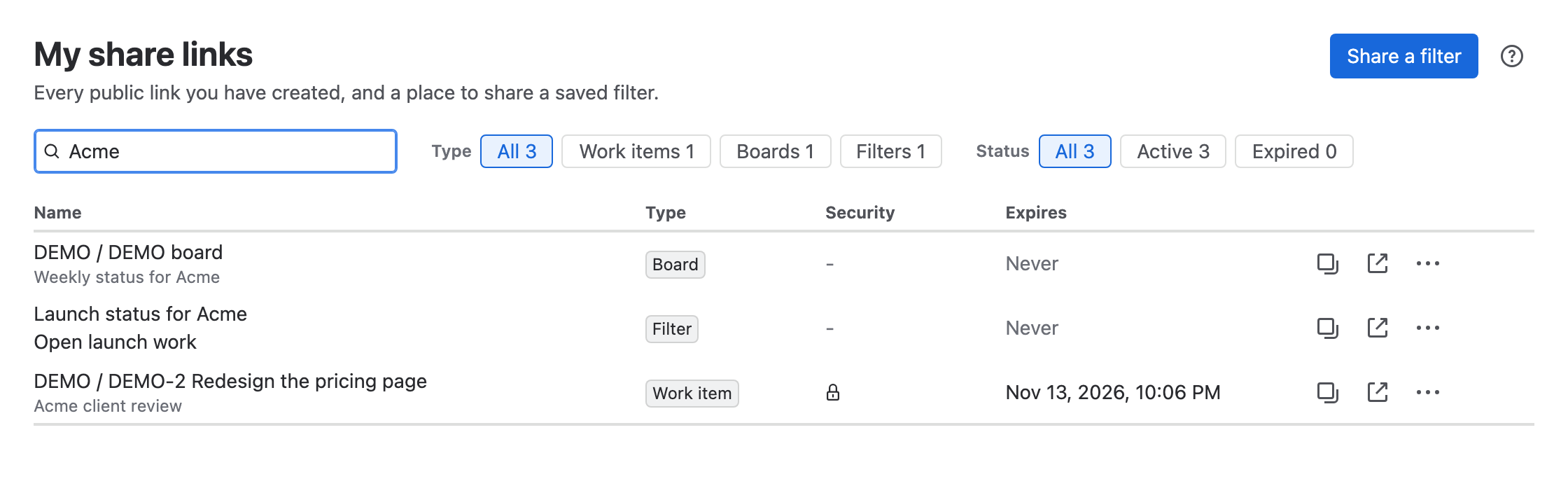
In the Jira top navigation, select Apps > Share Public Link. The My share links page opens.
-
Optional: in Search by name or key, enter part of the name, label or work item key.
-
Optional: under Type, select Work items, Boards or Filters. Under Status, select Active or Expired.
Result: The table shows the matching links, with their type, password protection and expiry.
Copy, change or turn off a link
In the link's row:
- Select Copy link to copy the URL, or Open link to open the shared page in a new tab. Your own opens don't count as link activity.
- Select More actions (⋯) > Edit to open the link's settings. Work item and board links open in the same share window as in Jira. Filter links open in Edit shared filter.
- Select More actions (⋯) > Turn off link, then confirm. The URL stops working at once, and this can't be undone.
Select a link's name to open the work item, board or saved filter in Jira.
When you can't share something
If your Jira admin hasn't allowed you to share work items, boards or filters, a warning icon appears next to Share a filter. Select it to see What you can share, with Allowed or Not allowed for each kind of link and the reason.
Links you already have keep working and stay listed on this page.
Limitations
- The list shows the name a work item or board had when its link was last saved. If the work item is renamed in Jira, the old name stays until someone saves the link again.
- The page doesn't show how often a link was opened. Open the link's share window to see its activity.
- Links created by other people don't appear here, even when you can change them. Open them from the work item or board.
Related
- Share a filter: create a filter link from this page.
- Turn off or replace a link: stop a link working, or give it a new URL.
- Link activity: see how often each link was opened.