Link activity
Link activity shows how often each public link was opened, and when. Use it to check that a client opened what you sent, or to find links nobody uses.
Before you begin
- Jira permission: you can view the work item or board, or you created the filter link.
- App permission: you can change the link. That's the person who created it, a Jira admin, or anyone the Who can manage other people's links setting includes. See Sharing policy settings.
- Link activity is on. A Jira admin can turn it off for the whole site.
See whether a link was opened
-
Open the share window for the work item or board: in its Actions (⋯) or More actions (⋯) menu, select Share Public Link. The window opens on the list of the item's links.
-
Look beside each link's buttons. It shows, for example, 3 opens and last 2 hours ago, or Not opened and when you shared it.
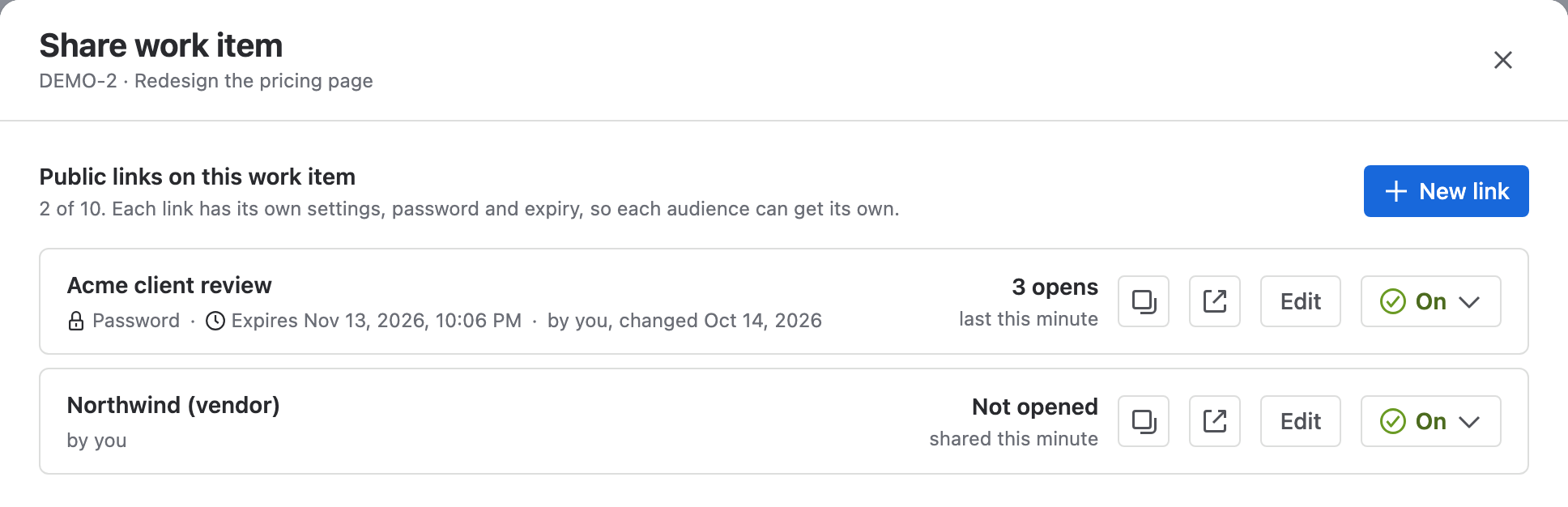
Result: A link nobody has opened within 7 days of being created shows Not opened in amber.
My share links shows no counts. For a filter link, select More actions (⋯) > Edit in its row, then the Activity tab described below.
See a link's activity in detail
-
In the share window, select Edit next to the link. The link's settings open.
-
Select the Activity tab.
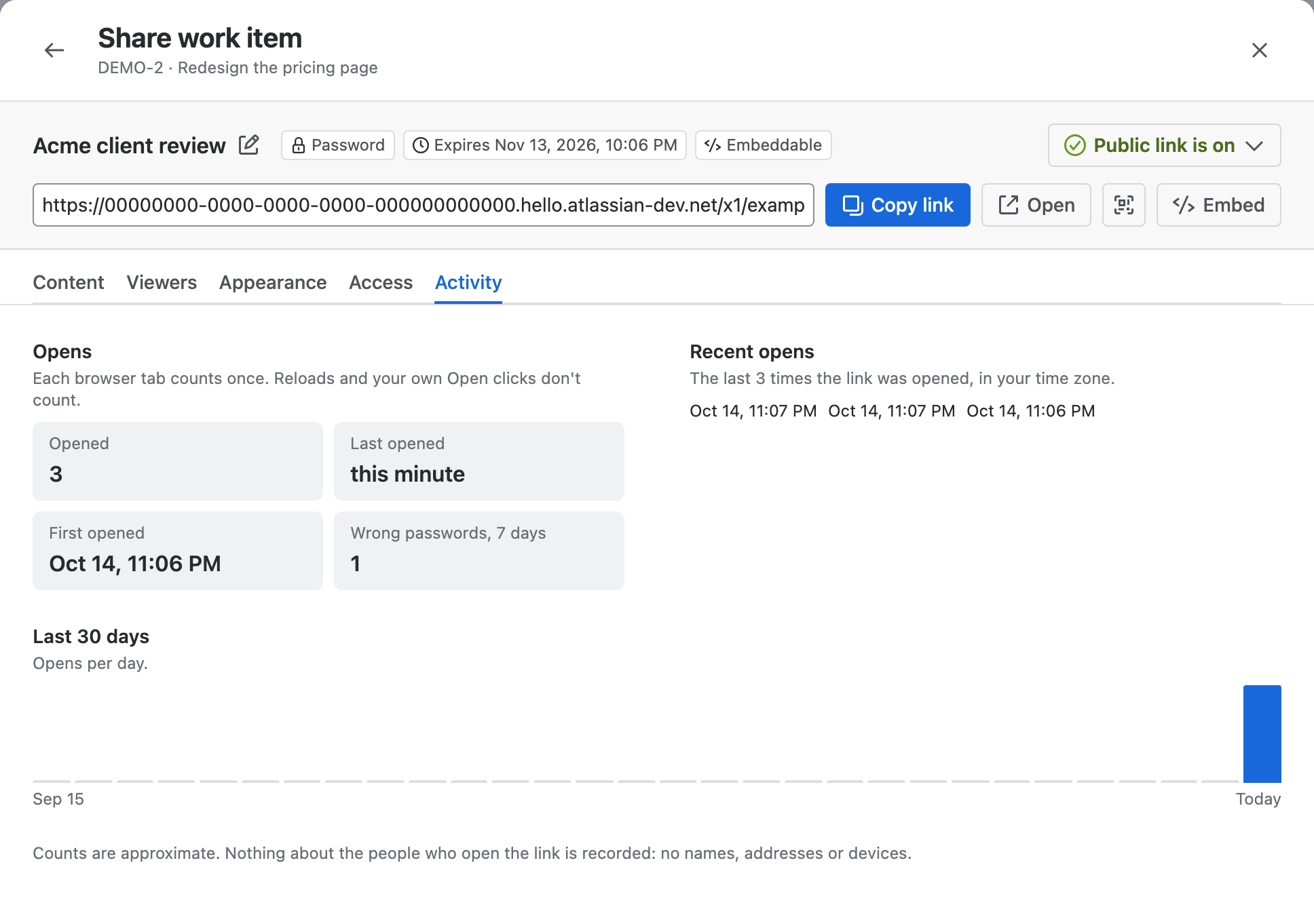
Result: The tab shows:
| Item | What it shows |
|---|---|
| Opened | How many times the link was opened since it was created |
| Last opened and First opened | When the link was last and first opened |
| Wrong passwords, 7 days | Wrong password attempts in the last 7 days, on a password-protected link |
| Recent opens | The last 20 times the link was opened, in your time zone |
| Last 30 days | Opens per day, as a chart. Hover over a bar to see the day's count |
| Tried after it expired | How often someone opened the link after it expired. Shown only when it happened |
A work item link shows Recent opens first. A board or filter link shows the chart first.
What counts as an open
- The first time a browser tab loads the shared page, after any password is accepted.
- Reloading the page, scrolling to more results, searching, sorting, and opening cards or attachments don't count again in the same tab.
- Your own clicks on Open in the share window or in My share links don't count. Preview as viewer never counts.
- Chat apps and email scanners that only preview a link don't count.
Counts are approximate. Two people opening one link at the same moment can count as one open.
What is recorded
Nothing about the people who open a link is recorded: no names, no email or IP addresses, and no devices. Each link keeps only its counts and open times, and they are deleted when the link is turned off.
When you replace a link's URL with Replace URL…, its activity moves to the new URL.
For Jira admins
- The Shared Work Items, Shared Boards and Shared Filters tabs on the app's admin page have Opens and Last opened columns. Never is shown in amber.
- To turn link activity off for the whole site, go to Jira Settings > Apps > Share Public Link > Sharing Policy. Under Link Activity, turn off Count link opens, then select Save changes. Opens are no longer counted, and no numbers are shown anywhere. Counts made before stay stored and reappear when you turn it back on.
Limitations
- My share links doesn't show counts. Open a link's share window to see them.
- Days in the chart are in UTC, so an evening open far from UTC can appear on the next day's bar.
- In a browser that blocks site storage, reloading the page counts as a new open.
- The admin tables can't be sorted by opens.
Related
- Give each audience its own link: one link per audience, so the counts tell you who opened what.
- Set when a link expires: let unused links stop working on a date.
- Review and turn off links across the site: the admin tables with Opens and Last opened.