Run history and activity
Script Master keeps the last runs of each web trigger, scheduled job and post function, with their output and errors. Every module list also has a Last 7 days column that counts runs or failures per day. Use them to check that a script runs, and to find out why it failed.
Before you begin
- You need the Administer Jira global permission, or Confluence administrator rights.
See the last runs of an item
Run history is in these places:
| Item | Product | Where |
|---|---|---|
| Web trigger | Jira, Confluence | The History column of the Web Triggers list, and Recent runs: under the URL in its editor |
| Scheduled job | Jira, Confluence | The History column of the Scheduled Jobs list, and Recent runs: above Title in its editor |
| Post function | Jira | Recent runs in the post function's editor, in Jira's workflow editor |
Each run is a small icon, oldest on the left and newest on the right. A red icon is a run that failed or logged an error, a yellow one logged a warning, and a green one succeeded. Hover over an icon to see when it ran. An item that hasn't run shows no runs yet.
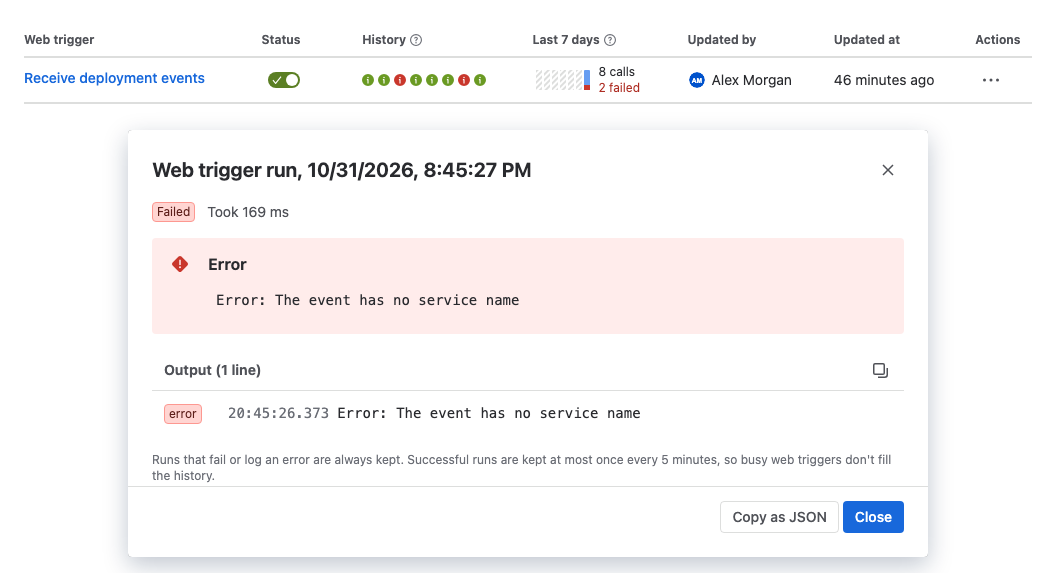
To see the details of a run:
- Select a run's icon. The run's details open.
- Read the run:
- Succeeded or Failed, and how long it took.
- For a post function, the work item, the transition and the workflow.
- Error: the error message, if the run failed.
- Returned: a preview of the value the script returned.
- The log lines the script wrote.
- Optionally, select Copy as JSON to copy the whole run, for example for a support request.
- Select Close.
What is kept
- The last 10 runs of each item. A new run removes the oldest.
- Every scheduled job run is recorded: successful runs aren't thinned out as they are for web triggers and post functions. The last 10 are kept.
- Web triggers and post functions always keep runs that fail or log an error. Successful runs are kept at most once every 5 minutes per item, so busy items don't fill the history with successes.
- Each run keeps up to 100 log lines, each up to 2,048 characters. The error and the returned value are cut to 2,048 characters.
- Deleting an item deletes its runs.
A run that's no longer kept says This run is no longer stored.
The Last 7 days column
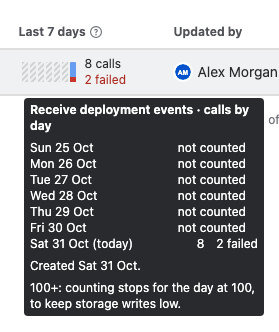
Each list has a Last 7 days column. It shows seven bars, today on the right, and a short total. Hover over the cell, or focus it with the keyboard, to see each day. The ? next to the header explains what that list counts. Days are UTC.
| List | What it counts |
|---|---|
| Fragments, Gadgets, Macros | Failed views per day. Views that work aren't counted. |
| UI Modifications (Jira) | Failures that forms reported per day. |
| Web Triggers | Calls per day, with failed calls in red. |
| Scheduled Jobs | Runs per day, with failed runs in red, including runs started with Run. |
| Workflows (Jira) | Post function runs per day on each workflow, and failures: failed post functions, and validator or condition expressions Jira couldn't evaluate. |
| Custom Fields (Jira) | Work items whose value failed to compute, per day. |
How to read the counts
- Counts are a lower bound. Fragments, gadgets, macros and UI modifications record at most one failure every 5 minutes per item, and calls that arrive at the same moment can be missed.
- For web triggers, workflows and scripted fields, counting stops for the day at 100, shown as
100+. Failed runs have their own count of up to 100, so a busy day can't hide failures. - Hatched days weren't counted: the item didn't exist yet, counting hadn't started, or the code changed. For fragments, gadgets, macros and UI modifications, counts restart when the code changes.
- Validators and conditions only show up when they fail. Jira doesn't report expressions that pass.
- An item that's off still shows its activity.
You can sort the list by this column. It sorts by failures, then by runs. To hide the column, use Choose columns.
Related
- Failures: failure banners and the Failures column.
- The Overview tab: items whose last run failed, on one page.
- Web Triggers: create and call web triggers.
- Scheduled Jobs: run scripts on a schedule.