Import, export and duplicate
Export copies an item as JSON so you can import it on another site, for example from a sandbox to production. Duplicate copies an item on the same site. Both work in these lists: Fragments, Gadgets (Jira), Macros (Confluence), UI Modifications (Jira), Web Triggers and Scheduled Jobs.
Before you begin
- You need the Administer Jira global permission, or Confluence administrator rights, on both sites.
- Importing and duplicating create an item, so they need an active Script Master license.
- The module must be below its limit, for example 100 fragments or 5 scheduled jobs.
Export an item
- In the module's list, open the item's Actions menu and select Export. A dialog opens with the item as JSON.
- Select Copy to clipboard.
- Select Close.
Result: The JSON is on your clipboard. It holds the item's code and settings, but not its version history, runs or failure records.
A UI modification's export leaves out its spaces and work types, because their IDs differ between sites.
Import an item
-
In the module's list, select the arrow next to the create button, then Import. The import dialog opens.
-
Paste the exported JSON.
-
Select Import.
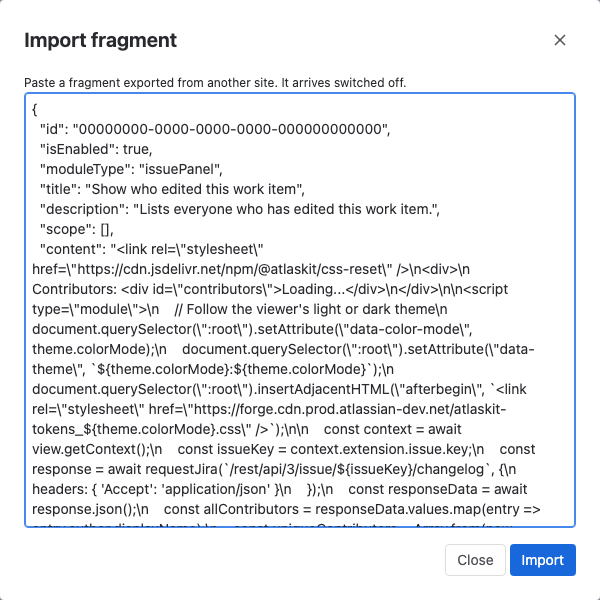
Result: The item appears in the list, switched off, with a message such as Fragment imported. Turn it on when you're ready. Its version history starts at v1, with the note Imported.
Check these after an import:
- Jira and Confluence data the code names, such as field IDs or space keys, may differ on this site.
- A UI modification arrives with no spaces or work types. Pick them on this site before you turn it on.
- An exported UI modification with both rules and a script becomes two: the rules, and the script named with
(script)at the end.
If the import fails
The dialog stays open and says why under the text:
| Message | What to do |
|---|---|
JSON should not be empty | Paste the export first. |
This isn't valid JSON. Paste the text Export copied, as it is. | Paste the whole export, from the first opening brace to the last closing brace. |
This isn't an exported scheduled job: it needs a title ("title")., or the same for another kind of item or another value: a description, its code ("content"), a valid schedule or a location | The JSON is missing that value, or it's not valid. Export the item again. |
This isn't an exported UI modification: it needs at least a name and rules. | The JSON isn't a UI modification export. |
Duplicate an item
- In the module's list, open the item's Actions menu.
- Select Duplicate.
Result: A copy appears in the list, switched off, named with (copy) at the end, for example Weekly report (copy). Another copy of the same item is named Weekly report (copy 2). The copy starts its own version history at v1, with a note naming the original.
Related
- Version history: how imports and copies start their history.
- Navigate the admin page: the list toolbar and row menu.
- Audit metadata: an imported item is recorded as created by you.