UI Modifications
UI modifications change Jira forms while people fill them in. They show, hide, require, lock, rename or pre-fill fields, add hints, and limit the options of a select field.
Applies to: Script Master for Jira · Cloud
For example, when Priority is Highest, Due date appears on the Create dialog and becomes required. When someone picks another priority, the field goes back to how it was.
UI modifications run in the browser of the person filling in the form. They don't need the Companion App.
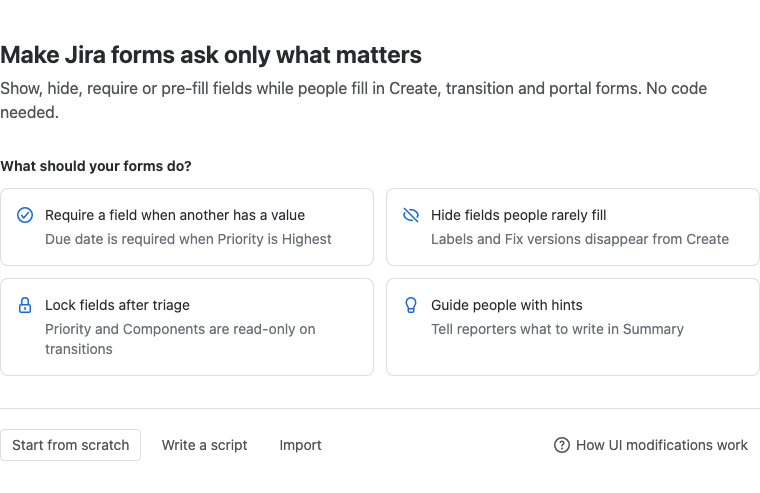
Rules or a script
You build each UI modification from rules or from a script, never both. You pick one when you create it.
| Compare | Rules | Script |
|---|---|---|
| How you build it | Pick fields, conditions and actions. No code. | Write JavaScript. |
| Use it for | Most form changes: when a field has a value, show, hide, require, lock or fill other fields. | Logic rules can't express, such as Jira lookups, the current user or groups. |
| Test it | Try it previews the form before you save. | Switch it on for a test space and open the form there. |
On every form, the rules of all UI modifications run first. Then each script runs, so a script can change what a rule set. You can convert rules to a script later, but you can't turn a script back into rules.
Where they run
Each UI modification has a Where it runs section with its spaces, work types and forms. An empty Spaces list means all spaces, and an empty Work types list means all work types. Jira can't run one UI modification on every space and every work type at once, so pick at least one of the two.
| Form | What it covers | Jira status |
|---|---|---|
| Create | The Create dialog: the Create button, the c shortcut, child items and subtasks. | Ready |
| Transition screens | Screens that open when a work item moves to another status. | Preview |
| Work item view | The full work item page and its side panel. | Preview |
| Service portal | Request forms customers fill in on a Jira Service Management portal. | Preview |
Atlassian marks the Preview forms as preview: they work, and their behavior may change. For Service portal, you also pick the portal and at least one request type.
Script Master skips a field that isn't on the form. So one UI modification can cover several work types, even if only some of them have the field.
Limitations
UI modifications guide people filling in a form. They don't enforce anything.
- Some ways of creating work skip them. Board inline create, the REST API, automation and bulk edit don't run UI modifications. To block a missing value everywhere, add a workflow validator as well.
- You can't change fields from Forge apps. Jira doesn't let UI modifications change fields that come from Forge apps, including Script Master custom fields. The editor won't save an action on one.
- Some fields may not work on every form. The field picker lists them under Other fields: may not work on every form. Check them in Try it and on the real form.
- Another app may change the same field. When two apps change one field, Jira keeps only one change, and Script Master counts a failure. See Failures on forms.
- Up to 100 UI modifications per site. Delete one you no longer need to create another.
- Size and scope limits from Jira. One UI modification can be up to 50,000 characters once saved. It can cover up to 1,000 combinations of space, work type and form. If you reach a limit, shorten the script, split the rules into two UI modifications, or pick all work types instead of a long list.
Build one
- Create a UI modification with rules: pick where it runs, add rules, check them in Try it, and switch it on.
- Conditions and actions: every comparison and action a rule can use, and when rules run again.
- Start from a template: six ready-made UI modifications to adapt.
- Write a UI modification script: the script editor, snippets, and how to test a script.
- UI modification script API: what a script can read and change on a form.
- Convert rules to a script: turn rules into code when they outgrow the builder.
Look after them
- Manage UI modifications: the list, filters, turning them on and off, duplicating and deleting.
- Failures on forms: what a failure means and how to fix it.
- Import and export UI modifications: copy a UI modification to another site.