Navigate the admin page
Script Master's admin page is one row of tabs, one per module. This page explains how to move between tabs and items, how the lists work, and what happens to unsaved changes.
Tabs and the More menu
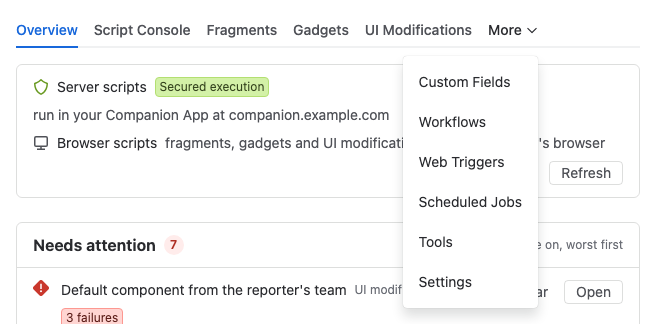
The tabs run in the same order in Jira and Confluence, with Overview first. Using Script Master lists which tabs each product has.
When the window is too narrow for every tab, the last tabs move into a More menu at the end of the row. The tab you're on always stays in the row.
A page you've visited stays open in the background. You can look at another tab and come back to an editor or a half-written script as you left it.
In Jira, the browser tab is named after the page, for example Fragments - Script Master.
Page addresses
Each tab has its own address, so you can bookmark it, share it, or open it in a new browser tab. The browser's back and forward buttons move between tabs. The address ends with the tab's path:
| Tab | Path |
|---|---|
| Overview | /overview |
| Script Console | /console |
| Fragments | /fragments |
| Gadgets | /gadgets |
| Macros | /macros |
| UI Modifications | /ui-modifications |
| Custom Fields | /custom-fields |
| Workflows | /workflows |
| Web Triggers | /web-triggers |
| Scheduled Jobs | /scheduled-jobs |
| Tools | /tools |
| Settings | /settings |
An address with an unknown path, or with none, opens the first tab.
Open an item directly
Some places link straight to an item's editor:
- Open in Script Master on a failing fragment, gadget or macro, which only Jira admins and Confluence admins see. It opens the editor in a new browser tab. See Failures.
- Open on a row of the Overview.
These links work for fragments, gadgets, macros, web triggers, scheduled jobs and UI modifications. The editor opens once. After that, the address goes back to the tab's own path, so a reload shows the list.
Item lists
Every module lists its items the same way:
- A filter box, Filter by name or description.
- Filter buttons with counts: All, On and Off, plus Failing in lists that record failures.
- The create button. Its arrow adds From a template or Import where the module has them.
- Choose columns, to show or hide columns. Your choice is kept in this browser, for each list. Reset to defaults brings back the original columns.
- Refresh, to load the list again.
- An on and off switch in the Status column.
- The Actions menu on each row: Edit, Version history…, Turn on or Turn off, Duplicate, Export and Delete…, as the module supports them.
- Under the list, a count while a search narrows it, for example Showing 3 of 25 fragments, and the module's limit once 80% of it is used, for example 85 of 100 fragments used · 15 left.
Lists show 20 items per page. On narrow windows, some columns are hidden.
Unsaved changes
Script Master keeps unsaved edits in several ways, depending on how you leave the editor.
| You… | What happens |
|---|---|
| Switch to another tab, use More, or go back or forward | Your edits stay. The tab shows a dot, with the tooltip Unsaved changes. More shows the dot when the tab is inside it. |
| Select Back to list | Leave without saving? asks first. Select Leave to drop the changes. |
| Open another item of the same kind, from the Overview | Discard unsaved changes? asks first. Keep editing goes back to your edits; Discard and open opens the other item. |
| Start a new item from a Get started goal while that module's editor has edits | The same prompt, with Discard and start. |
| Reload or close the browser tab | The browser asks whether to leave. |
| Select a Jira or Confluence link, such as the sidebar | The edits can't be stopped from leaving. Script Master keeps them in this browser. |
The editor's header says Unsaved changes, or New · not saved yet for an item you haven't saved.
Restore unsaved changes
When you left an editor without saving, the list shows Unsaved changes to "Weekly report" the next time you open that tab. Select Restore to put the changes back into the editor, or Discard to drop them.
Restore is offered when all of these are true:
- You use the same browser, Atlassian account and site.
- The changes are less than 7 days old.
- Nobody saved the item since.
Each module keeps one set of unsaved changes per browser. Saving, leaving or discarding removes it.
Related
- The Overview tab: the first page, with links to items that need attention.
- Version history: go back to an earlier saved version.
- Code editor: editor features and shortcuts.