Custom Fields
This module is available in Script Master for Jira only.
Scripted custom field scripts run on the Forge back end and are executed through Protected Execution by an external Companion App. Until an application administrator configures the Companion App, backend script execution is disabled - the module shows an "Action Required" banner and the scripts do not run. See Secured Scripts Execution for the setup guide.
Overview
Scripted custom fields are Forge functions that execute on the Forge back-end and do not have access to the browser. You can make REST calls on behalf of the current user who opens a work item or on behalf of the app to ensure consistent calculation results when needed.
Scripted fields compute values each time users open the work item view with this field. The return value type must match the field type: a number for a "Number" field, a string for a "String" field, a string with a date in ISO format for a "Datetime" field, and an object with an accountId property for a "User" field type.
Scripted Custom Fields implements Forge Jira custom field type module.
Context
Scripted Custom Fields implement Forge backend FaaS function, allowing you to utilize all Bridge API for Forge backend FaaS function. Information about the current work item and field can be accessed from the payload object.
Configuration
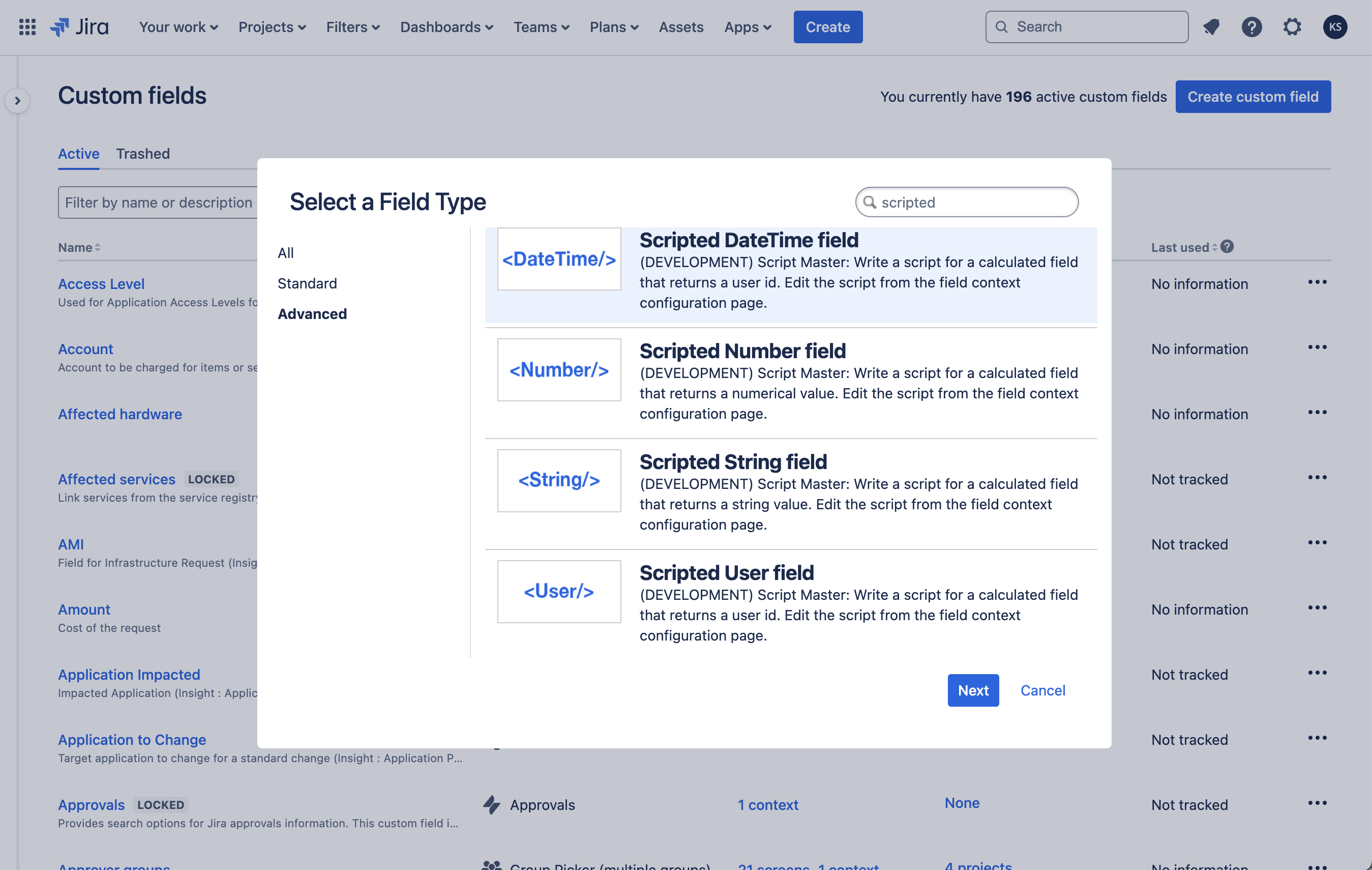
Scripted custom fields are native Jira Custom Fields. ScriptMaster enables you to create these fields using the native Jira Custom Fields page. To create a scripted custom field, search for "scripted" types in the "Advanced" section during the Custom Field creation process.
Add a scripted custom field
You can create and configure scripted custom fields using the native Jira Custom Fields page:
- Log into your Jira site as an Administrator.
- Select Settings in the upper right corner.
- Select Issues.
- In the left-hand panel, select Custom fields.
- Select Create custom field in the upper right corner.
- In the Select a Field Type window, select Advanced.
- Choose the Scripted field type you want to add and select Next.
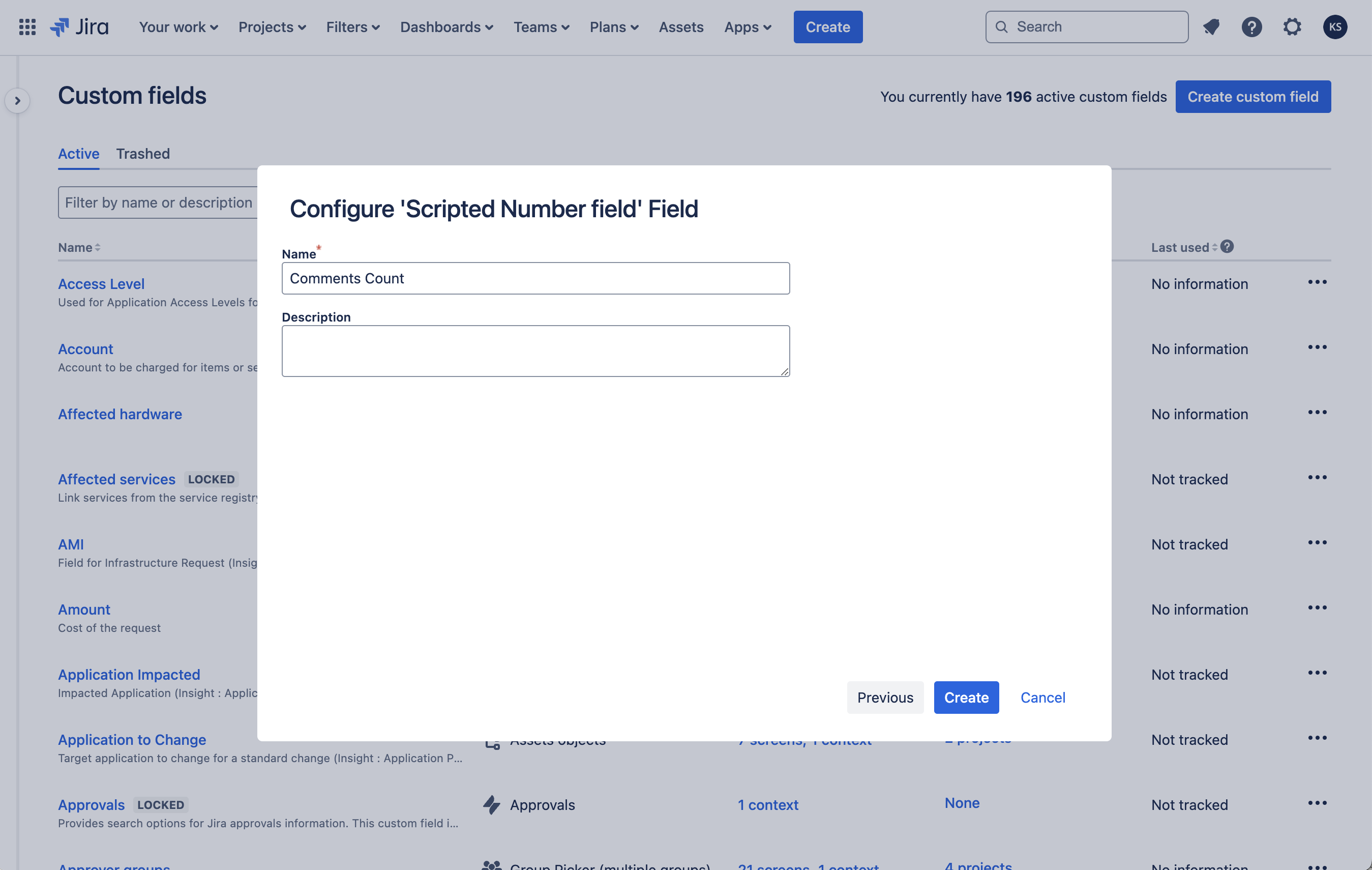
- Provide a name and optionally, a description for the custom field.
- Select Create.
Screenshots:

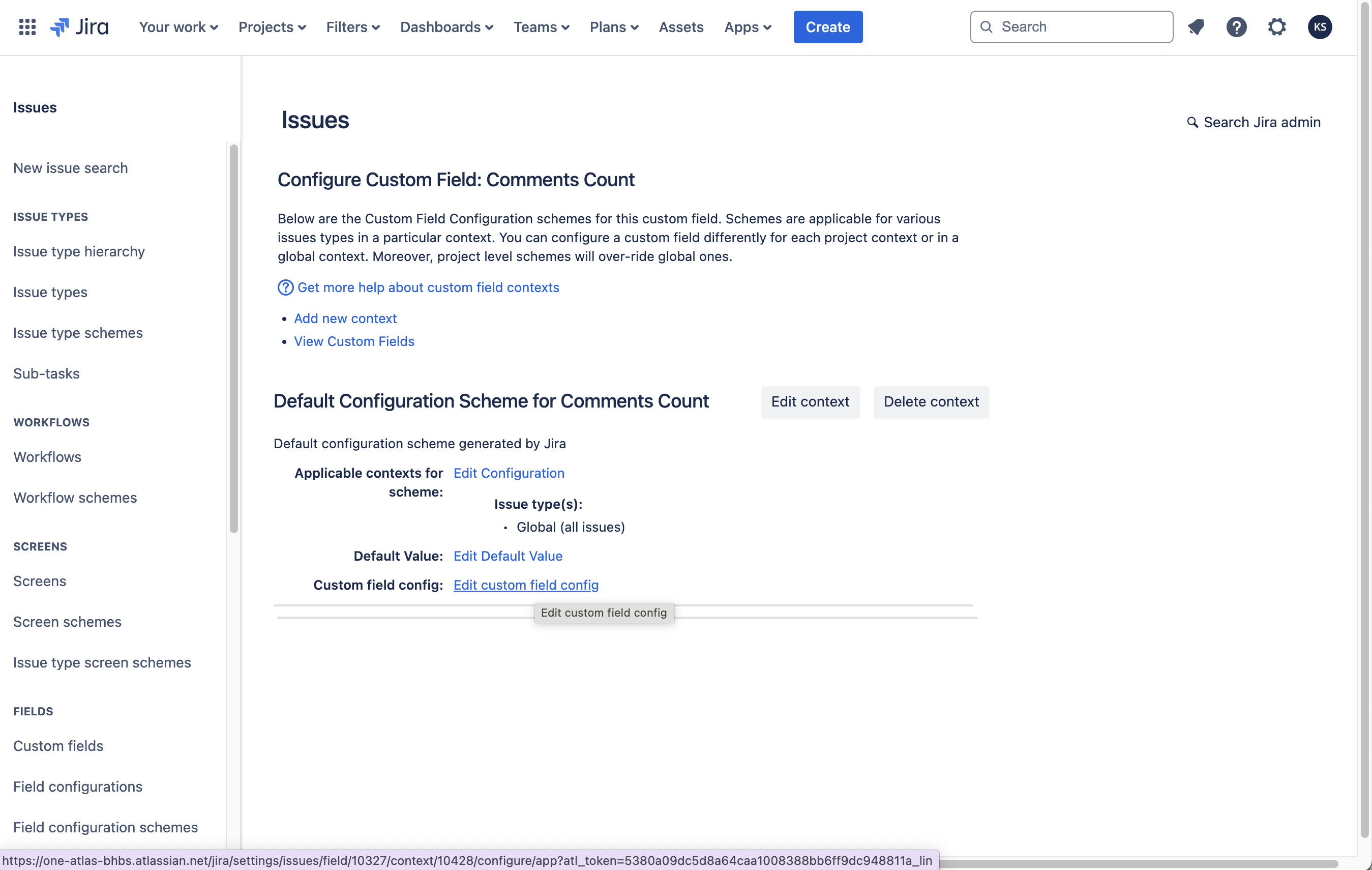

The new scripted custom field computation function needs to be defined on the Context configuration page.
Edit a scripted custom field
To edit a scripted custom field:
- Go to the Jira Custom fields administration page.
- Find your custom field and select Actions.
- Choose an option:
- Edit details: Update the Field Name, Description, and Search Template.
- Contexts and default value: Add or remove contexts, configure Default Value, and access Custom field config.
- Translation and options: Set language-specific Name and Description.
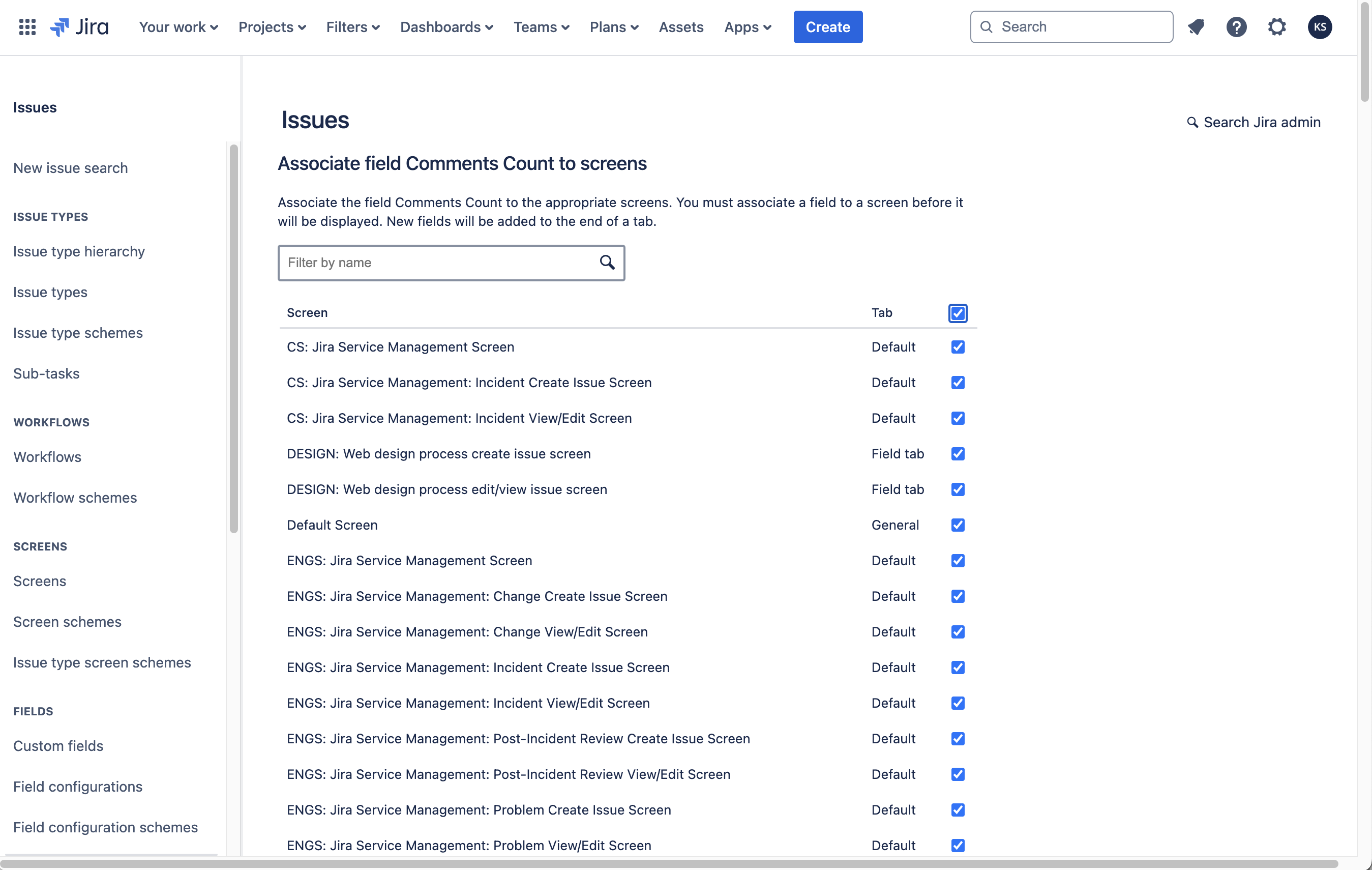
- Associate to Screens: Add or remove screens where the field appears.
- Move to Trash: Remove the field from all screens and move it to Trash.
- Custom fields can be recovered from the Trash within 60 days.
- After 60 days, the field will be permanently deleted and cannot be recovered.
Examples
-
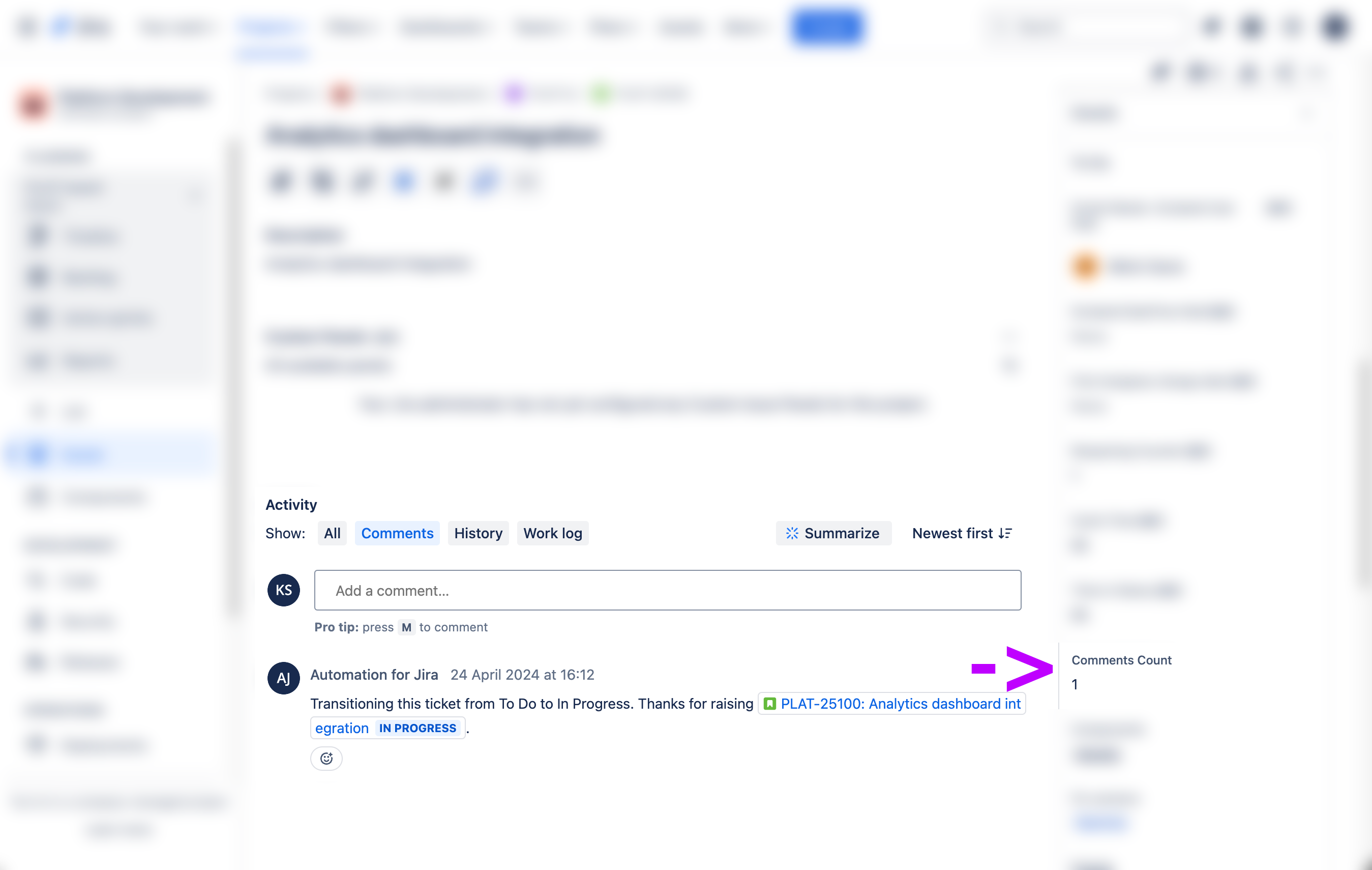
Number field. Comments count
- This example of a Number scripted field returns the count of comments for the current work item.
-
Number field. Attachments count
- This example of a Number scripted field returns the count of attachments for the current work item.
-
Number field. Sub-tasks count
- This example of a Number scripted field returns the count of sub-tasks for the current work item.
-
String field. Parent Status
- Displays the status of the parent work item.
-
User field. Parent Assignee
- Displays the Assignee of the parent work item.