The Overview tab
The Overview tab is the first page of Script Master. It shows what needs your attention, what changed recently, and what your site has, in Jira and in Confluence.
Every figure on it comes from data Script Master already keeps, such as failure records and version history, or from Jira itself. Nothing is estimated.
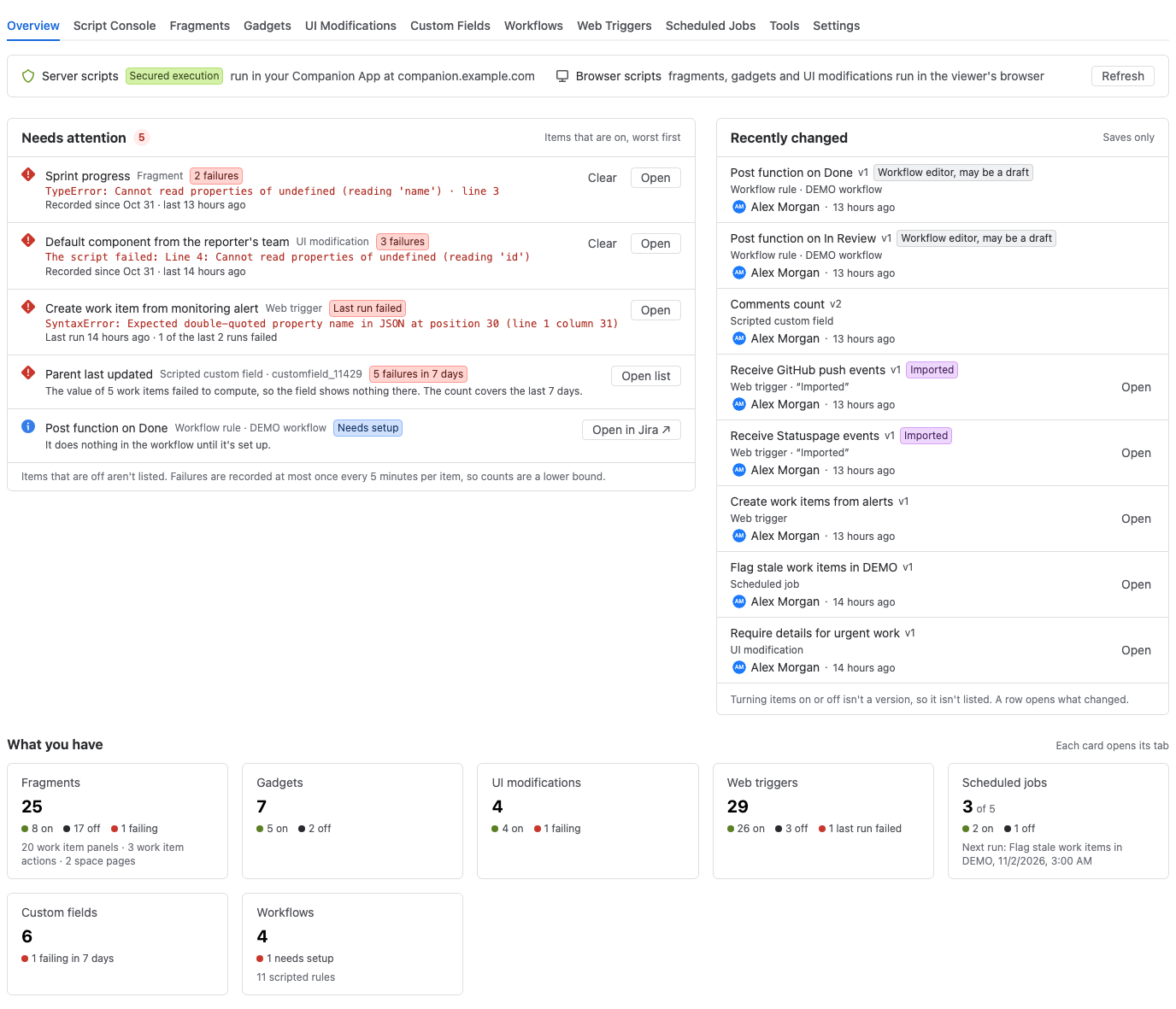
Server scripts and browser scripts
The strip at the top says where scripts run:
- Server scripts: web triggers and scheduled jobs, and in Jira also scripted fields and post functions. They run in your Script Master Companion App. When one is connected, the strip shows Secured execution and the Companion App's host.
- Browser scripts: fragments and macros in Confluence, and fragments, gadgets and UI modifications in Jira. They run in the viewer's browser and need no Companion App.
Without a Companion App, the strip says Server scripts can't run yet, with Set up a Companion App. If the Companion App didn't answer the check, the strip says The Companion App didn't answer, with Check settings. Both open the Settings tab. See Set up the Companion App to connect a Companion App.
Select Refresh to load the page again.
Needs attention
Needs attention lists problems with items that are on, worst first. Items that are off aren't listed. The first 8 rows show. A button such as Show 4 more shows the rest.
| Row | What it means | What you can do |
|---|---|---|
| Server scripts can't run | Items that need a Companion App are on, but none answers. | Settings |
| A failure count, for example 3 failures | A fragment, gadget, macro or UI modification failed for the people using it. The row shows the last error and line. | Clear the record, or Open the item |
| Last run failed | The last run of a web trigger or scheduled job failed, with how many of its kept runs failed. | Open the item |
| N failures in 7 days (Jira) | A scripted field couldn't compute its value on some work items, so it shows nothing there. | Open list |
| Not on a screen (Jira) | A scripted field is on no screen, so it never shows on a work item. | Don't flag, or Screens to add it in Jira |
| Needs setup (Jira) | A workflow rule was added to a transition but not set up, so it does nothing. | Open in Jira |
| At the limit | A module has as many items as it allows. You can't create another until you delete one. | Open list |
More than 3 fields off screens, or more than 3 rules that need setup, become one row that opens the list.
Don't flag hides a field's Not on a screen row for every admin. Use it for fields that only JQL or automation reads. A flag offers Undo.
Clear removes the failure record of that item. It shows up again on its next failure. See Failures.
When nothing needs attention, the card says Nothing needs attention and lists what was checked, for example how many fragments have no failures recorded.
Failures are recorded at most once every 5 minutes per item, so counts are a lower bound.
Recently changed
Recently changed lists the last 8 saves of any kind, with the version number, the note, who saved it and when. Imports, duplicates and restores have a label such as Imported or Restored from v3.
- Select a row to open that change in its version history.
- Select Open to open the item's editor.
Turning an item on or off isn't a version, so it isn't listed.
What you have
What you have has one card per module, with how many items there are, how many are on and off, and any problems. Fragments also show their locations, and scheduled jobs show the next run. Select a card to open its tab. Modules you don't use yet come last and show Get started.
In Jira, the Custom fields card counts scripted fields that failed in the last 7 days or aren't on a screen. The Workflows card counts workflows with Script Master rules and the rules that need setup.
A new site
On a site where nothing has been created yet, the Overview shows Welcome to Script Master instead. It lists goals, such as Show extra information on work items or Do something on a schedule. Each one opens the module that does it. See the Get started page opens the Get started page.
Related
- Navigate the admin page: tabs, page addresses and links into an item.
- Failures: how failures are recorded and cleared.
- Version history: compare and restore what changed.
- Set up the Companion App: connect the Companion App that server scripts need.