Add a validator
Put a Scripted Validator on a transition so that a work item can't move until it's ready. This example blocks Start progress in space DEMO until the work item has an assignee.
Applies to: Script Master for Jira · Cloud, company-managed and team-managed spaces
Before you begin
- Jira permission: for a company-managed workflow, the Administer Jira global permission.
- For a team-managed space, a space admin can add the rule. Only a Jira admin can open its version history.
Add the validator
-
Go to Settings > Work items > Workflows. In the workflow's row, select ⋯ > Edit.
-
Select the transition, for example Start progress. Its rules panel opens.
-
In the rules panel, select Add validate details rule.
-
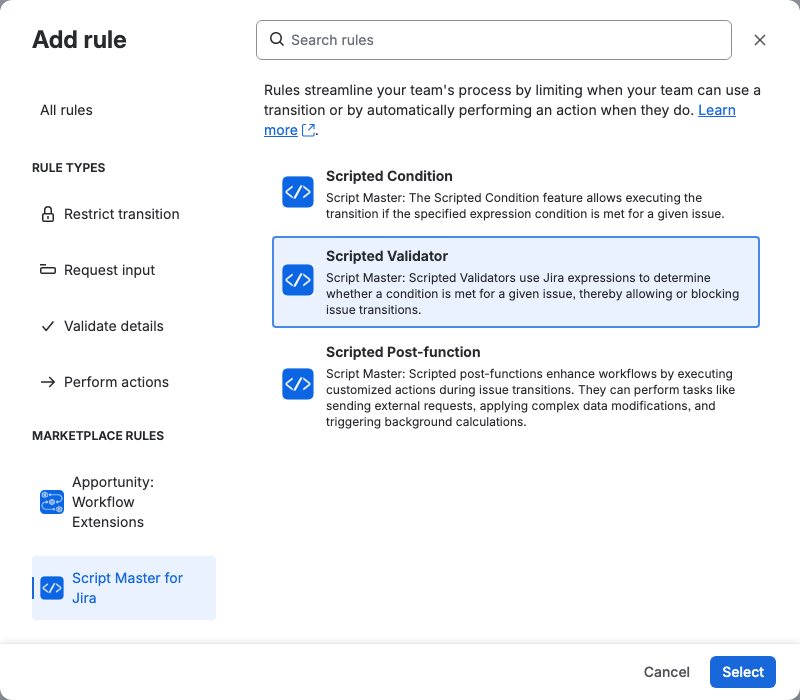
Select Scripted Validator, then Select. The Script Master editor opens in the dialog, with Build with rules selected.
-
Under Start from a template, select A field must be set. The rule now checks that Assignee is set, and Message when it blocks reads
Assign [Work item key] before moving it.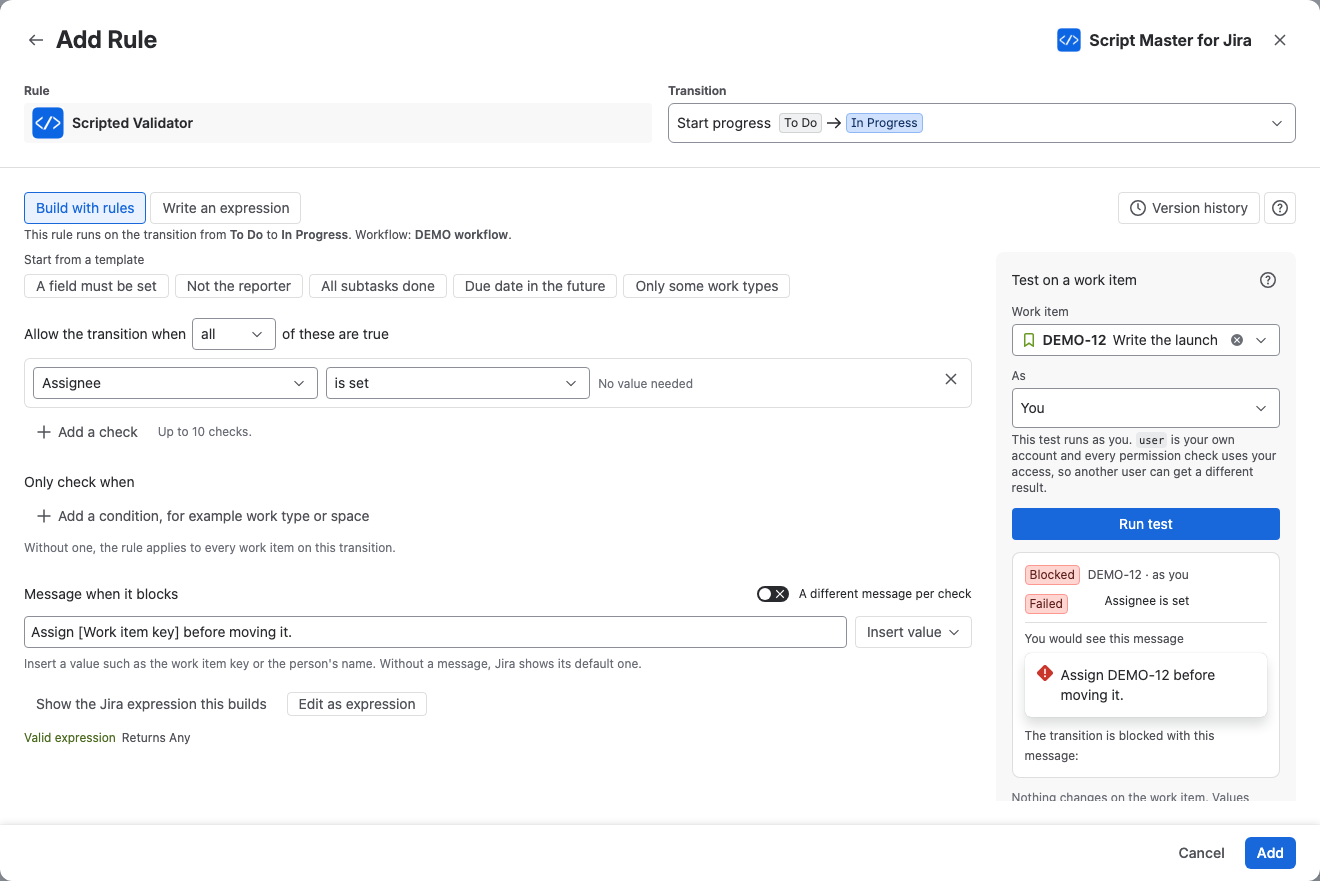
-
In Test on a work item, pick an unassigned work item and select Run test. The result reads Blocked and shows the message the person would see.
-
Select Add, then Update workflow to publish the change.
Result: When someone moves an unassigned work item through Start progress, Jira blocks it with the message, for example Assign DEMO-12 before moving it. In the transition's rules panel, the rule reads "Assignee is set".
Change a validator
- Open the workflow in the editor as above, and select the transition.
- In the transition's rules panel, select the rule's card. The Edit Rule dialog opens on the Summary tab: This scripted workflow extension is configured, and the script looks excellent. A rule built with rules also shows the rule in plain words. Select expand to see the expression.
- Select the Edit tab. Script Master opens the rule the way you saved it: as rules, or as an expression.
- Change the rule and select Update.
- Select Update workflow to publish the change.
To go back to an earlier version, select Version history in the editor. See Version history.
A rule with no expression yet says This scripted workflow extension has not been configured yet and will not affect your workflow. It lets every transition through until you set it up.
Related
- Workflow validators: what a validator returns and what people see.
- Build a rule without code: every check, template and message option.
- Write a Jira expression: write the validator as code instead.