Workflow Validators
This module is available in Script Master for Jira only.
Overview
A Scripted Validator in the context of Script Master for Jira is a type of custom validator that allows you to write and execute Jira Expressions to validate issues during transitions in Jira workflows. Unlike standard validators that rely on predefined rules, Scripted Validators provide a flexible and powerful way to implement complex validation logic tailored to specific needs.
Here's a brief summary of the key points about Scripted Validators:
- Customization: Scripted Validators enable you to create custom validation logic using Jira Expressions. This allows for more sophisticated and granular control over issue validation than standard validators.
- Integration: They integrate directly into Jira workflows, so you can specify when and where the custom validation should occur, such as during work item transitions.
- Error Handling: A validator can return its own error message, so the person making the transition is told what to correct. See Return a custom error message.
- Flexibility: You can use scripted validators to check a wide range of conditions, including complex business rules and data integrity checks, which go beyond the capabilities of standard Jira validators.
Scripted Validators cover validation scenarios that the standard validators cannot express.
Scripted Validators implements Forge Jira workflow validator module.
Context
Jira Expressions use JavaScript-like syntax. They support a subset of JavaScript constructs and features, here is a brief overview of some of the main ones
user(User): The user who performs the transition.issue(Issue): The work item about to be transitioned, including changes made on the transition screen.originalIssue(Issue): The work item before those changes. Not available on the initial transition.project(Project): The space the work item belongs to.transition(Transition): The transition that the validator is being evaluated against.workflow(Workflow): The workflow that contains the validator.config(JSON): The validator's saved configuration.
On a Jira Service Management transition you also get:
customerRequest(CustomerRequest): The customer request about to be transitioned.serviceDesk(ServiceDesk): The service desk the customer request belongs to.
Configuration
Before you start, you need the Administer Jira global permission to edit a workflow.
- Go to Settings > Issues > Workflows.
- Select Edit on the workflow, then select the transition you want to validate.
- In the rules panel, select Add validate details rule.
- Select Scripted Validator, then select Select. The Script Master editor opens in the Add Rule dialog.
- Write your Jira expression, and test it against a real work item.
- Select Add. The rule is attached to the transition.
- Select Update workflow to publish the change.
To change a rule later, open it from the same rules panel. The Edit Rule dialog opens on a read-only Summary tab rather than on the editor: it confirms the rule is configured, and expand shows the script. Select the Edit tab to change the expression, then confirm with Update.
A rule you have not written an expression for says so on the Summary tab, and does not affect the workflow until you do.
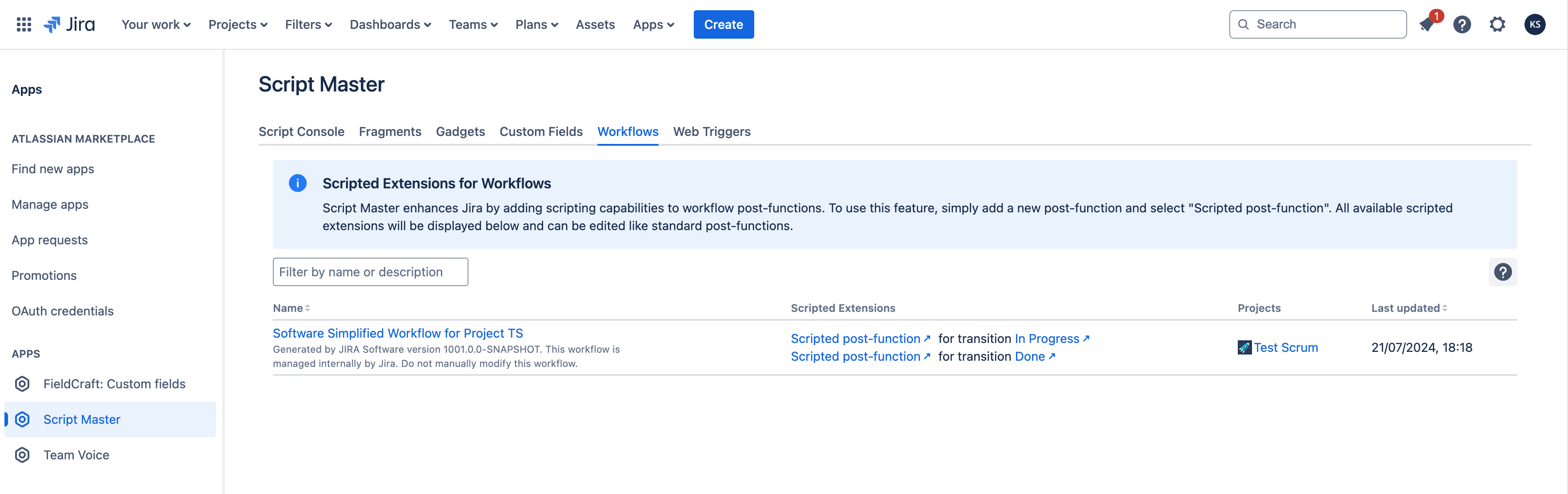
All available scripted extensions are listed in the Workflow section of Script Master:
Return a custom error message
A validator expression can return three things, and each one means something different to the person making the transition.
| The expression returns | What happens |
|---|---|
true | The transition proceeds. |
false | The transition is blocked, and Jira shows its own default error message. |
| A string | The transition is blocked, and Jira shows that string to the user as the error message. |
An expression that fails to evaluate also blocks the transition, but the user sees an evaluation failure rather than your message.
A throw fails the expression. The thrown text is reported inside that failure, so it does not read as your message. Throwing 'Assign the work item first.' shows the user:
We failed to evaluate validator "Scripted Validator" for this issue transition. Expression threw an error: Assign the work item first.
Returning a value that is neither a boolean nor a string fails the same way, and names the type it received. Returning false is different: it blocks the transition with Jira's own wording, The transition was rejected by validator "Scripted Validator". To tell the user something useful, return a string.
To show your own message, return it:
issue.assignee != null
    ? true
    : 'Assign the work item before moving it.'
To give a different message for each check, use if statements. The final else is required.
if (issue.assignee == null) {
    return 'Assign the work item before moving it.';
} else if (issue.description == null) {
    return 'Add a description before moving this work item.';
} else {
    return true;
}
Check expression syntax
While you type, Script Master asks Jira to parse and type-check the expression and reports the result under the editor:
- Valid expression, together with the return type Jira inferred.
- A syntax error, with the line and column where parsing stopped.
- A warning when the inferred return type cannot work, for example a number.
Jira reports the type Any for an expression whose branches return different types, which includes both message patterns above. That is expected, and Script Master says nothing about it.
Test an expression before you save it
Script Master evaluates your expression against a real work item and tells you what Jira would do to the transition.
Before you start:
- You need the Administer Jira global permission to edit a workflow.
- You need permission to browse the work item you test against.
- Turn on Test with Issue below the expression editor. The test panel opens.
- Search for a work item by key or summary, and select it.
- Select Test expression. Jira evaluates the expression against that work item.
- Read the result. It states whether the transition is allowed, blocked with Jira's default message, or blocked with your own message, and shows the message the user would see.
Two limits are worth knowing.
The test runs as you. user is your own account and every permission check uses your access, so a user with different permissions can get a different result.
transition, workflow and originalIssue exist only while Jira runs the transition. Script Master warns you when your expression uses one of them, because the test leaves it unset and the expression fails there even though it may work in the workflow.
Examples
Allowed Issue Types
Transition is permitted only if the work type is included in the allowed list.
['Bug', 'Task'].includes(issue.issueType.name)
Current User Comment Verification
Transition is allowed only if the work item has a comment from the current user.
issue.comments
  .filter(c => c.author.accountId == user.accountId)
  .length > 0
Blocked With A Custom Message
Transition is blocked unless the work item has an assignee, and the user is told why.
issue.assignee != null
    ? true
    : 'Assign the work item before moving it.'
Related
- Workflow conditions - hide a transition instead of blocking it with a message.
- Workflow post-functions - run a script after a transition succeeds.
- Script Console - try an expression or a script outside a workflow.