Show who worked on a work item or page
Add a panel that lists everyone who changed a work item, or the people who changed a page recently, in the spaces of one team.
Problem: To find out who touched a work item or a page, people scroll through its history. On a long-running work item, the names they need are buried under hundreds of entries.
Solution: You start a fragment from the built-in contributors template and check it in the live preview on a real work item or page. Then you switch it on for one space.
What you'll need
- Script Master for Jira or Script Master for Confluence, with an active license. See Get started.
- The Administer Jira global permission, or Confluence administrator rights.
- A space to show the fragment in, for example
DEMO. No Companion App is needed: fragments run in the viewer's browser.
Set it up
- Jira
- Confluence
-
In Script Master, select the Fragments tab.
-
Select the arrow next to Create fragment (More ways to create), then From a template. The Start from a template dialog opens.
-
Select Display contributors. The editor opens with Location set to Work item panel and the code filled in.
-
In Spaces, select
DEMO. -
In the preview beside the code, pick a work item in Work item, for example
DEMO-1. The panel draws the list of contributors for that work item.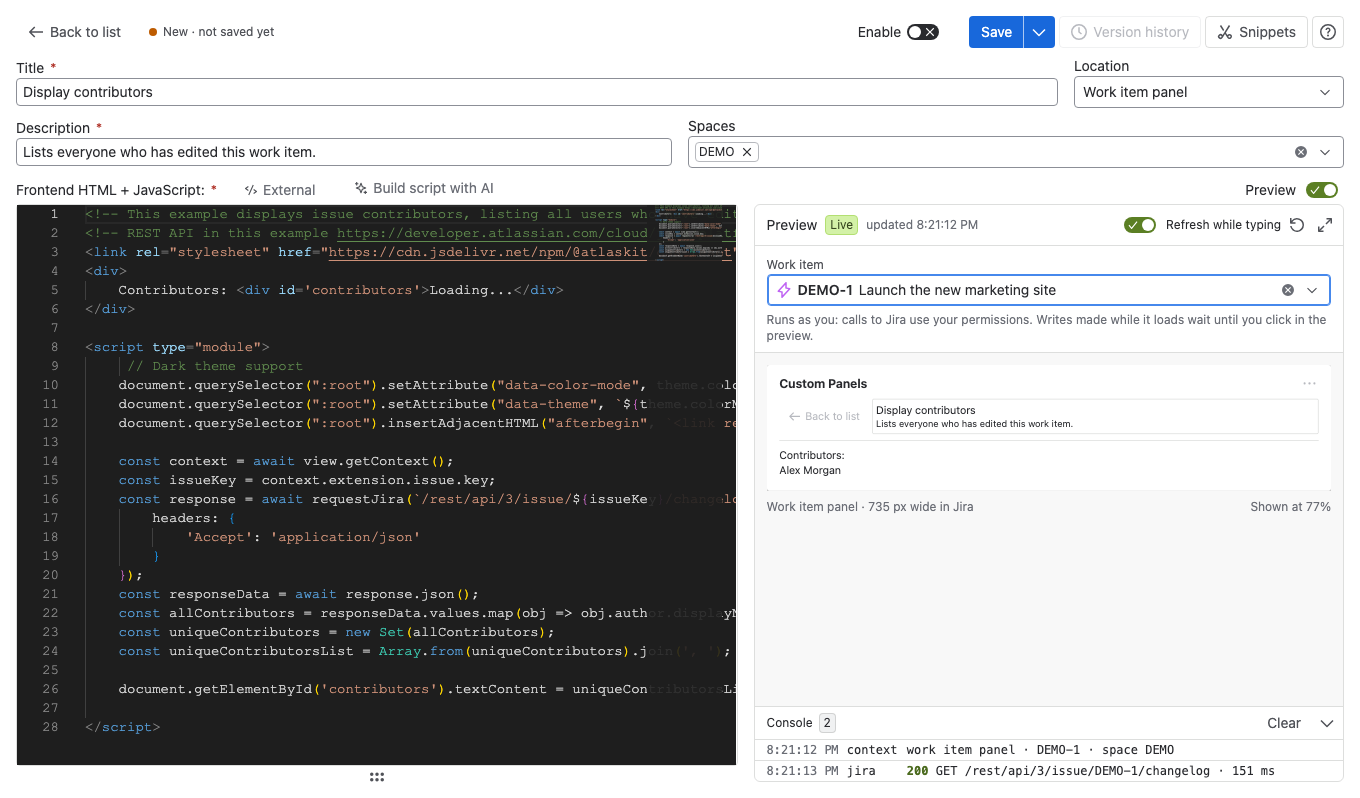
-
Turn on Enable, then select Save.
- In Script Master, select the Fragments tab.
- Select the arrow next to Create fragment (More ways to create), then From a template. The Start from a template dialog opens.
- Select Recent contributors. The editor opens with Location set to Page byline item and the code filled in.
- In Spaces, search for the exact space key, for example
DEMO, and select the space. - In the preview beside the code, pick a Space and a Page. The preview draws the list of recent contributors for that page.
- Turn on Enable, then select Save.
Result: Script Master shows "Fragment saved!" with the version number. The fragment is on, in space DEMO only.
What your team will experience
- In Jira, someone opens a work item in
DEMO, selects View app actions (the icon under the title), then Custom Panels. In Confluence, someone selects Custom Actions under the page title. - Under Select fragment to display:, they select the fragment.
- The list of contributors appears. The code runs as the viewer, so it shows only what that person may see. Back to list returns to the list of fragments.
Check that it works
- Open a work item or page in
DEMOthat several people have changed. - Confirm that the fragment lists those people, as far as you're allowed to see them.
- Open a work item or page in another space. Confirm that you aren't offered the fragment there.
Related use cases
- Require details for urgent work: guide people on the Create form, and block transitions until a field is set.
- Create a fragment: every template and location, and how to change or delete a fragment.
- Preview your code: what the live preview runs against and how it refreshes.