Flag stale work items every night
Add the label stale every night to open work items that nobody has updated for 30 days, so the team can review them in one filter.
Problem: Open work items that nobody touches pile up in the backlog. Nobody notices them until someone runs a clean-up by hand, and that rarely happens.
Solution: You try the search in the Script Console first, as yourself and read-only. Then you run the same search in a scheduled job that labels the work items every night, and you watch its runs in the job's History.
What you'll need
- Script Master for Jira, with an active license. See Get started.
- The Administer Jira global permission.
- A Companion App connected to Script Master. Scheduled jobs run there. See The Companion App.
- A space to clean up, for example
DEMO.
Set it up
1. Check which work items match
-
In Script Master, select the Script Console tab.
-
Replace the script in the editor with this one. It only reads:
const query = new URLSearchParams({jql: 'project = DEMO AND statusCategory != Done AND updated < -30d ORDER BY updated ASC',maxResults: '50',fields: 'summary',});const response = await requestJira(`/rest/api/3/search/jql?${query}`);if (!response.ok) throw new Error(`Jira answered ${response.status}`);const { issues } = await response.json();return issues.map(issue => `${issue.key} ${issue.fields.summary}`); -
Select Run. The Result panel shows an indented list of the work items the job will label, one per line. If no work item matches, it shows
[]. -
If the list holds work items you want to keep, change the JQL until it's right.
2. Create the scheduled job
-
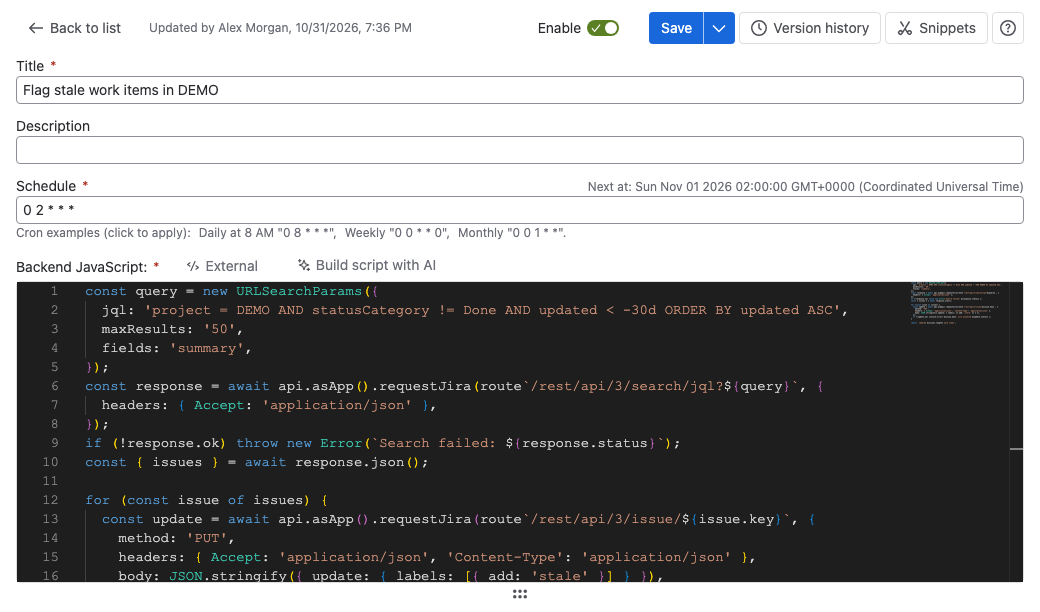
Select the Scheduled Jobs tab, then Create scheduled job.
-
In Title, enter
Flag stale work items in DEMO. -
In Schedule, enter
0 2 * * *. The job then runs every day at 02:00 UTC. Next at: under the field shows the next run in UTC. -
In Backend JavaScript, paste this script, with your JQL from phase 1:
const query = new URLSearchParams({jql: 'project = DEMO AND statusCategory != Done AND updated < -30d ORDER BY updated ASC',maxResults: '50',fields: 'summary',});const response = await api.asApp().requestJira(route`/rest/api/3/search/jql?${query}`, {headers: { Accept: 'application/json' },});if (!response.ok) throw new Error(`Search failed: ${response.status}`);const { issues } = await response.json();for (const issue of issues) {const update = await api.asApp().requestJira(route`/rest/api/3/issue/${issue.key}`, {method: 'PUT',headers: { Accept: 'application/json', 'Content-Type': 'application/json' },body: JSON.stringify({ update: { labels: [{ add: 'stale' }] } }),});if (!update.ok) console.error(`${issue.key}: Jira answered ${update.status}`);}return `Labeled ${issues.length} work items`; -
Turn on Test this Scheduled Job, then select Test. The test runs the script for real, so the matching work items get the label now.
-
Turn on Enable, then select Save.
The job runs as the app, not as you, and labels at most 50 work items a run. Adding the label updates each work item, so it isn't picked up again the next night.
What your team will experience
- Every night, open work items in
DEMOwith no update for 30 days get the labelstale. - The team opens a filter such as
project = DEMO AND labels = staleand closes, updates or keeps each work item.
Check that it works
- On the Scheduled Jobs tab, select ••• > Run in the job's row. The job starts at once, and its run shows in History when it finishes.
- Refresh the list, then select the latest run in the History column. Confirm that its log ends with
return: Labeledand a number, with no errors. - In Jira, search for
labels = stale. Confirm that the work items from phase 1 have the label.
Runs start when Forge next checks the schedules, so a run can start up to an hour after its time.
Related use cases
- Create work items from monitoring alerts: a server script that another system starts.
- Schedule a job with cron: the schedule format, UTC, and when a job really runs.
- Check a job's runs and failures: what each run records.