Preview your code
The live preview runs the code of a fragment, gadget or macro next to the editor, with real data from your site, while you type. Use it to check how the code looks and behaves in its location before anyone else sees it.
Applies to: Fragments in Jira and Confluence, gadgets in Jira, macros in Confluence · Cloud
Before you begin
- You're a Jira admin or a Confluence admin, with a fragment, gadget or macro open in the editor.
- The code calls Jira or Confluence as you, with your permissions. What you see is what someone with your permissions would see.
Show or hide the preview
The preview sits to the right of the code. When the editor area is narrower than 900 px, it moves under the code.
To hide it, select Preview options (the ••• button at the right of the preview's toolbar), then Hide preview. To bring it back, select Show preview above the code. Your browser remembers the choice for every editor. A hidden preview runs nothing.
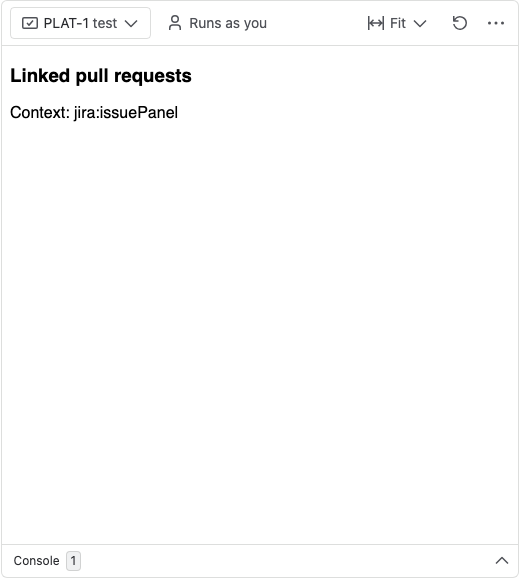
The toolbar
One row above the content holds every control:
| Control | What it does |
|---|---|
| The work item, space, page or dashboard | Shows what the code runs against. Select it to change the pick. See Pick what the preview runs against |
| Runs as you | Explains the two rules of the preview: calls use your permissions and your data, and writes wait for you. It opens by itself the first time you use the preview in a browser |
| Fit | The width. Fit the panel shows the content at 100%, as wide as the preview. Jira width or Confluence width shows it at the location's real width in pixels, scaled down to fit when needed. The button then shows the percentage |
| Run again (the refresh icon) | Loads the preview again |
| Preview options (•••) | Refresh while typing, Show Jira's frame or Show Confluence's frame, and Hide preview |
Show Jira's frame (or Show Confluence's frame) draws the location around your code, for example a work item panel with its Custom Panels heading, a gadget card or a page title. It's off at first. Your browser remembers the width and the frame choice.
Pick what the preview runs against
The code gets the same context it gets in its real location. When nothing is picked yet, the preview asks, for example, "Which work item should it run with?", and shows the fields there. After that, select the pick at the left of the toolbar to change it. The fields open under the toolbar:
| Kind and location | Fields |
|---|---|
| Fragment, Work item panel or Work item action | Work item: starts with your last pick, or else the work item you viewed last in the fragment's spaces |
| Fragment, Space page, Space settings page or Queue page (Jira) | Space |
| Fragment, Space page or Space settings page (Confluence) | Space |
| Fragment, Page action or Page byline item | Space, then Page |
| Gadget | Dashboard, Gadget on it, Column and Show title. See Create a gadget |
| Macro | Space, Page and Max height. See Create a macro |
Your browser remembers the picks for each item. Script Master doesn't store them.
Refresh the preview
With Refresh while typing on, the preview reloads 0.6 seconds after you stop typing. A thin bar under the toolbar moves while a reload is waiting. With it off, a Run button takes the place of Run again once the code has changed, so you can see the preview is out of date.
Changing the title or description doesn't reload the preview. Changing the code or a pick does.
A saved item that is switched off opens paused, because its code may never have run. This covers every import, which arrives switched off. Read the code, then select Run preview to start it.
Writes wait for you
Code that changes data could run on every keystroke. So while the preview loads, it holds calls that change something and doesn't send them. That covers POST, PUT, PATCH and DELETE calls, apart from a few POST calls that only read, such as a JQL search.
A bar under the toolbar says how many writes are held and names the first, for example 1 write held: POST /rest/…. The console lists each held call as held. To send them:
- Select or type inside the preview. From then on, writes go through, as they would when someone presses a button in your code.
- Or select Run with writes in the bar. The preview loads once more with writes allowed from the start.
Writes in the preview are real. A fragment that deletes work item links deletes them on the work item you picked.
Read the console
The Console at the bottom of the preview lists what happened in the last load, newest at the bottom, up to 200 lines. It stays collapsed while all is well, with the number of lines and a red or orange badge for errors and held writes in its header. It opens by itself when a new error or held write arrives. Select the arrow in its header to open or collapse it.
console.log,info,warn,erroranddebugoutput from your code.- Each call to Jira or Confluence, with its method, path, status and time in milliseconds.
- Errors, with a Line button that jumps to the line in the editor.
- Bridge calls that the preview handles itself.
view.refresh()androuter.reload()reload the preview, and the preview ignoresview.submit().router.navigate()opens a new browser tab, so the editor stays open.
Select Clear to empty it.
When the code fails
When the code throws an error or leaves a promise rejection unhandled, the preview shows what went wrong:
- If nothing rendered, a card says, for example, Fails at line 2, with the error and what viewers would see. Select Go to line 2 to jump to it, or Run again. The console opens with the error.
- If the code rendered something first, the content stays and a short warning sits above it.
- If the code doesn't finish loading within 20 seconds, the card says Still loading.
The failing line is also marked in the editor with "Preview failed here".
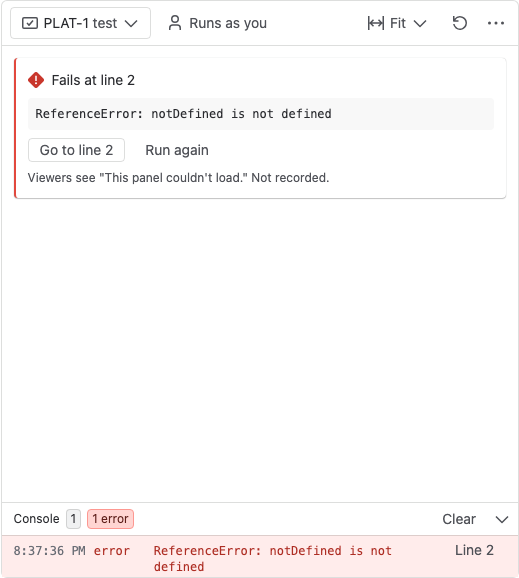
Preview failures aren't recorded on the item. Failures that viewers hit are. See Failures.
Related
- Create a fragment: fill in a fragment and turn it on.
- Write fragment code: the globals and context your code gets.
- Create a gadget: preview a gadget on one of your dashboards.
- Create a macro: preview a macro on a page, and why it gets no macro body there.