Clone a space
Create a new space that holds a copy of another space's page tree, for example to reuse a template space or branch a documentation set. On the Tools page, this is Clone Space.
Applies to: Script Master for Confluence · Cloud
The tool creates the space, copies the source home page and everything below it, then makes the copy the new space's home page.
Before you begin
- Confluence permission: permission to create a space, and to view the source space.
- App permission: Clone Space is available to you. It's available to all users unless an admin changed that. See Set who can use each tool.
- A free space key. Archived spaces keep their keys.
Clone Space copies the page tree, and by default its attachments, page restrictions, labels, content properties and app content. It doesn't copy comments, the space theme, space templates or space permissions. See What Clone Space copies.
Clone the space
-
Go to Apps > Script Master Tools, then select Clone Space.
-
In Source space, type the space key and pick the space. The picker matches keys, not names.
-
In New space key, enter a key for the new space. Use letters and numbers only. It has to differ from the source key.
-
In New space name, enter a name.
-
Under What to copy, leave the options on or switch off what you don't want: Copy attachments, Copy page restrictions, Copy labels, Copy content properties and Copy app content.
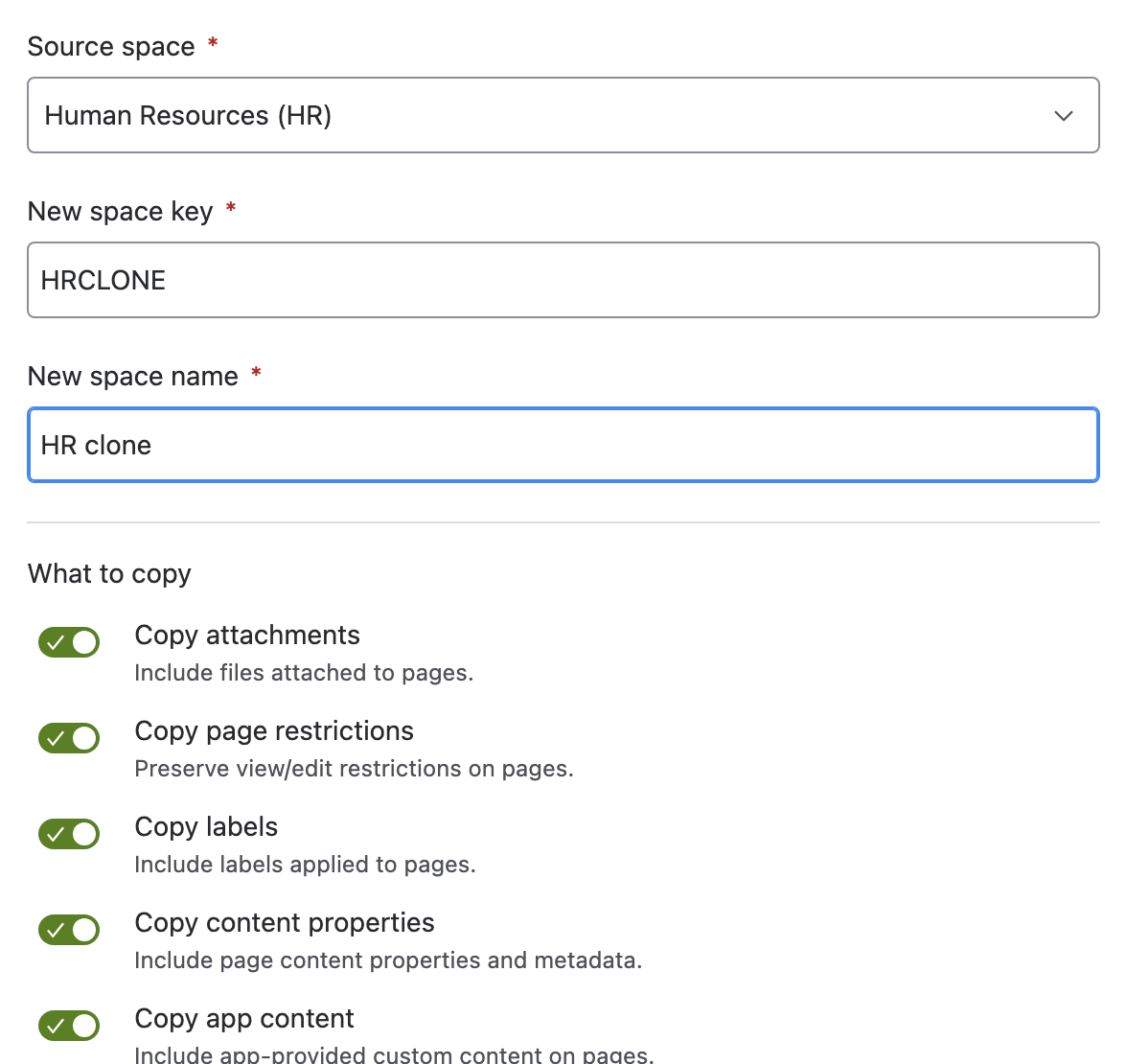
-
Select Check space. The tool reads the source and checks the key, and writes nothing yet.
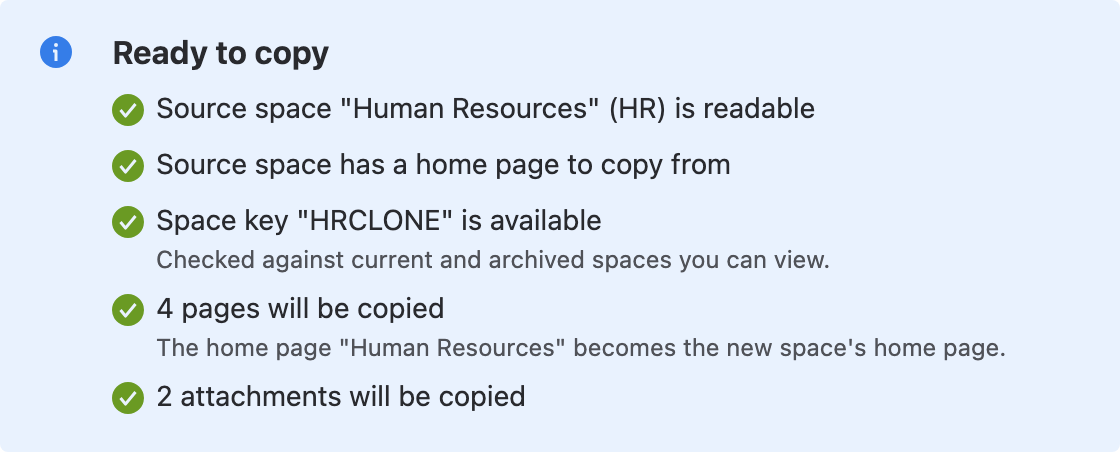
-
Select Copy space. A progress bar shows while Confluence copies the pages.
warningSpace permissions aren't copied. The new space gets the permissions any new space gets on your site, so it can be visible to more people than the source. Check its permissions before you share the space.
Result: Space copied appears with the new space's name and key. Select Open the new space to go to it.
Keep the tab open until the copy ends. If you close it, Confluence carries on copying, but Clone Space can't finish setting up the home page.
Links between pages in the copied tree still point at the source space. Fix them by hand, or keep the source as the space people use.
What the check tells you
Only a red line blocks the copy. A warning doesn't.
| Check | What it means |
|---|---|
| Source space "name" (KEY) is readable | The source exists and you can see it. A space you can't see reads as not found, which blocks the copy. |
| Source space has a home page to copy from | The copy starts at the home page. A space without one blocks the copy. |
| Space key "KEY" is available | Checked against current and archived spaces you can view. A taken key blocks the copy. |
| N pages will be copied | The home page and every page below it. Above 500 pages this is a warning: the copy takes a while. |
| N attachments will be copied | Shown when Copy attachments is on. Above 1,000 files it warns that the copy is slow and uses storage. |
If the tool can't read a count, the line says the number is unknown. You can still run the copy.
The check can't tell whether you're allowed to create a space. Creating the space is the copy's first step, so a missing permission stops it before anything is created.
If the copy doesn't end cleanly
The space was created, but the pages weren't copied. The screen names the new space and offers Open the space and Delete the empty space. Nothing is deleted unless you select that button. If deleting fails, delete the space from Confluence's space settings.
Space copied, with one thing left to do. Every page was copied, but the new space kept its default home page, with your copied tree one level below it. See A clone kept its default home page.
Undo a clone
A finished clone has no undo in the tool. To remove it, delete the new space in Confluence.
Related
- What Clone Space copies: item by item, what the copy keeps and drops.
- Clone Space says the space key is already taken: how to free a key or pick another.
- Tools limits and behavior: retries and what a stopped run leaves behind.