Create a macro
Create a macro so page editors can insert your own block into Confluence pages. You write the code, check it on a page in the live preview, then turn it on.
Applies to: Script Master for Confluence · Cloud
Before you begin
- Confluence permission: Confluence admin. Only Confluence admins can open Script Master.
- App permission: an active Script Master license. Without one, you can't create macros.
- The site has fewer than 100 macros.
Open the editor
-
In Script Master, open the Macros tab. On a narrow window it can sit under More.
-
Choose how to start:
- Select Create macro for an empty editor.
- Select the arrow next to Create macro (More ways to create) > From a template > Add labels.
- Select the arrow > Import to paste a macro exported from another site. See Import, export and duplicate.
Before the first macro, the tab shows Create macro, From a template and Import as separate buttons.
The editor opens. A template fills in the title, description and code.
Fill in the macro
-
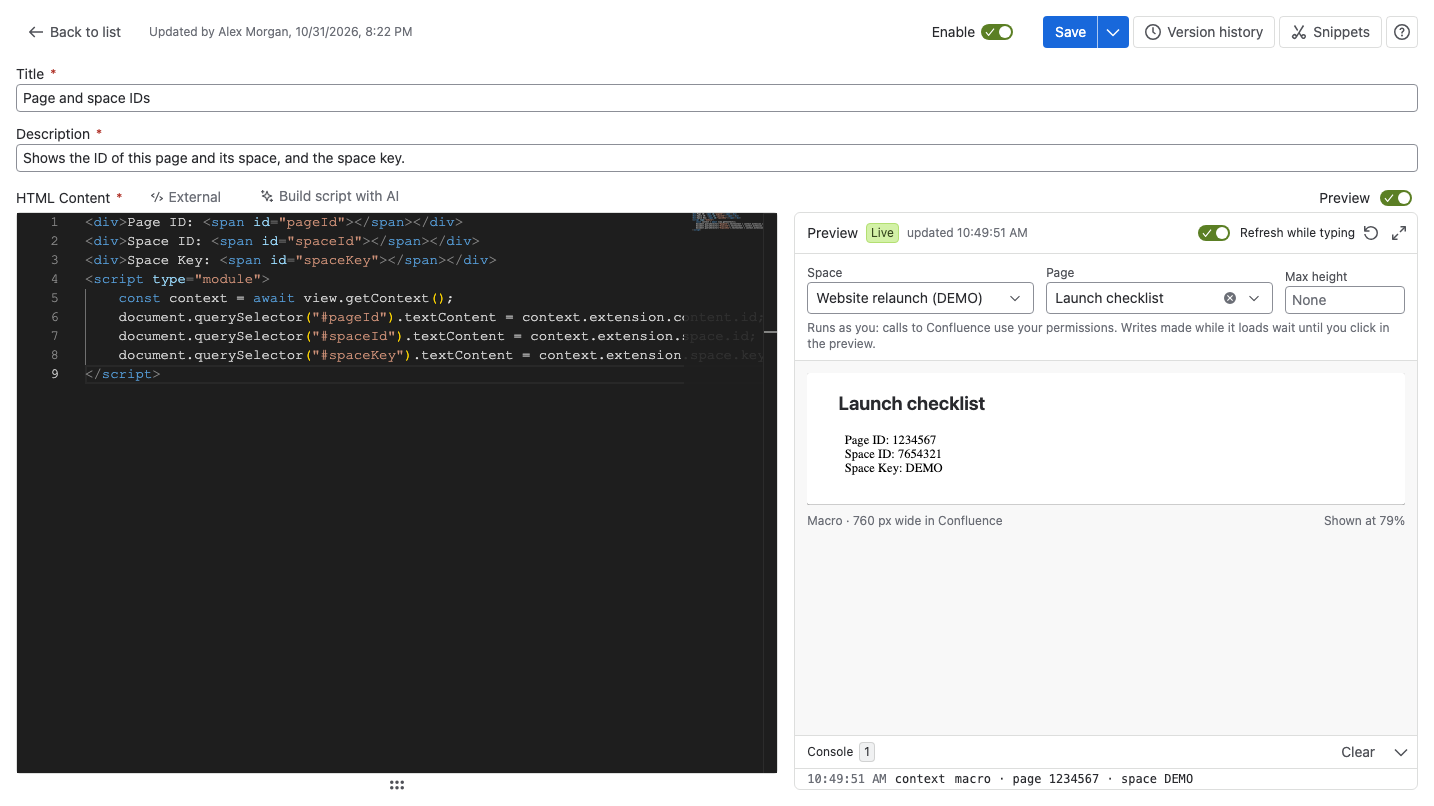
In Title, enter the name page editors see when they pick a macro. Up to 128 characters.
-
In Description, say who the macro is for and how to use it, for example what to type in the macro body. Up to 256 characters.
-
In HTML Content, write the macro's code. Put JavaScript in
<script>tags. See Write fragment code, which applies to macros too.
All three fields are required.
Check it in the preview
The preview beside the code runs the macro. Set what it runs against in the fields the preview shows, or later by selecting the pick at the left of its toolbar. To see the macro on a page, turn on Show Confluence's frame in Preview options (•••):
| Field | What it sets |
|---|---|
| Space | The space in the macro's context |
| Page | The page in the macro's context. Pick a space first, then search by title |
| Max height | A height cap in pixels, as an editor would set it. Leave it empty for none |
The preview never passes a macro body. If your code reads context.extension.config.macroBody, it gets nothing here, so make the code handle that. See The macro body.
Writes in the preview wait until you select something inside it, and then they're real. See Preview your code.
Save and turn it on
- Select Save, or press
Ctrl+S(Cmd+Son a Mac). To add a note to this version, select the arrow next to Save > Save with note…. - Turn on Enable at the top of the editor.
- Select Save again.
Result: Script Master shows "Macro saved!" with the version number. Page editors can now pick it in Custom Macro. See Add a macro to a page.
Change or remove a macro
In the Macros tab, select the macro's name to open it. Each row's ••• menu also has Version history…, Turn on or Turn off, Duplicate, Export and Delete….
To delete a macro:
-
In the macro's row, select ••• > Delete….
-
Select Delete to confirm.
warningDeleting can't be undone. Pages that use the macro can no longer show it, and its failure record and version history go with it.
Result: The macro is gone from the list.
Related
- Macros: the macro body, context fields, and what pages show when a macro is off.
- Preview your code: the status, the console and held writes.
- Version history: compare and restore earlier versions.
- Failures: what the list and editor show when a macro fails.