Add a macro to a page
Add a Script Master macro to a page to show content your Confluence admin built. You insert Confluence's Custom Macro, then pick which Script Master macro it shows.
Applies to: Script Master for Confluence · Cloud
Before you begin
- Confluence permission: permission to edit the page.
- App permission: none. A Confluence admin has created a macro in Script Master and turned it on. See Create a macro.
- If the macro reads a macro body, check its description for what to type.
Add the macro
-
Open the page for editing.
-
Type
/, search forCustom Macroand insert it. Macro Configuration opens.
-
In Select Macro, pick a macro.
-
In Macro Body, type the input the macro expects, if any.
-
In Maximum height (px), enter a height cap, or leave it blank to fit the content. Taller content scrolls inside the macro.
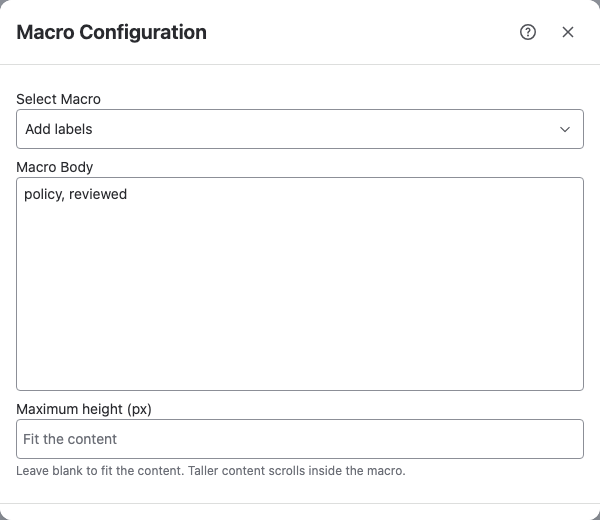
-
Select Save, then publish or update the page.
Result: While you edit, the macro shows Selected Macro: with its title and description. On the published page, it shows its content to everyone who views the page.
If the macro shows "No custom macro selected", select it and then Edit (the pencil icon) to open Macro Configuration.
To change the macro or its body later, edit the page, select the macro and select Edit.
If the macro shows a message
| Message | What it means |
|---|---|
| A warning in Macro Configuration that the macro is no longer available | The macro was switched off or deleted. Pick another one |
| Macro disabled | A Confluence admin switched the macro off in Script Master |
| Macro error | The macro can't load, for example because it was deleted |
| "This macro couldn't load." | The macro's code failed. Your Confluence admin has been told. See Failures |
Related
- Macros: how macros work and what the macro body is for.
- Create a macro: for Confluence admins.