Plan a release on a Confluence page
Keep a release schedule and its milestones on the planning page, where the team updates dates in seconds.
Problem: Release dates move every week. A screenshot of a planning tool on the page is out of date the day after it's pasted.
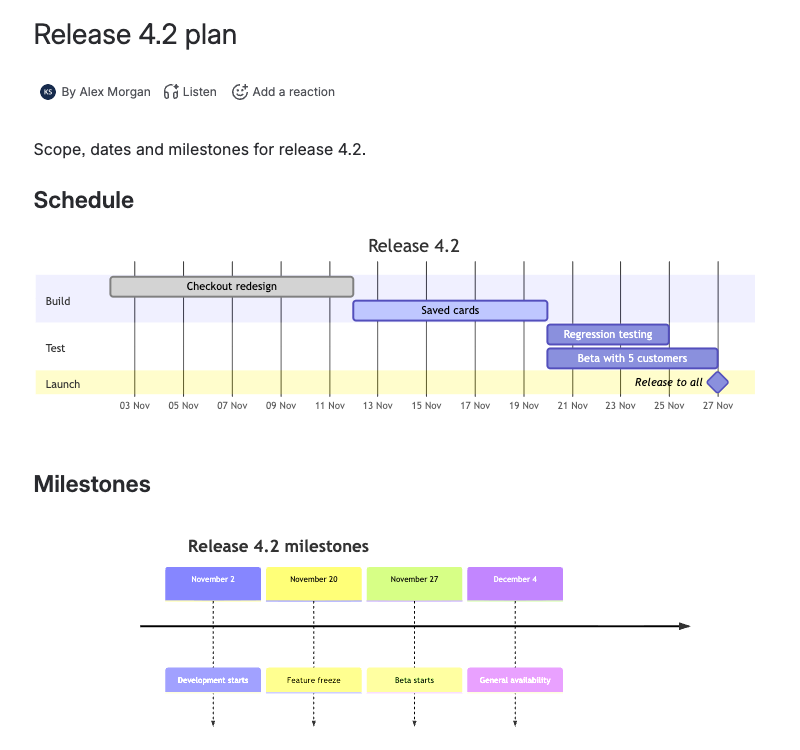
Solution: Draw the schedule as a Gantt chart and the milestones as a timeline in Mermaid Diagram macros. Moving a date means changing it in the code.
What you'll need
- Mermaid Diagrams Macro for Confluence, installed on your site. See Get started.
- Permission to edit the page.
Set it up
1. Add the schedule
-
Open the page, select Edit, type
/mermaidunder a "Schedule" heading, and select Mermaid Diagram. -
Select Create diagram > Start from a snippet > Gantt Diagram: Release Plan > Insert.
-
Change the tasks and dates. Each task has a name, optional tags, an ID, a start and a duration:
gantttitle Release 4.2dateFormat YYYY-MM-DDaxisFormat %d %bsection BuildCheckout redesign :done, a1, 2026-11-02, 10dSaved cards :active, a2, after a1, 8dsection TestRegression testing : b1, after a2, 5dsection LaunchRelease to all :milestone, m1, after b1, 0dafter a1starts a task when another ends, so later tasks move with it when you change a date.done,activeandmilestonechange how a task is drawn. -
Select Save and close.
2. Add the milestones
-
Add a second macro under a "Milestones" heading.
-
Insert the Timeline Diagram snippet and replace the entries with your milestones, one per line:
timelinetitle Release 4.2 milestonesNovember 2 : Development startsNovember 20 : Feature freezeDecember 4 : General availability -
Under Display size, select Small, select Save and close, and publish the page.
Check that it works
- When a date changes, hover over the Gantt chart and select Edit diagram. Change the date and select Save and close. You don't need to put the page in edit mode.
- Export the page to PDF from Confluence. The PDF shows the first diagram of each macro as an image.
Always set dateFormat in a Gantt chart. The chart renders without it, but Mermaid may read your dates differently than you mean.
Related
- Supported diagram types: Gantt, timeline, Kanban and more.
- Edit a diagram: display sizes, errors and saving.
- View and export diagrams: full screen, PNG and SVG for status reports.