Create a scheduled job
Write a script, give it a cron schedule and turn it on, so it runs by itself, for example every night or every Monday.
Applies to: Script Master for Jira and Script Master for Confluence · Cloud
Before you begin
- Jira or Confluence permission: Jira admin (the Administer Jira global permission) or Confluence admin.
- App permission: an active Script Master license.
- A configured Companion App. Without it, the job doesn't run. See Set up the Companion App.
- Fewer than 5 scheduled jobs on the site. From 4 jobs on, the list shows how many are left, for example 4 of 5 scheduled jobs used · 1 left.
Create the job
-
In Script Master, select the Scheduled Jobs tab.
-
Select Create scheduled job. The editor opens, marked New · not saved yet.
-
In Title, enter a name other admins will understand, for example
Weekly overdue report. -
In Description, say what the job does. Other admins see it in the list.
-
In Schedule, enter a cron expression in UTC, for example
0 8 * * 1for every Monday at 08:00 UTC. You can also select one of the Cron examples (click to apply): under the field. Next at: under the field shows the next run in UTC. See Schedule a job with cron.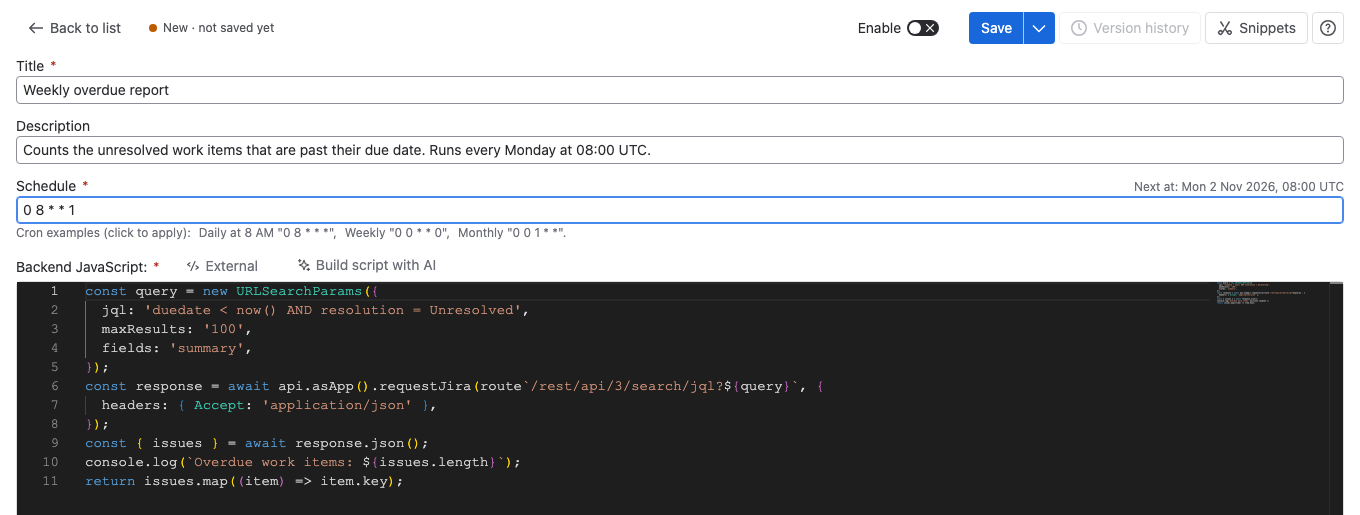
-
In Backend JavaScript, write the script. For example, this one counts the overdue work items in Jira:
const query = new URLSearchParams({jql: 'duedate < now() AND resolution = Unresolved',maxResults: '100',fields: 'summary',});const response = await api.asApp().requestJira(route`/rest/api/3/search/jql?${query}`, {headers: { Accept: 'application/json' },});const { issues } = await response.json();console.log(`Overdue work items: ${issues.length}`);return issues.map((item) => item.key); -
Turn on Enable, then select Save.
Result: The flag Scheduled Job saved! appears. In the list, the Schedule column shows when the job runs next, and each run appears under History.
A job that isn't switched on is saved but never runs on its schedule. Turn it on later with its switch in the Status column.
Save with a note
Each save that changes the title, description, schedule or script adds a version to the job's version history. To say what changed, select the arrow next to Save, then Save with note…. See Version history.
Other ways to start
- Snippets in the editor has working examples to copy, such as Jira REST API or Confluence REST API.
- Build script with AI points an AI assistant to the Scheduled Jobs AI prompt.
- The arrow next to Create scheduled job opens Import, for a job exported from another site. It arrives switched off. See Import, export and duplicate.
Related
- Schedule a job with cron: the cron format and the hourly check.
- Test or run a job now: try the script before you rely on the schedule.
- Check a job's runs and failures: what each run records.