Write the field script
Add or change the script of a scripted custom field. The script belongs to one field context, so a field with two contexts has two scripts.
Applies to: Script Master for Jira · Cloud
Before you begin
- Jira permission: Jira admin (the Administer Jira global permission).
- The field exists. See Create a scripted custom field.
- A Jira admin has set up the Companion App, so your script can run. See Set up the Companion App.
Open the field context
-
In Script Master, open the Custom Fields tab.
-
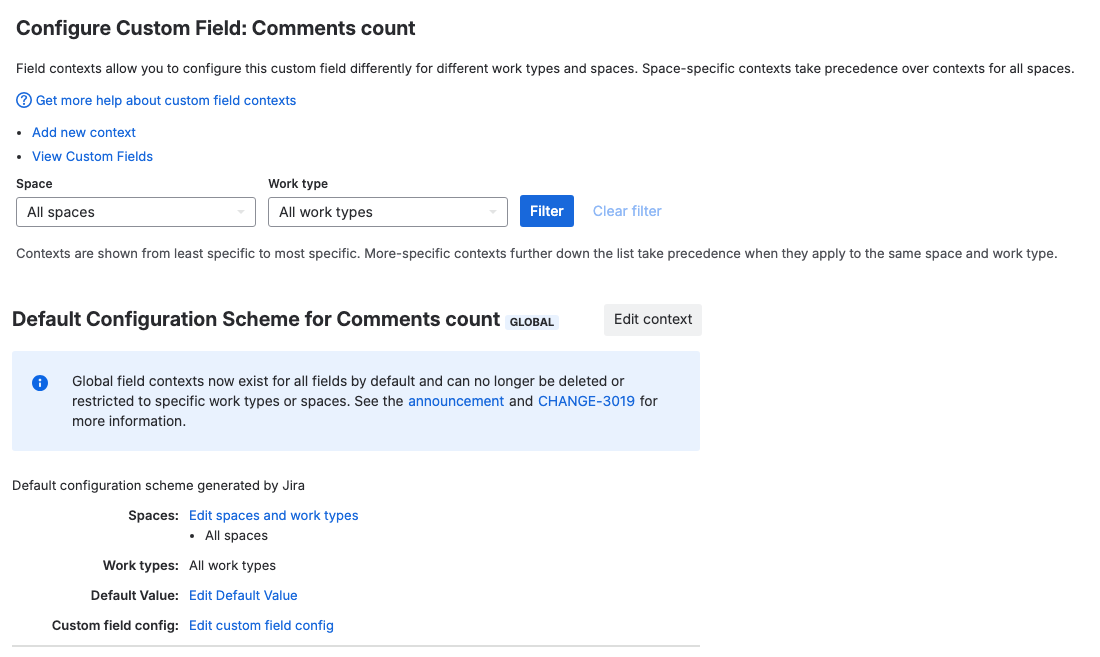
In the field's row, open Actions and select Contexts and default value. Jira's page with the field's contexts opens in a new tab.
-
In the context you want, select Edit custom field config. The Script Master editor opens, titled with the field's name and ID, for example Comments count (customfield_10050), with the field type under it.
Write and save the script
-
In Backend JavaScript, write the script. It must
returna value of the field's type.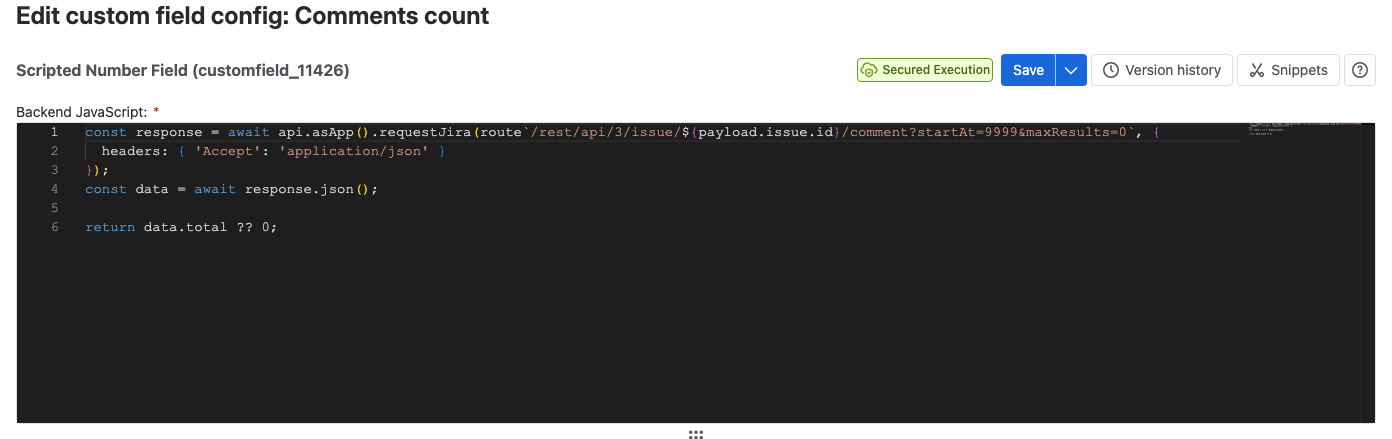
-
To start from an example, select Snippets and select one, for example Number: Comments count. Copy its code with the copy button, close the library, and paste the code into the editor.
-
Optional: check the result on real work items with Preview on work items below the editor. See Preview a field on work items.
-
Select Save, or press Ctrl+S (Cmd+S on a Mac).
Result: A Configuration saved message shows the new version number, for example v3. Jira uses the script the next time someone opens a work item that shows the field.
To describe the change for later, select the arrow next to Save, then Save with note…. The note can be up to 200 characters and appears in the version history.
Snippets for field scripts
| Snippet | What it shows |
|---|---|
| Script Globals Overview | The variables a field script can use |
| Get the current work item context | How to read payload and log the work item and field IDs |
| Number: Comments count | The number of comments on the work item |
| String: Parent Status | The status of the parent work item |
| User: Parent Assignee | The assignee of the parent work item |
| DateTime: Last update of the parent work item | When the parent work item last changed |
Go back to an earlier version
Every save is a version. Select Version history to compare versions and restore one. See Version history.
Version history only records saves made in this editor. A change made another way, for example through the Jira REST API, isn't recorded.
Related
- Scripted custom fields: return values for each field type, and what
payloadholds. - Preview a field on work items: run the code before you save it.
- Forge API for server-side scripts: the
api,routeandfetchcalls a script can make.