Preview a field on work items
Run the code in the editor, saved or not, on real work items and see what the field would show. The preview puts each new value next to the value Jira shows now, so you find errors and slow scripts before you save.
Applies to: Script Master for Jira · Cloud
Before you begin
- Jira permission: Jira admin (the Administer Jira global permission).
- A Jira admin has set up the Companion App. Without it, Run preview is off and the panel says Scripts can't run on this site yet. See Set up the Companion App.
- The field context is open in Script Master. See Write the field script.
Run the preview
-
Below the editor, find the Preview on work items panel. Next to the title, Unsaved code means the editor has changes you haven't saved.
-
In JQL, keep the query or change it. It starts with the spaces and work types this context covers, recently updated first. A global context starts with the work items updated in the last 30 days, for example
updated >= -30d ORDER BY updated DESC. -
In Sample, choose how many work items to run: 10, 25 or 50.
-
Optional: in Always include, pick a work item that must be part of every run.
-
Select Run preview. Rows fill in as the work items run. Select Cancel to stop.
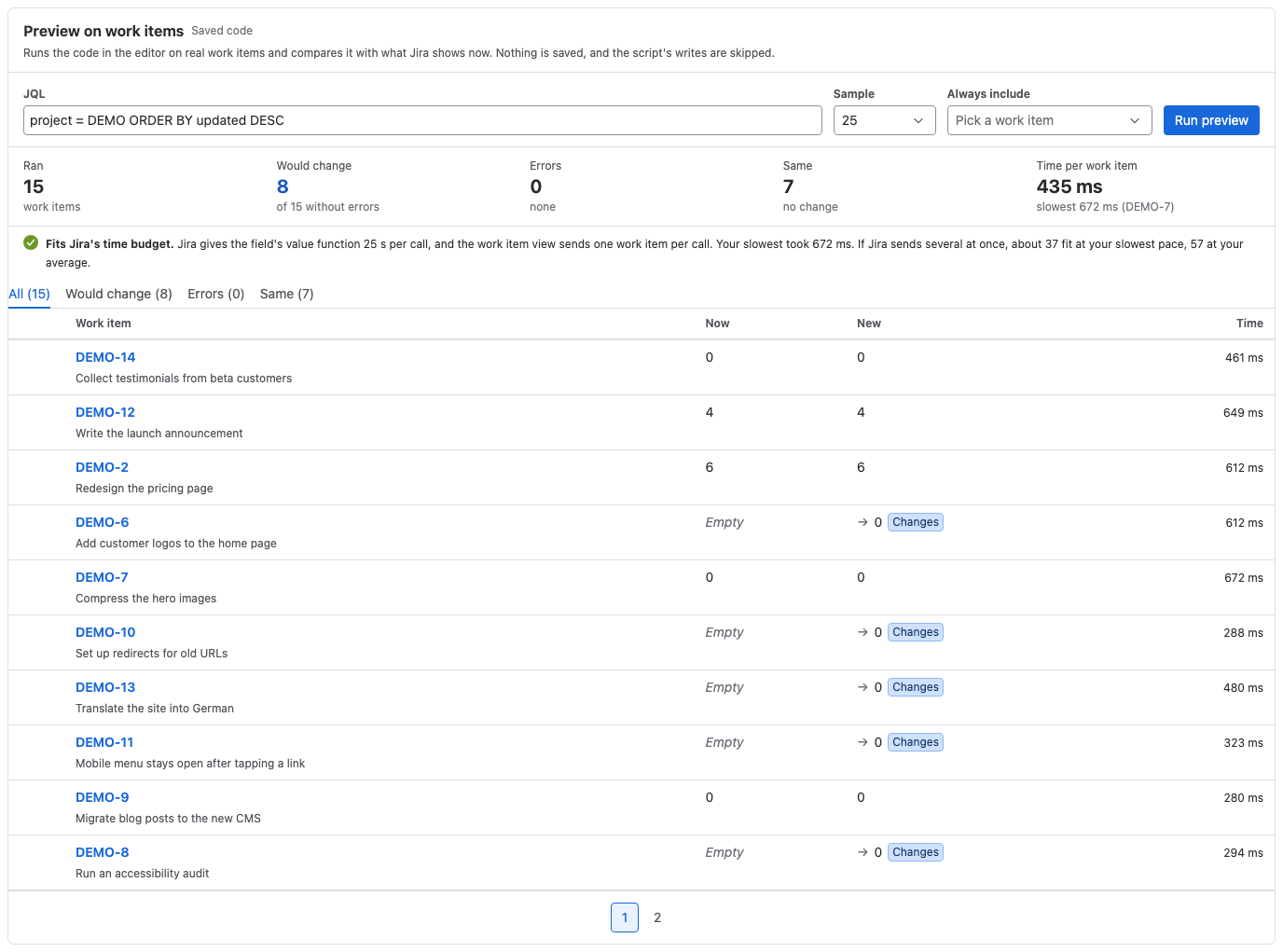
Result: The summary counts the work items that Ran, Would change, had Errors or stayed the Same. It also shows the Time per work item.
Read the results
The table has a tab for each outcome: All, Would change, Errors and Same. It shows 10 work items per page.
| Column | What it shows |
|---|---|
| Work item | The key and summary. Always included marks the work item you picked. |
| Now | The value Jira stored the last time it computed the field. It can be out of date. |
| New | The value your code returns. Changes marks a value that differs from Now. |
| Time | How long the work item took |
When a row has console output, select the arrow at the start of the row to see it.
For an error, the row shows the message and its line. Select Go to line to jump to that line in the editor.

Below the summary, a line compares your times with Jira's limit of 25 seconds per call. It reads Fits Jira's time budget., Close to Jira's time budget. when a work item took 10 seconds or more, or Too slow for Jira.
What the preview doesn't do
- It doesn't save anything. Jira keeps its values, and Script Master records no run history or version.
- It skips writes. When the script tries to change data, the preview sends nothing and gives the script an empty response instead. The row and a warning say how many writes it skipped. Reads and searches go through.
- It only runs work items of this context. Work items that use another context of the field are left out, and the panel lists them.
- It searches with your permissions. Work items you can't see don't appear.
The write check catches mistakes, but it isn't a sandbox. A script written to get around it can still change data. Preview only code you trust.
When the preview stops
| Message | What it means | What to do |
|---|---|---|
| The code doesn't compile, so no work item ran | The code has a syntax error. Saved like this, the field shows nothing on every work item. | Select Go to line and fix the error. |
| Your Companion App didn't answer | The Companion App didn't respond, so the run stopped. | Select Run again, or Check it in Settings. |
| No work items to run | The JQL found nothing, or only work items of another context. | Change the JQL, or select Use this context's spaces. |
A single work item that takes more than 22 seconds stops with an error. In Jira, that field would most likely time out and show nothing.
Related
- Write the field script: save the code once the preview looks right.
- Scripted custom fields: what each field type must return.
- Set up the Companion App: set up or check the Companion App.