Test a web trigger
Run a web trigger's script with a sample request and see what it returns, without calling the URL.
Applies to: Script Master for Jira and Script Master for Confluence · Cloud
A test runs the code that is in the editor, saved or not, so you can try a change before you save it. Tests aren't recorded in the web trigger's History, and they work while the web trigger is switched off.
Before you begin
- Jira or Confluence permission: Jira admin (the Administer Jira global permission) or Confluence admin.
- App permission: an active Script Master license.
- A configured Companion App. See Set up the Companion App.
- The web trigger is saved at least once. The test panel appears once the web trigger has a URL.
Run a test
-
On the Web Triggers tab, select the web trigger's title to open it.
-
Under the editor, turn on Test this Web Trigger. The Request: panel opens.
-
Select Generate request example, then GET request example or POST request example with body. The request field fills with a sample request.
-
Change the sample to match what the real caller sends:
method,headers,bodyandqueryParameters.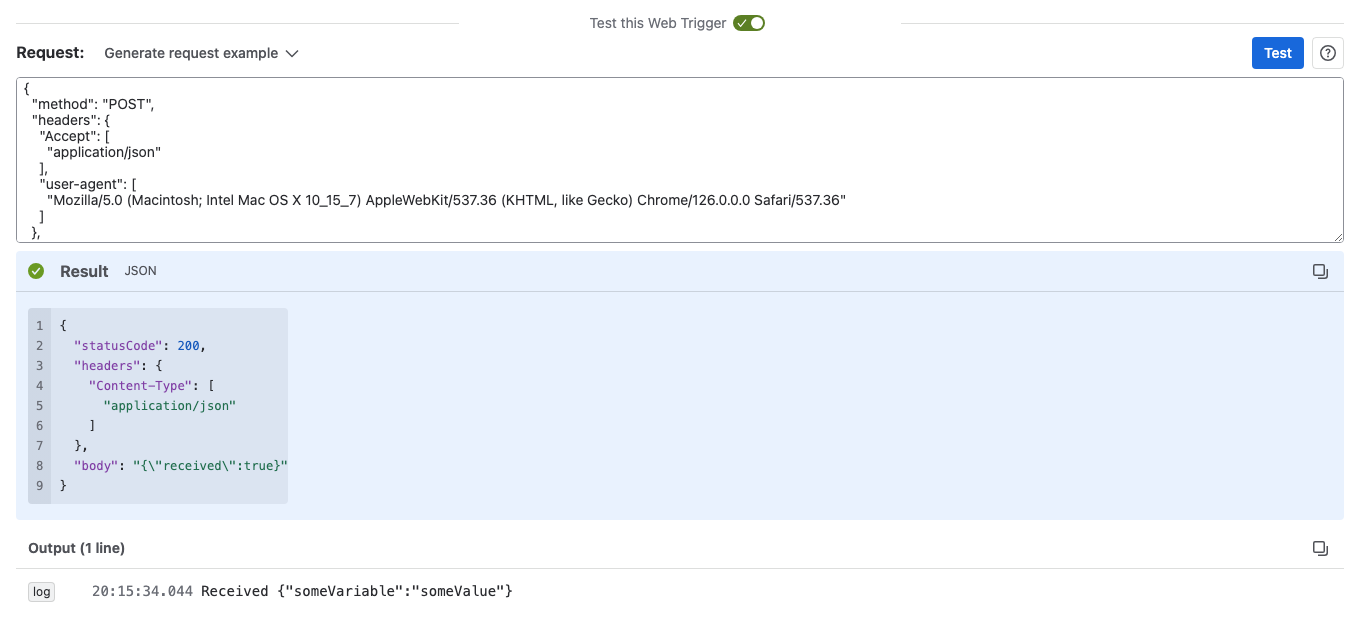
-
Select Test.
warningThe test runs the script for real, as the app. A script that creates or changes work items or pages does so during the test too.
Result: The Result panel shows the object the script returned, with its statusCode. Output lists the lines the script printed. If the script threw an error, or returned anything but an object with a statusCode, a red Error panel explains why instead: a real call would get 500.
This browser keeps the last request you tested, and shows it the next time you open a test panel.
Write the request by hand
The request is JSON with the same shape as the request object your script receives. Header and query parameter values are arrays, and header names are lowercase:
{
  "method": "POST",
  "headers": { "content-type": ["application/json"], "authorization": ["Bearer <your-access-token>"] },
  "body": "{\"key\": \"DEMO-1\"}",
  "path": "",
  "queryParameters": { "id": ["00000000-0000-0000-0000-000000000000"] },
  "context": { "cloudId": "00000000-0000-0000-0000-000000000000", "moduleKey": "web-trigger-key" }
}
| Placeholder | Description |
|---|---|
<your-access-token> | The token your script checks. Use the same value the real caller sends. |
An empty field gives Request should not be empty. Text that isn't valid JSON gives Request should be a valid JSON object. Use "Generate request" for example.
Related
- Web trigger request and response: every field of the request and the response.
- Create a web trigger: save the script and copy its URL.
- Run history: the calls the URL received.